How to Set Up IPTV on Smart TV: Complete 2026 Guide
Smart TVs have made internet-based television much easier to access without requiring an additional streaming box, especially with a premium ArgonTV IPTV service. (If you haven't chosen a service yet, read our IPTV subscription guide to learn what to look for.) Depending on the television you own, you may be able to install an IPTV player directly from the TV's application store and connect it to a compatible playlist or account.
The exact process varies between Samsung, LG, Android TV, Google TV and other Smart TV platforms because each manufacturer uses a different operating system and application ecosystem.
In this complete 2026 guide, you'll learn how to prepare your Smart TV, install a compatible IPTV player, add an M3U playlist or Xtream Codes account, configure the EPG and troubleshoot the most common problems.
How to Set Up IPTV on Smart TV
What You Need Before Setting Up IPTV
Before beginning the installation, prepare the following:
- A compatible Smart TV
- A stable internet connection
- Access to your television's application store
- A compatible IPTV player
- An M3U playlist URL or Xtream Codes credentials from your provider, such as ArgonTV.
- Optional EPG/XMLTV information
The exact requirements can vary depending on the TV operating system and the IPTV player you choose.
If your TV is older and does not provide a suitable IPTV application, an external Android TV or streaming device may be a practical alternative.
Experience Ultimate 4K IPTV Streaming
Upgrade your entertainment with ArgonTV. Enjoy top-tier live sports, movies, and VOD in crystal-clear 4K. Experience zero buffering, anti-freeze technology, and instant delivery directly to all your favorite devices.
View Pricing PlansStep 1: Identify Your Smart TV Operating System
The first step is finding out which operating system your television uses.
The most common platforms include:
Samsung Smart TV
Samsung Smart TVs generally use Tizen.
Applications are installed through the Samsung application ecosystem, and the available IPTV players can vary by model and region.
LG Smart TV
LG Smart TVs generally use webOS.
IPTV applications must be compatible with the version of webOS installed on your television.
Sony, Philips and TCL
Many newer models use Android TV or Google TV.
These televisions generally provide access to the Google Play Store, making it possible to install compatible IPTV players directly.
Other Smart TV Brands
Hisense, Panasonic and other manufacturers can use different operating systems depending on the model and market. You can view our supported devices for compatibility.
Before installing anything, check:
Settings → About → Device Information
Look for the operating system or software platform.
Step 2: Connect Your Smart TV to the Internet
IPTV streaming depends heavily on the quality and stability of your internet connection.
Open the network settings on your TV and connect using either Wi-Fi or Ethernet.
If your router is close enough, Ethernet is usually a good choice for consistent streaming.
If you use Wi-Fi, try to use a strong 5 GHz connection when supported by both your router and TV.
Do not judge your connection only by the speed advertised by your internet provider. The actual connection available to the television is what matters.
Step 3: Open Your TV's App Store
Once your Smart TV is online, open its application store.
Search for a reputable IPTV player that supports your television's operating system.
Depending on your platform and region, the available applications can differ.
Look for a player that supports the playlist or login format provided by your IPTV service.
Common formats include:
- M3U
- M3U Plus
- Xtream Codes API
- XMLTV / EPG
An IPTV player normally does not provide television channels by itself. It is software used to organize and play content from a compatible source.
 Smart TV App Store Interface
Step 4: Install the IPTV Player
Select the IPTV application you want to use and install it.
After installation, open the application.
The first screen may ask you to:
- Add Playlist
- Add User
- Add M3U URL
- Login with Xtream Codes
- Add Portal
The available options depend on the application. For step-by-step app setup instructions across various smart devices, check our official installation guide.
Step 5: Add an M3U Playlist
If your provider gives you an M3U URL, choose the M3U or playlist option.
Paste the complete URL into the application.
Be extremely careful when entering the address.
A single missing character, space or incorrect symbol can prevent the playlist from loading.
After saving the playlist, wait while the application downloads the available categories and channels.
Depending on the playlist size and connection speed, the first synchronization can take some time.
Step 6: Add Xtream Codes Credentials
Some IPTV services provide Xtream Codes credentials instead of a single M3U URL.
Typically, you will receive:
- Server URL
- Username
- Password
Open the Xtream Codes login option inside the IPTV player.
Enter each value exactly as provided.
Check:
- Uppercase and lowercase letters
- Numbers
- Special characters
- Server address
- Username
- Password
Then select Login or Add User.
If the information is correct and the service is available, the application should begin loading the available content.
 Entering Xtream Codes on Smart TV
Step 7: Load Your Channels and Categories
After the playlist has synchronized, the IPTV application may display several categories.
Depending on the service, you may see:
- Live TV
- Sports
- News
- Movies
- Series
- Kids
- Entertainment
- International
- Favorites
- Video on Demand
Large playlists can contain thousands of entries.
Instead of browsing everything, create a Favorites list containing the channels you watch regularly.
This makes the television interface much easier to navigate with a remote control. You can browse our full list of regional and international options on our channels catalog.
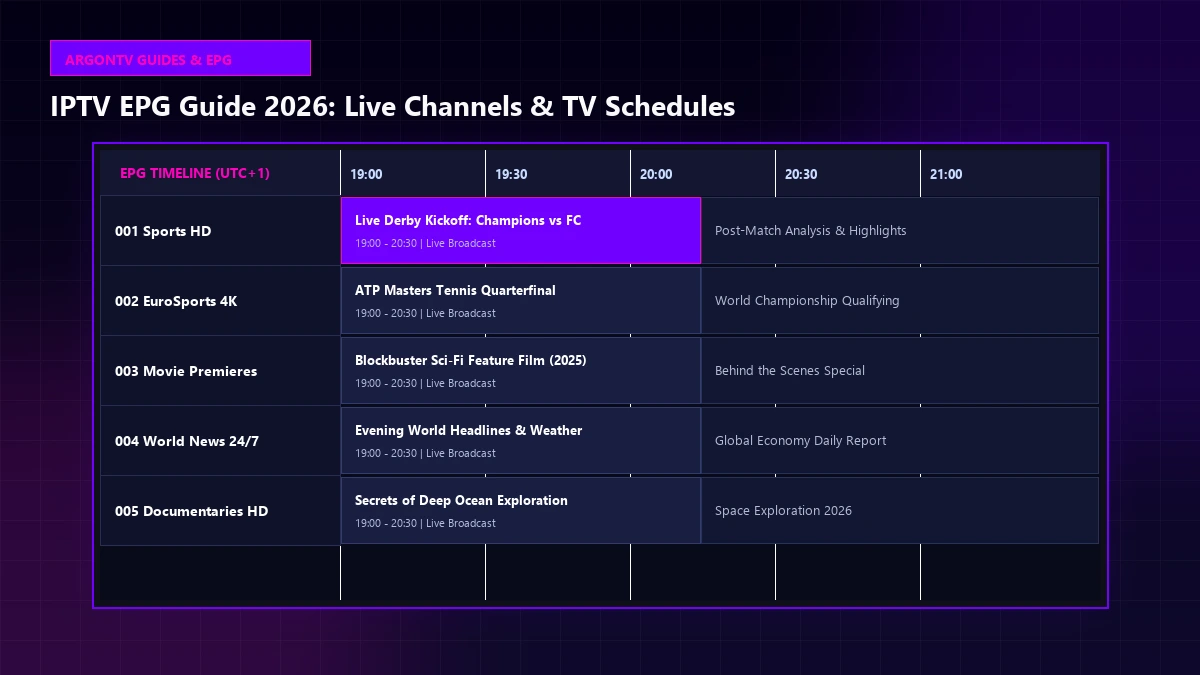
Step 8: Configure the EPG
EPG stands for Electronic Program Guide.
It provides information about current and upcoming programs and gives the IPTV interface a more traditional television experience.
If your provider supplies an EPG or XMLTV URL, add it through the IPTV player's EPG settings.
After adding the guide, perform a refresh if the application provides that option.
If the EPG displays incorrect times, check the following:
- TV time zone
- TV date and time
- IPTV application time-zone settings
- EPG source
- XMLTV configuration
An EPG problem does not necessarily mean that your channels are unavailable.
Experience Ultimate 4K IPTV Streaming
Upgrade your entertainment with ArgonTV. Enjoy top-tier live sports, movies, and VOD in crystal-clear 4K. Experience zero buffering, anti-freeze technology, and instant delivery directly to all your favorite devices.
View Pricing PlansIPTV Setup on Samsung Smart TV
Samsung televisions use Tizen, so the available IPTV applications differ from Android TV.
Start by opening the Samsung application store and searching for compatible IPTV players.
Install a supported application and open it.
Depending on the player, you may be asked to enter an M3U playlist, activate the application, or provide another form of playlist information.
Follow the instructions displayed by the specific application.
If an application is unavailable for your Samsung model or region, do not attempt to install incompatible software.
An external streaming device may provide a simpler alternative.
IPTV Setup on LG Smart TV
LG Smart TVs use webOS.
Open the LG Content Store and search for IPTV players compatible with your TV.
After installing a compatible application, open it and follow its setup process.
Some applications use direct playlist entry while others may require activation or an external playlist-management page.
Always follow the current instructions provided by the application itself.
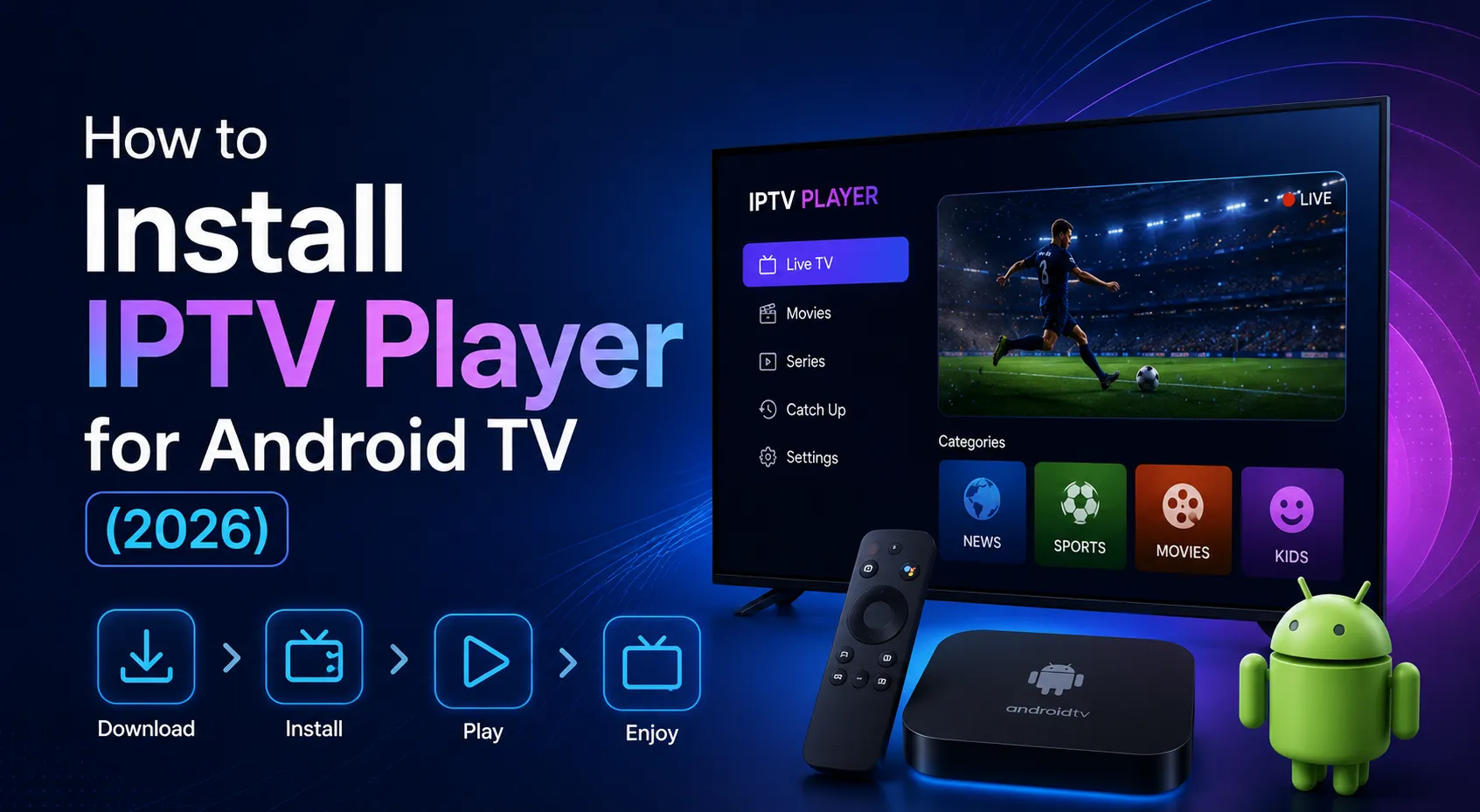
IPTV Setup on Android TV and Google TV
Android TV and Google TV generally offer a wider range of IPTV player applications because compatible apps can be installed through Google Play.
Open:
Google Play Store → Search for IPTV Player → Install
Launch the application and choose either M3U or Xtream Codes depending on the credentials you received.
For a detailed Android TV walkthrough, check out our comprehensive Android TV IPTV setup guide.
IPTV Setup on Other Smart TVs
Not every Smart TV provides the same application ecosystem.
Some models have limited app stores or operating systems that support fewer IPTV players.
If your TV cannot install a compatible IPTV application, you can consider using an external streaming device connected through HDMI.
This can provide access to a larger selection of IPTV-compatible applications.
 Smart TV IPTV Playback Optimization
How to Improve IPTV Streaming Quality on Smart TV
Once IPTV is working, there are several things you can do to improve playback.
Use Ethernet When Possible
A wired Ethernet connection can provide a more consistent connection than Wi-Fi.
This can be especially useful when streaming high-resolution video.
Keep Your TV Software Updated
Check your television for available system updates.
Also keep your IPTV application updated when a trusted update is available, though sometimes app updates can cause issues.
Reduce Network Congestion
If several devices are downloading large files or streaming simultaneously, available bandwidth can decrease.
Pause unnecessary downloads and test IPTV again.
Position Your Router Correctly
If you use Wi-Fi, avoid placing the router behind large objects or inside enclosed furniture.
Reducing the distance between the TV and router can also improve signal quality.
Test Different Channels
If only one channel buffers while other channels play normally, the issue may be specific to that stream rather than your television or internet connection.
Common IPTV Problems on Smart TV
IPTV Channels Are Not Loading
Check:
- Internet connection
- Username and password
- M3U URL
- Subscription/account status
- IPTV player compatibility
- Service availability
If the playlist fails on multiple devices, the issue may not be related to your Smart TV. Refer to our IPTV not working guide for more details.
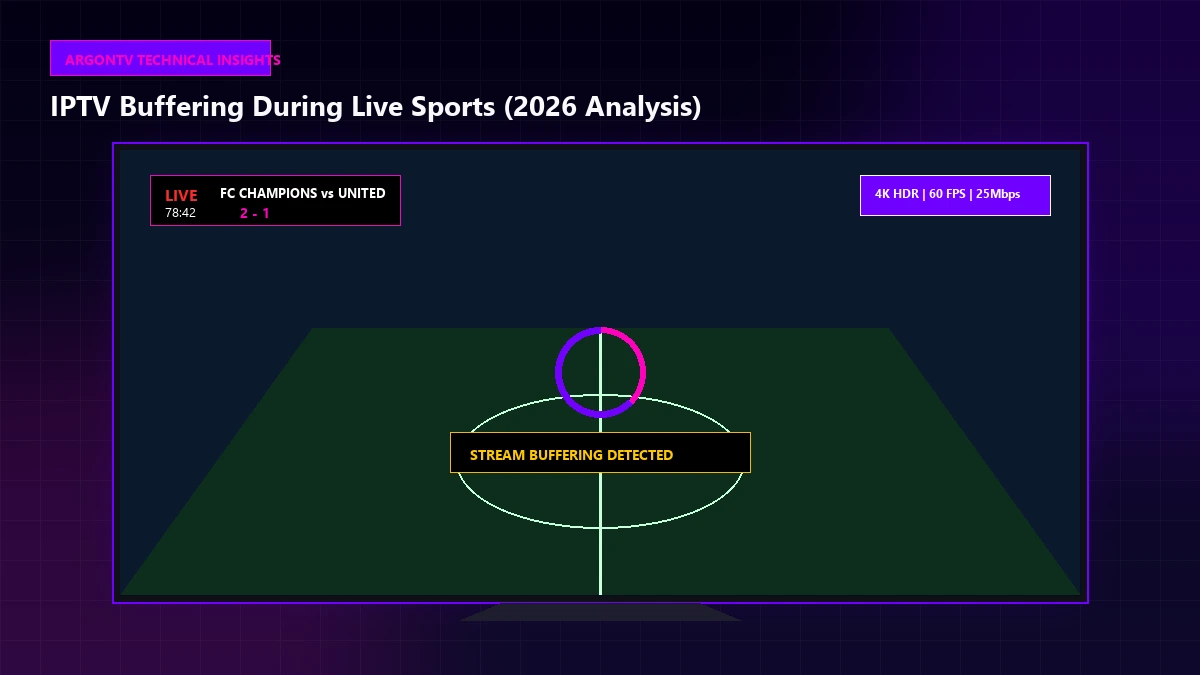
IPTV Keeps Buffering
Try:
- Restarting the TV
- Restarting the router
- Using Ethernet
- Switching to 5 GHz Wi-Fi
- Testing another channel
- Closing unnecessary applications
If every channel buffers, investigate your network connection first. For more technical tips on resolving buffering issues, visit our FAQ section.
EPG Is Empty
Verify the EPG URL and refresh the guide.
Also confirm that the television's date and time zone are correct.
IPTV App Keeps Crashing
Restart your TV.
Then check whether an application update is available.
If the problem continues, clearing the app cache may help on platforms that provide this option.
Avoid deleting application data unless you are prepared to enter your playlist or credentials again.
IPTV Works on One Device but Not the TV
This can indicate:
- App compatibility problem
- TV operating-system limitation
- Incorrect credentials
- Network configuration issue
- Player-specific problem
Try another compatible IPTV player if your TV supports one.
 Smart TV IPTV Troubleshooting Guide
What Internet Speed Do You Need for IPTV?
There is no single speed requirement for every IPTV stream because bitrate, resolution, compression and network conditions vary.
As a practical guideline:
| Streaming Quality | Suggested Connection |
|---|---|
| SD | 5 Mbps+ |
| HD | 10 Mbps+ |
| Full HD | 15 Mbps+ |
| 4K | 25 Mbps+ |
These are guidelines rather than guarantees.
A stable connection with low interruptions is often more important than having a very high advertised speed.
If several devices are streaming simultaneously, additional bandwidth will be useful.
Is IPTV Legal on a Smart TV?
The Smart TV itself does not determine whether IPTV content is legal.
IPTV is a technology used to deliver video over an internet connection.
The legality depends on the content and whether the provider has the necessary rights or licenses to distribute it.
Use legitimate services and authorized content, and check the laws applicable in your country when necessary, or consult our FAQ.
Smart TV vs External Streaming Device for IPTV
A Smart TV can be convenient because you do not need another HDMI device or remote.
However, an external streaming device can be useful when:
- Your TV has a limited app store
- Your TV is older
- A preferred IPTV player is unavailable
- You want a faster interface
- You want to upgrade the streaming experience without replacing the television
The best choice depends on the television you already own and the applications you want to use.
Frequently Asked Questions
Final Thoughts
Setting up IPTV on a Smart TV in 2026 is relatively straightforward once you know which operating system your television uses.
The basic process is:
- Identify your TV platform.
- Connect it to a stable internet connection.
- Install a compatible IPTV player.
- Add your M3U playlist or Xtream Codes credentials.
- Configure the EPG.
- Organize your channels.
- Optimize your network and playback settings.
Samsung, LG, Android TV and Google TV can all provide different setup experiences, so always follow the instructions appropriate for your specific television.
For the best experience, explore ArgonTV. Check out our ArgonTV pricing plans to get started with high-quality streaming today.