How to Set Up IPTV on Android TV in 2026
Android TV makes it relatively easy to turn a television into a flexible streaming device when paired with a reliable service like ArgonTV.
If you want to use an IPTV player on Android TV, the basic process is straightforward: choose a compatible player, install it, add your IPTV playlist or account details, configure the electronic program guide if available, and test playback.
The exact menus can vary between Android TV devices and applications, but the general setup process remains similar.
This guide explains how to set up IPTV on Android TV in 2026 using the two most common playlist methods: M3U and Xtream Codes.
How to set up IPTV on Android TV in 2026
What You Need Before Setting Up IPTV on Android TV
Before starting, make sure you have:
- An Android TV or compatible Google TV device
- A working internet connection
- A compatible IPTV player
- Your IPTV playlist or account details
- Your M3U URL or Xtream Codes information if provided
- Optional EPG information
Your ArgonTV IPTV provider may give you either an M3U playlist URL or Xtream Codes login information.
If you are unsure which method to use, check the setup instructions supplied with your service. It is also important to note that IPTV players generally do not provide channels themselves. They are playback applications that connect to a playlist or service supplied by the user.
Available applications can differ depending on the Android TV version, Google Play availability, the device manufacturer, and overall application compatibility. Do not assume there is one universal IPTV application for every Android TV device.
Experience Ultimate 4K IPTV Streaming
Upgrade your entertainment with ArgonTV. Enjoy top-tier live sports, movies, and VOD in crystal-clear 4K. Experience zero buffering, anti-freeze technology, and instant delivery directly to all your favorite devices.
View Pricing PlansCheck Your Internet Connection
A stable internet connection is important for IPTV streaming.
The required bandwidth depends on the stream quality and bitrate.
As a general guideline:
| Quality | Practical Starting Point |
|---|---|
| SD | 3–5 Mbps |
| HD | 5–10 Mbps |
| Full HD | 10–25 Mbps |
| 4K | 25–50 Mbps+ |
These are practical estimates rather than universal IPTV requirements. Check our Argon IPTV options.
A stable connection is often more important than simply having a high advertised download speed. If your network speed fluctuates frequently, you will likely experience playback issues regardless of your maximum download speed.
If you experience buffering, test the connection directly on your Android TV device.
For more detailed information, be sure to read our troubleshooting guide on IPTV Not Working Today? 10 Things to Check First to help isolate network problems from server issues.
Choose an IPTV Player
Android TV supports many different media and IPTV applications.
When choosing a player, look for features such as:
- M3U support
- Xtream Codes support
- EPG support
- Hardware decoding
- Favorites
- Channel categories
- Search
- Catch-up support where available
- Remote-friendly navigation
There is no single application that is universally the best for everyone. The right player depends on your device capabilities, the specific features you need, and personal preference for user interface design.
If you need help installing players on other devices as well, check out our How to Set Up IPTV on Smart TV: Complete 2026 Guide for a broader look at different platforms.
How to Install an IPTV Player on Android TV
The easiest option is usually to use the Google Play Store when the application is available there.
Step 1: Open Google Play Store
From the Android TV home screen, open Google Play Store using your remote.
Step 2: Search for Your IPTV Player
Use the search function and enter the name of the IPTV application you want to install. You can type it using the on-screen keyboard or use the voice search feature if your remote supports it.
Step 3: Check Compatibility
Make sure the application is compatible with your Android TV device. The Google Play Store usually filters out incompatible apps, but it is always good to verify the app description.
Step 4: Install the Application
Select Install and wait for the application to finish downloading. Depending on your internet speed, this should only take a few moments.
Step 5: Open the Player
Launch the application after installation.
You should normally see an option to add a playlist, account or connection.
 Installing an IPTV player on Android TV
How to Add IPTV Using Xtream Codes
If your provider gives you Xtream Codes credentials, you will normally need three pieces of information:
- Server URL
- Username
- Password
Open your IPTV player and look for an option such as:
"Login with Xtream Codes API"
or:
"Xtream Codes"
Select that option.
Enter the information exactly as provided. It is important to know that Xtream Codes uses an API-based login supported by many IPTV players, making it a very popular method.
Step-by-step
- Open your IPTV player.
- Select Add Playlist or Add User.
- Choose Xtream Codes API.
- Enter the server URL.
- Enter your username.
- Enter your password.
- Select Add User or Login.
- Wait for the player to retrieve the available content.
Depending on the service and player, you may then see categories such as:
- Live TV
- Movies
- Series
- EPG
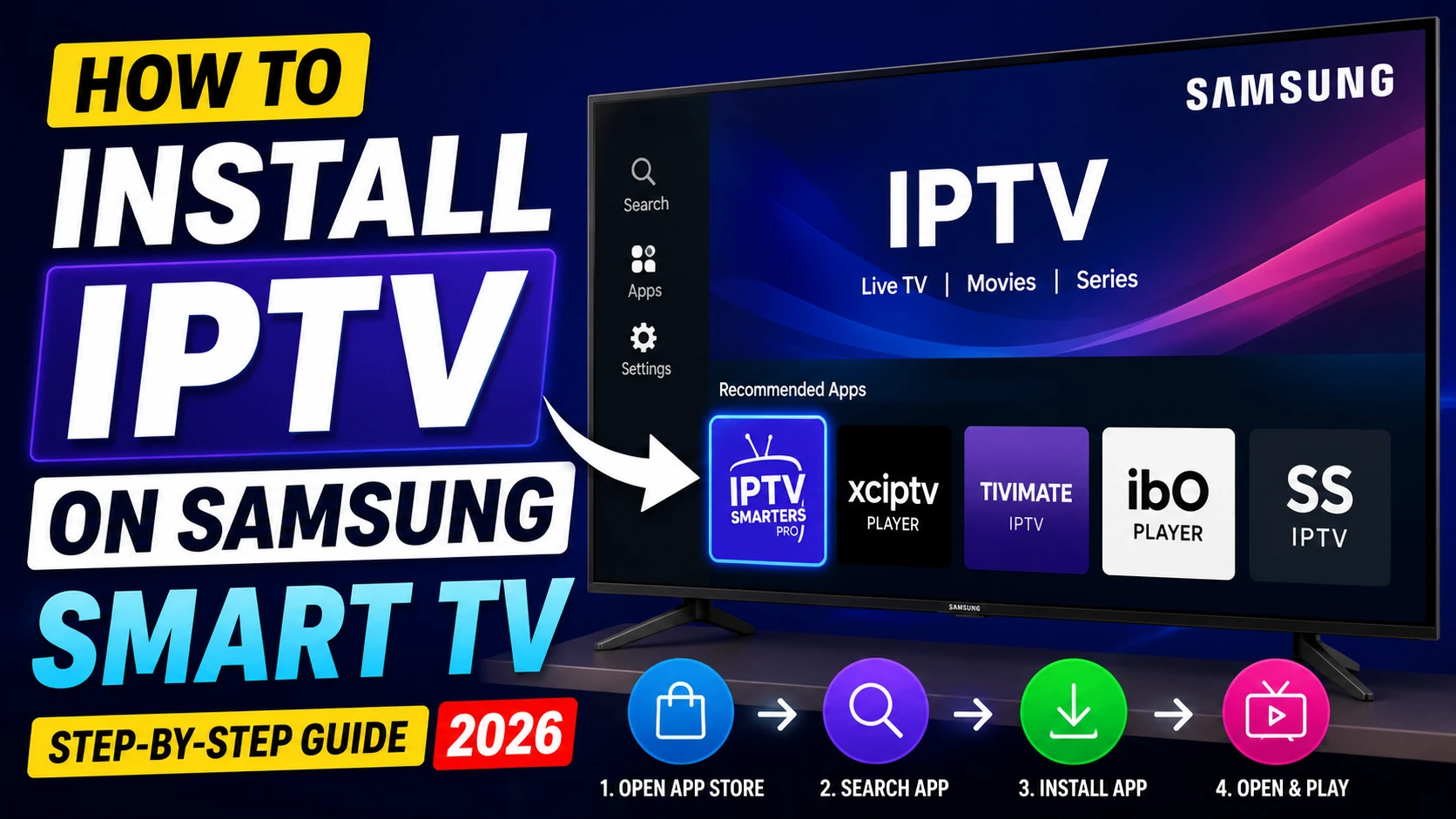 Setting up IPTV with Xtream Codes on Android TV
Be careful when entering credentials.
Usernames and passwords can be case-sensitive, and one incorrect character can prevent authentication. If you make a mistake, double-check every letter, number, and symbol.
How to Add IPTV Using an M3U Playlist
The second common method is an M3U playlist. This playlist contains stream references and playlist information, and is supported by many IPTV players.
Your provider may give you an M3U URL or a downloadable file.
The setup is usually similar:
- Open your IPTV player.
- Select Add Playlist.
- Choose M3U Playlist or M3U URL.
- Enter or paste the playlist URL.
- Give the playlist a name if requested (e.g., "My IPTV Service").
- Confirm the playlist.
- Wait for the channels to load.
An M3U playlist can contain a large number of streaming entries and additional information such as channel names and groups. Because of this, it might take a few moments longer to load completely compared to other methods.
If the playlist does not load, carefully check the URL for:
- Missing characters
- Spaces
- Incorrect credentials
- Expired access
- Incorrect URL format
Xtream Codes vs M3U
Both methods can work well, and neither method automatically provides better picture quality. Xtream Codes is not always faster than M3U, and M3U does not give lower quality.
| Feature | Xtream Codes | M3U |
|---|---|---|
| Setup | Server + username + password | Playlist URL/file |
| Beginner friendly | Usually very easy | Easy |
| Compatibility | Broad | Very broad |
| Channel categories | Often structured | Depends on playlist/player |
| EPG | Often integrated when supported | May require separate setup |
| Movies/Series | Often organized | Depends on playlist |
| Best use | Simple account setup | Flexible playlist setup |
The quality depends on the actual stream, device hardware, network stability, and player performance. No single player or method guarantees 4K streaming or flawless playback.
Experience Ultimate 4K IPTV Streaming
Upgrade your entertainment with ArgonTV. Enjoy top-tier live sports, movies, and VOD in crystal-clear 4K. Experience zero buffering, anti-freeze technology, and instant delivery directly to all your favorite devices.
View Pricing PlansHow to Configure the EPG
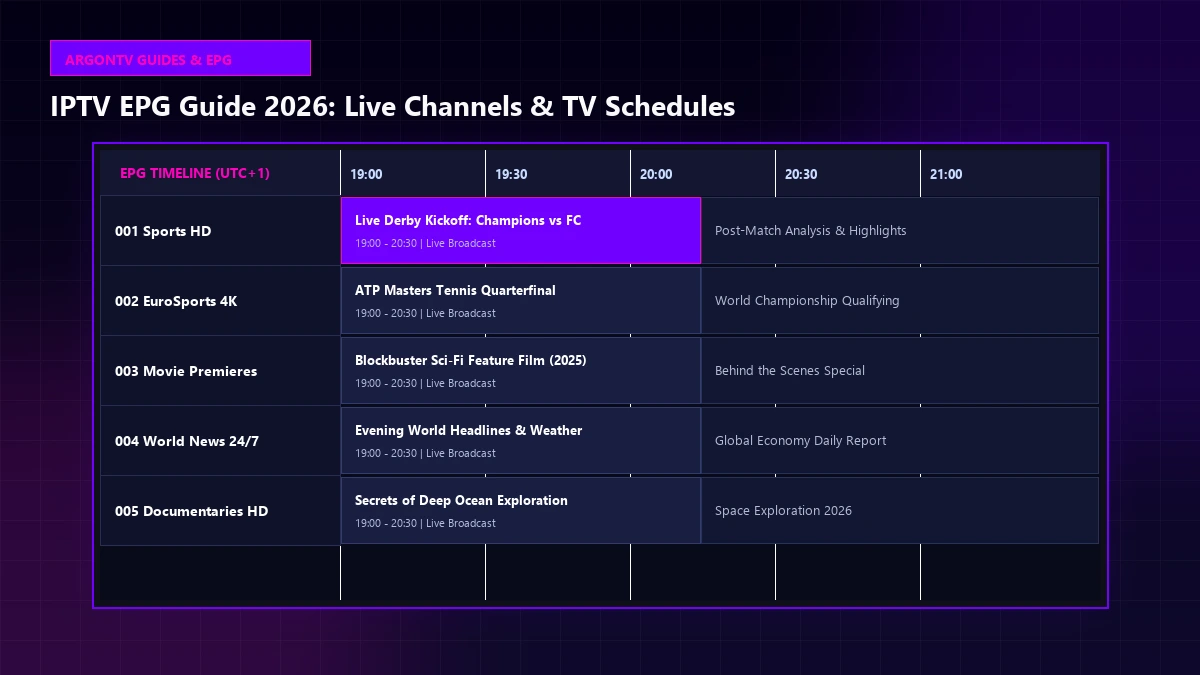
EPG stands for Electronic Program Guide.
It displays information about current and upcoming programs, transforming your viewing experience into something closer to traditional television browsing.
Some IPTV services provide EPG information automatically through the login method, especially if you are using the Xtream Codes API.
Others may provide a separate XMLTV EPG URL.
If your player requires a separate EPG URL:
- Open the EPG settings in your chosen application.
- Select Add EPG or Add Guide Data.
- Enter the XMLTV URL supplied by your provider.
- Save the configuration.
- Refresh the EPG.
- Wait for the guide data to download.
EPG loading time can vary depending on the size of the guide and your connection. If the guide contains data for thousands of channels spanning multiple days, expect it to take a little while.
If the EPG shows incorrect times, check the device's time zone settings. If your Android TV is set to the wrong region, the guide will shift all programs accordingly.
How to Organize Your Channels
Large IPTV playlists can contain thousands of entries, which can be overwhelming to navigate. If you want to see an example of the variety available, browse our channels list.
Use the player's organization features when available.
Useful options include:
- Favorites
- Categories
- Search
- Recently watched
- Hidden groups
Add frequently watched channels to Favorites so you do not need to search through the complete playlist every time. You can also hide categories you never watch, such as international channels from countries whose languages you do not speak. This significantly speeds up navigation and makes the app run smoother.
How to Improve IPTV Streaming Quality on Android TV
Once the playlist is working, you can optimize your setup for the best possible experience. Remember that streaming quality depends on stream bitrate, internet connection, device hardware, video codec, player, server performance, and network stability.
Use Ethernet When Possible
A wired Ethernet connection can provide a more consistent connection than Wi-Fi. If your Android TV box or television has an Ethernet port, connecting it directly to your router is one of the best ways to prevent buffering.
Use a Strong Wi-Fi Signal
If Ethernet is unavailable, position your Android TV device where it receives a strong Wi-Fi signal. Avoid placing it behind thick walls, large metal objects, or inside enclosed cabinets. Switching to a 5GHz network can also reduce interference from other devices.
Close Unnecessary Applications
Background applications can consume device resources. If you have games or other streaming apps running in the background, force close them to free up memory and processing power for your IPTV player.
Keep Android TV Updated
Check for available system and application updates. Firmware updates often include network driver improvements and performance optimizations that directly affect streaming capability.
Clear the IPTV Player Cache
If the player becomes unstable after an update, our guide on IPTV app issues or clearing its cache may help.
Be careful with Clear Data because it can remove saved account information and settings. Only clear the cache to resolve sluggish performance.
Check Video Decoder Settings
Some IPTV players provide hardware and software decoding options. Hardware decoding uses the device's specialized chips, while software decoding relies on the main processor.
If certain streams freeze, display a black screen, or have playback problems, testing the available decoder options may help. Changing from hardware to software decoding (or vice versa) is a common fix for audio sync issues or stuttering video.
Common IPTV Problems on Android TV
IPTV Login Failed
Check:
- Username
- Password
- Server URL
- Account status
- Internet connection
Channels Do Not Load
Check whether the playlist URL is correct.
Try refreshing the playlist or testing the same credentials in another compatible player. If they fail everywhere, contact your Argon TV support team.
IPTV Keeps Buffering
Check your internet connection first, or visit our IPTV troubleshooting section.
Then test:
- Ethernet
- Wi-Fi signal
- Player buffer settings
- Another channel
- Another compatible player
If only one channel buffers while others work normally, the problem may be specific to that stream and not your overall setup. If all channels buffer, review your network environment. If you want to upgrade your service to something more robust, explore our premium IPTV plans.
EPG Is Not Working
Check whether:
- The EPG URL is correct
- The guide is supported by your provider
- The device time zone is correct
- The player has finished downloading the guide
IPTV App Crashes
Try:
- Restarting Android TV.
- Clearing the application cache.
- Checking for application updates.
- Checking available storage.
- Reinstalling the application if necessary.
Troubleshooting Table
| Problem | What to Check |
|---|---|
| Login failed | Username, password and server URL |
| Playlist not loading | M3U URL or account details |
| Buffering | Internet, Wi-Fi and stream |
| EPG missing | EPG configuration and time zone |
| App crashing | Cache, storage and updates |
| 4K freezing | Bandwidth, decoder and device |
| One channel not working | Individual stream |
| All channels unavailable | Network or service issue |
Frequently Asked Questions
Can I use IPTV on Android TV?
Yes. Android TV supports many compatible IPTV players that can load M3U playlists or use Xtream Codes, depending on the application.
Do I need a special Android TV box?
Not necessarily. If your television already runs Android TV or Google TV and supports a compatible IPTV player, you may not need an additional device. However, dedicated streaming boxes often have faster processors which can handle large playlists better.
Is M3U better than Xtream Codes?
Neither is universally better. M3U offers broad playlist compatibility, while Xtream Codes can provide a convenient account-based setup in supported applications.
Can I use Xtream Codes on Android TV?
Yes, if the IPTV player supports Xtream Codes API login. Most modern players do.
Why is my IPTV buffering on Android TV?
Possible causes include weak Wi-Fi, insufficient available bandwidth, device performance, player settings or problems with the individual stream. Try troubleshooting the network before changing player settings.
Why is my IPTV EPG not showing?
The EPG may not be configured correctly, the guide URL may be unavailable, or the player may still be downloading the guide data. Always double-check your time zone settings as well.
Can Android TV play 4K IPTV?
Android TV devices can support 4K playback when the hardware, application, stream and network all support the required resolution and codec. No player can magically upgrade a lower quality stream to 4K.
Conclusion
Setting up IPTV on Android TV in 2026 is generally straightforward.
Start by choosing a compatible IPTV player, install it through the available app store when possible, and add your service using either Xtream Codes or an M3U playlist.
After the channels load, configure the EPG and organize your favorites.
If playback is unstable, troubleshoot the network, player and device separately instead of changing everything at once. Identifying the specific bottleneck is the key to finding a permanent solution.
A stable internet connection, capable Android TV hardware and a properly configured IPTV player can make a significant difference to the overall streaming experience. If you need any assistance getting started, or want to browse detailed setup instructions for other applications, visit our installation center.