IPTV Not Working Today? 10 Things to Check First
When your Argon TV service or any other IPTV suddenly stops working, it can be difficult to know whether the problem is your internet connection, IPTV player, device, playlist, or the streaming service itself.
The good news is that most IPTV problems can be narrowed down quickly by checking a few basic things in the right order.
Before changing advanced settings or reinstalling applications, work through these ten checks. They will help you identify whether the problem is on your side or whether the service itself may be unavailable.
Modern futuristic interface showing network status and IPTV troubleshooting
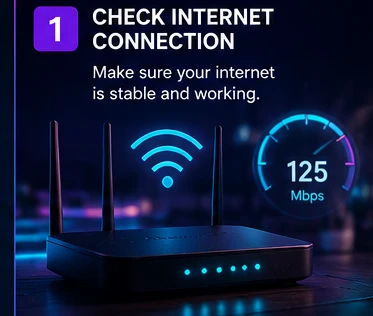
1. Check Your Internet Connection
The first thing to check is your internet connection.
Open another streaming application or website on the same device and test whether it works normally.
If other services are also slow or unavailable, the IPTV problem may simply be caused by your internet connection.
Restart your router and wait a few minutes before testing again.
If possible, run a speed test directly from the device running your IPTV player rather than from your phone or computer.
Remember that the speed available to your TV or streaming device can be different from the speed measured on another device.
Experience Ultimate 4K IPTV Streaming
Upgrade your entertainment with ArgonTV. Enjoy top-tier live sports, movies, and VOD in crystal-clear 4K. Experience zero buffering, anti-freeze technology, and instant delivery directly to all your favorite devices.
View Pricing Plans2. Check Whether Other IPTV Channels Work
If your IPTV player opens normally but one particular channel does not play, the problem may not be your device.
Try several different channels.
For example:
- Try a news channel.
- Try a sports channel.
- Try an entertainment channel.
- Try another international channel.
If most channels work while one or two do not, the issue may be limited to those individual streams. Check out our vast Channels selection to test different content.
If nothing works at all, continue with the next checks.
3. Restart Your IPTV Player
A simple restart can solve temporary application problems.
Completely close your IPTV player and open it again.
If your device allows applications to run in the background, make sure the IPTV application has actually been closed.
Then try loading a channel again.
If the problem continues, restart the entire television or streaming device.
A complete restart can clear temporary memory and network sessions that may have become stuck.
 Neon purple glowing television with digital signal interference
4. Restart Your TV or Streaming Device
If restarting the IPTV application did not help, restart the device itself.
This applies to:
- Android TV
- Google TV
- Samsung Smart TV
- LG Smart TV
- Fire TV devices
- Android TV boxes
- Other compatible streaming devices
Turn the device off, wait several seconds, and start it again.
Then open your IPTV application and test the service.
This is one of the simplest troubleshooting steps, but it can resolve temporary software and network problems.
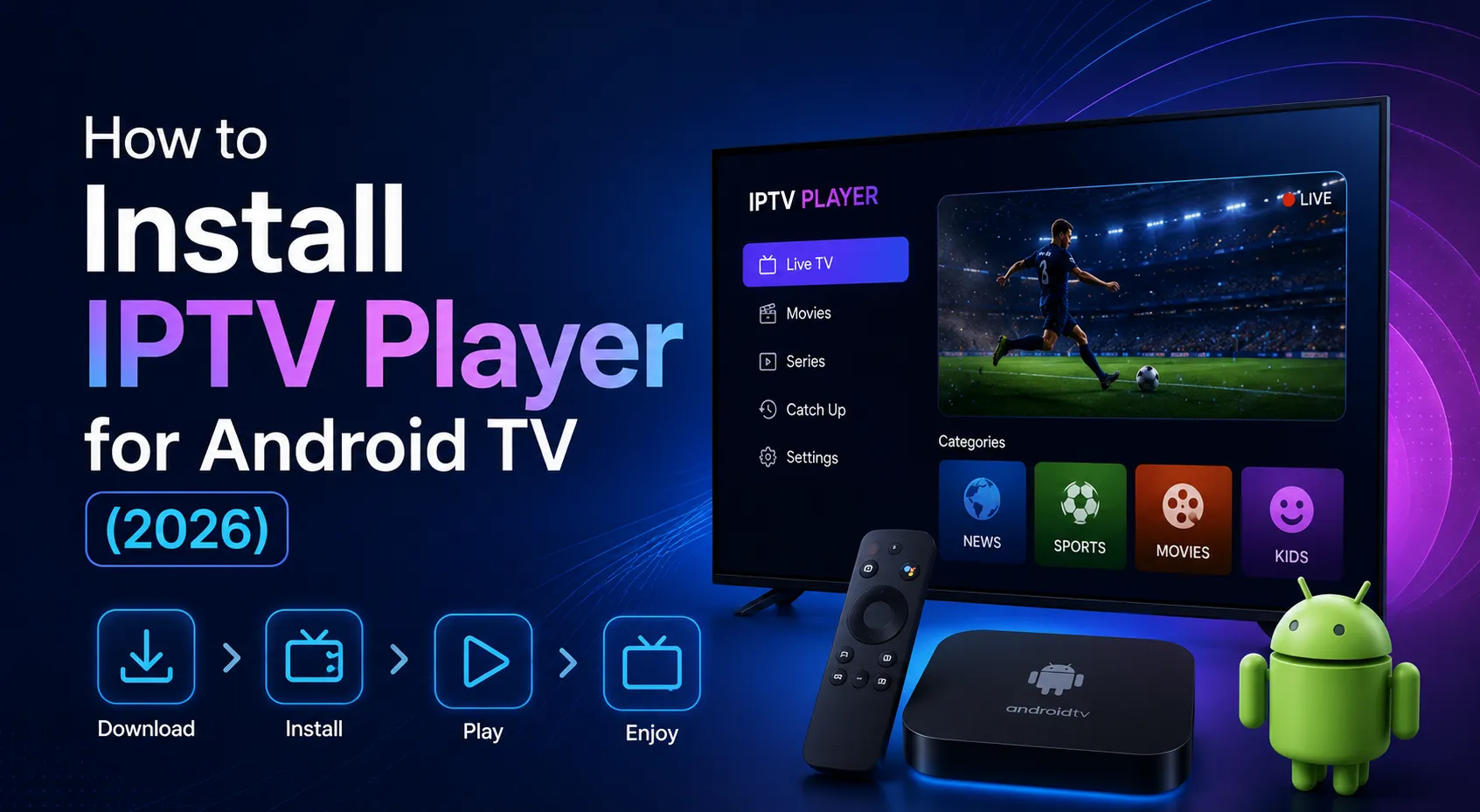
If you are using Android TV, you can review our Setup Guide for details on correctly configuring Android environments.
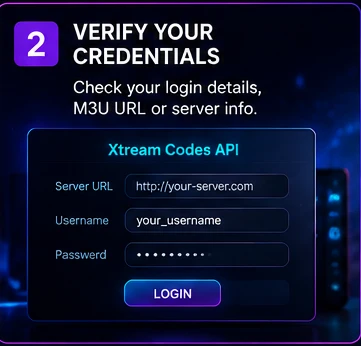
5. Check Your IPTV Login Details
If the application displays an authentication, authorization or login error, verify your account information.
Depending on your IPTV player, you may use:
- Username
- Password
- Server URL
- M3U playlist URL
- Xtream Codes credentials
Make sure there are no accidental spaces or missing characters.
Usernames and passwords can also be case-sensitive.
If you recently changed your password or received new credentials, remove the old account from the player and enter the new information carefully.
Do not assume that a login error means the application itself is broken.
6. Check Your Subscription or Account Status
An inactive or expired account can prevent channels from loading.
If your provider offers an account or customer portal, check your subscription status.
Look for information such as:
- Expiration date
- Account status
- Number of active connections
- Device limits
- Service notifications
If the account is active but the service suddenly stopped working on every device, continue troubleshooting rather than immediately changing your IPTV player.
 Electric cyan digital padlock highlighting secure streaming credentials
7. Check Your M3U Playlist or Server Information
If you use an M3U playlist, verify that the playlist URL has not been changed or replaced.
A single missing character can prevent a playlist from loading. Review IPTV not working after an app update if things changed recently.
If you use Xtream Codes, check the server URL, username and password.
Do not manually change the server address unless your provider specifically instructs you to do so.
If the credentials work on another compatible device but not on your current device, the problem is more likely to be related to the player or device configuration.
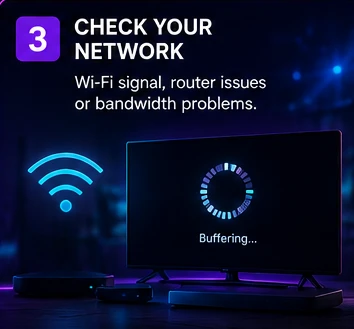
8. Check Your Wi-Fi Connection
Wi-Fi problems are one of the most common reasons for buffering, freezing and failed playback.
If your TV is far away from the router, the wireless signal may be weaker than expected.
Try:
- Moving the router closer to the TV.
- Using a 5 GHz Wi-Fi network when supported.
- Restarting your router.
- Disconnecting unnecessary devices.
- Using Ethernet if available.
Ethernet can provide a more consistent connection, particularly when streaming high-bitrate content.
If IPTV works correctly through Ethernet but not Wi-Fi, the problem is probably related to your wireless network rather than the IPTV application.
 Close up of futuristic ethernet and fiber optic connection ports
9. Check Whether the IPTV Server Is Experiencing Problems
Sometimes everything on your side is working correctly.
Your internet may be fine, your device may be working normally, and your credentials may be valid, but the streaming service itself may temporarily experience an outage or maintenance.
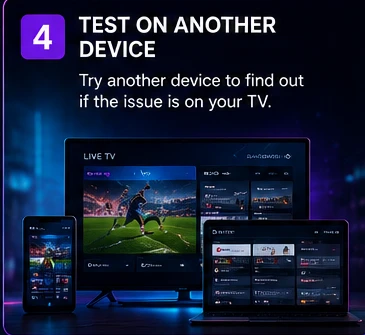
A useful test is to try the same account on another compatible device using the same network.
If the service fails on multiple devices, the problem may be external to your television or player.
Check the provider's official support channels or service notifications if available.
Avoid making major changes to your device before determining whether the service itself is experiencing an outage.
Experience Ultimate 4K IPTV Streaming
Upgrade your entertainment with ArgonTV. Enjoy top-tier live sports, movies, and VOD in crystal-clear 4K. Experience zero buffering, anti-freeze technology, and instant delivery directly to all your favorite devices.
View Pricing Plans10. Update or Reinstall the IPTV Player
If all previous checks have passed, the IPTV application itself may be experiencing a software problem.
First, check whether an update is available. If issues started recently, read about IPTV not working after an app update.
An outdated application can sometimes have compatibility problems with newer device software.
If updating does not help, try clearing the application's cache if your device supports that option.
Only reinstall the application as a final step.
Before removing the application, make sure you have your playlist URL or login credentials available so you can configure the player again.
 Modern smart TV interface displaying application settings and cache
IPTV Not Working on One Device but Working on Another
This is an important clue.
If IPTV works correctly on your phone but not your Smart TV, the problem is probably device-specific.
Possible causes include:
- IPTV player compatibility
- Incorrect application settings
- Device software
- Network configuration
- Cached application data
- Unsupported video format
If the service works on multiple other devices, focus your troubleshooting on the device that is failing.
You can also test another compatible IPTV player if your device supports one.
IPTV Not Working on Any Device
If the service fails on every compatible device, check these possibilities:
- Internet outage
- Account expiration
- Incorrect credentials
- Playlist/server change
- Service maintenance
- Server outage
Testing multiple devices is useful because it separates device-specific problems from service-wide problems.
If everything else on your network works but the IPTV service fails everywhere, contact the provider's official support team for assistance.
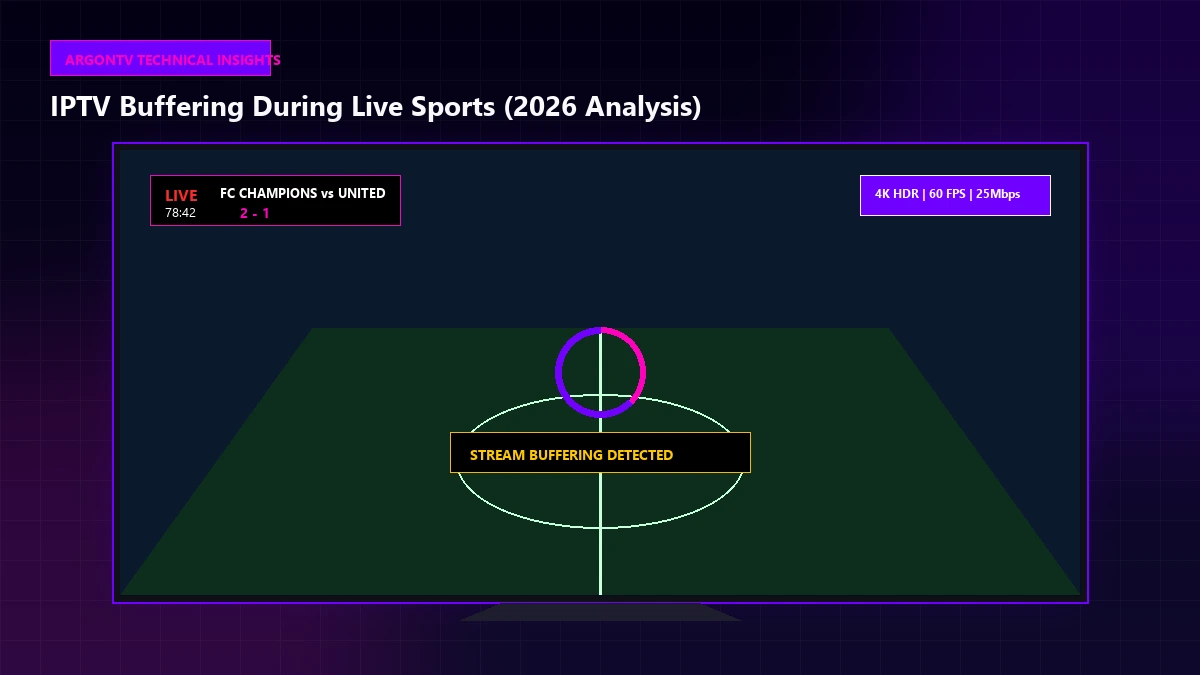
IPTV Is Buffering but Channels Still Load
Buffering is different from a complete service failure.
If channels load but pause every few seconds, investigate your network first. If your stream frequently drops to a lower resolution before buffering, read our guide on IPTV quality drops during streaming.
Try:
- Ethernet
- Restarting the router
- Testing another channel
- Reducing network traffic
- Restarting the IPTV player
- Checking the device's available storage
- Updating the application
If only one channel buffers, the issue may be related to that stream.
If every channel buffers, investigate your connection and device, or consider exploring ArgonTV IPTV service. Need more details? Read our FAQ for further answers to common streaming questions.
IPTV Has Sound but No Picture
If you hear audio but see a black screen, the problem can sometimes be related to video decoding or format compatibility.
Try changing the player's decoder settings if the application provides hardware/software decoding options.
You can also test another channel.
If one channel has the problem but others work normally, the stream itself may use a format that your current player or device handles poorly.
IPTV EPG Is Not Working
If your channels play correctly but the program guide is missing or incorrect, the issue may be related to the EPG source rather than the IPTV streams.
Check:
- EPG URL
- Device date and time
- Time zone
- IPTV player EPG settings
- EPG refresh status
Try manually refreshing the EPG.
If the channel playback works normally, there is no need to reinstall the entire IPTV application simply because the guide is not loading.
When Should You Contact Support?
Contact your provider's official support team when:
- Your account is active but rejected everywhere.
- Your playlist suddenly stopped working.
- The server appears unavailable.
- Credentials no longer work.
- The problem continues on multiple devices.
- You have already confirmed that your internet connection is working.
When contacting support, provide useful information such as:
- Device model
- IPTV player name
- Error message
- Approximate time the problem started
- Whether other devices are affected
This allows support to identify the problem more quickly. Visit our Contact Support page for immediate assistance.
Quick IPTV Troubleshooting Checklist
Before contacting support, go through this checklist:
| Check | What to Do |
|---|---|
| Internet | Test another website or streaming service |
| IPTV App | Close and restart it |
| Device | Restart the TV or streaming device |
| Credentials | Verify username, password and server |
| Account | Check subscription status |
| Playlist | Verify M3U or Xtream Codes details |
| Wi-Fi | Test signal or use Ethernet |
| Server | Check for possible service outage |
| App Version | Install available updates |
| Other Device | Test the same account elsewhere |
Frequently Asked Questions
Final Thoughts
When IPTV suddenly stops working, do not immediately assume that the service or your device is broken.
Start with the basics: check your internet connection, restart the IPTV player, restart your device and test multiple channels.
Then verify your credentials, account status and playlist information.
If the problem affects every device, investigate the possibility of a service-side issue. If it affects only one device, focus on that device and its IPTV application.
Following these ten checks in order can save time and help you identify the real cause before making unnecessary changes.
For the most reliable viewing experience, explore our ArgonTV Pricing to get started with our premium, high-uptime streaming solutions today.