IPTV Not Working After an App Update: What to Do
An IPTV app can suddenly stop working after an update. Channels may refuse to load, playlists can disappear, the EPG may stop updating, or the app may open normally but fail when you try to play a stream.
This can be frustrating, especially when everything was working normally before the update.
However, an application update does not necessarily mean that your IPTV service has stopped working. The problem may be caused by changed settings, corrupted cache data, compatibility issues, decoder changes, or a temporary bug in the new version.
This guide explains what to check when IPTV stops working after an app update and how to determine whether the problem is caused by the app, your device, your internet connection, your playlist, or the streaming service.
IPTV Not Working After App Update
Why Does IPTV Stop Working After an App Update?
An application update can change several things behind the scenes.
For example, a new version may:
- Reset application settings
- Change the default video decoder
- Remove or reset a saved playlist
- Change network permissions
- Introduce compatibility problems
- Corrupt cached data
- Change EPG behavior
- Require a newer operating system
- Introduce temporary bugs
If IPTV worked normally before the update and stopped immediately afterward, the application update should be one of the first things you investigate.
Before making major changes, identify exactly what has stopped working.
Check Whether the Problem Is Only With the App
The first thing to determine is whether your IPTV service itself is working.
If possible, test the same playlist or account in another compatible IPTV player.
Try several different channels rather than testing only one.
If the same playlist works correctly in another player, the problem is probably related to the updated application.
If it fails on multiple devices or compatible players, investigate other possible causes such as:
- Internet connection
- Account status
- Playlist credentials
- Server availability
- Network configuration
This simple test can save a lot of unnecessary troubleshooting. Check out IPTV Not Working Today? 10 Things to Check First for general troubleshooting.
Restart Your Device
Restarting the streaming device is one of the easiest things to try after an application update.
An update can leave background processes from the previous version running.
Restarting the device gives the updated application a clean environment.
After restarting:
- Open the IPTV application.
- Wait for the playlist to load.
- Test several channels.
- Check whether the EPG works.
- Try both HD and lower-resolution channels if available.
If IPTV starts working normally after the restart, the problem may have been temporary.
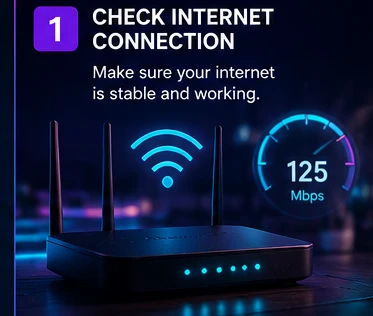
Check Your Internet Connection
An application update can sometimes make an existing network problem more noticeable.
Check whether other streaming applications work normally on the same device.
If possible, run a speed test directly on the streaming device instead of relying on the speed reported by another phone or computer.
IPTV playback can be affected by:
- Weak Wi-Fi signal
- Network congestion
- Packet loss
- Router problems
- ISP routing
- Streaming server performance
If other streaming services are also having problems, investigate the network before changing the IPTV application.
Check Whether Your Playlist Is Still Available
Some application updates can reset saved playlists or account profiles.
Open the IPTV application and check the playlist/account section.
If the playlist has disappeared, you may need to add it again.
Depending on the player, your service may use:
- M3U playlist
- Xtream Codes
- Local playlist file
- Another supported login method
Use the original information supplied with your service.
Do not randomly change the server address or credentials if you do not know the correct values. If you need a refresher on adding playlists, check How to Set Up IPTV on Android TV in 2026.
Re-Enter Your IPTV Credentials
If the playlist is still visible but authentication fails, carefully check the account information.
For an Xtream Codes setup, this normally includes:
- Server URL
- Username
- Password
Check every character.
Common mistakes include:
- Extra spaces
- Incorrect capitalization
- Missing characters
- Incorrect server URL
- Expired credentials
If your credentials are stored in an email or account portal, copy them again rather than typing them manually.
Check the App's Decoder Settings
An application update can change video decoding behavior.
This can produce symptoms such as:
- Black screen
- Audio without video
- Video freezing
- Stuttering
- App crashes
- Certain channels refusing to play
If your IPTV player provides hardware and software decoding options, test the available settings.
For example, if a channel worked before the update but now shows a black screen, changing the decoder mode can help identify a compatibility problem.
Different Android TV devices and video codecs can behave differently, so there is no single decoder setting that is best for every device.
Clear the IPTV App Cache
A corrupted cache can cause problems after an application update.
Cached files from the previous version may conflict with the new version.
On many Android TV devices, the process is similar to:
Settings → Apps → See all apps → Your IPTV app → Storage & cache → Clear cache
The exact menu names can vary depending on the device and Android TV version.
After clearing the cache:
- Reopen the IPTV application.
- Wait for the playlist to load.
- Test several channels.
- Check the EPG.
Clear Cache vs Clear Data
These options are different.
Clear Cache removes temporary files.
Clear Data can reset the application and remove saved information such as:
- Login details
- Playlists
- Preferences
- EPG settings
Try Clear Cache first.
Only use Clear Data if you are prepared to configure the application again.
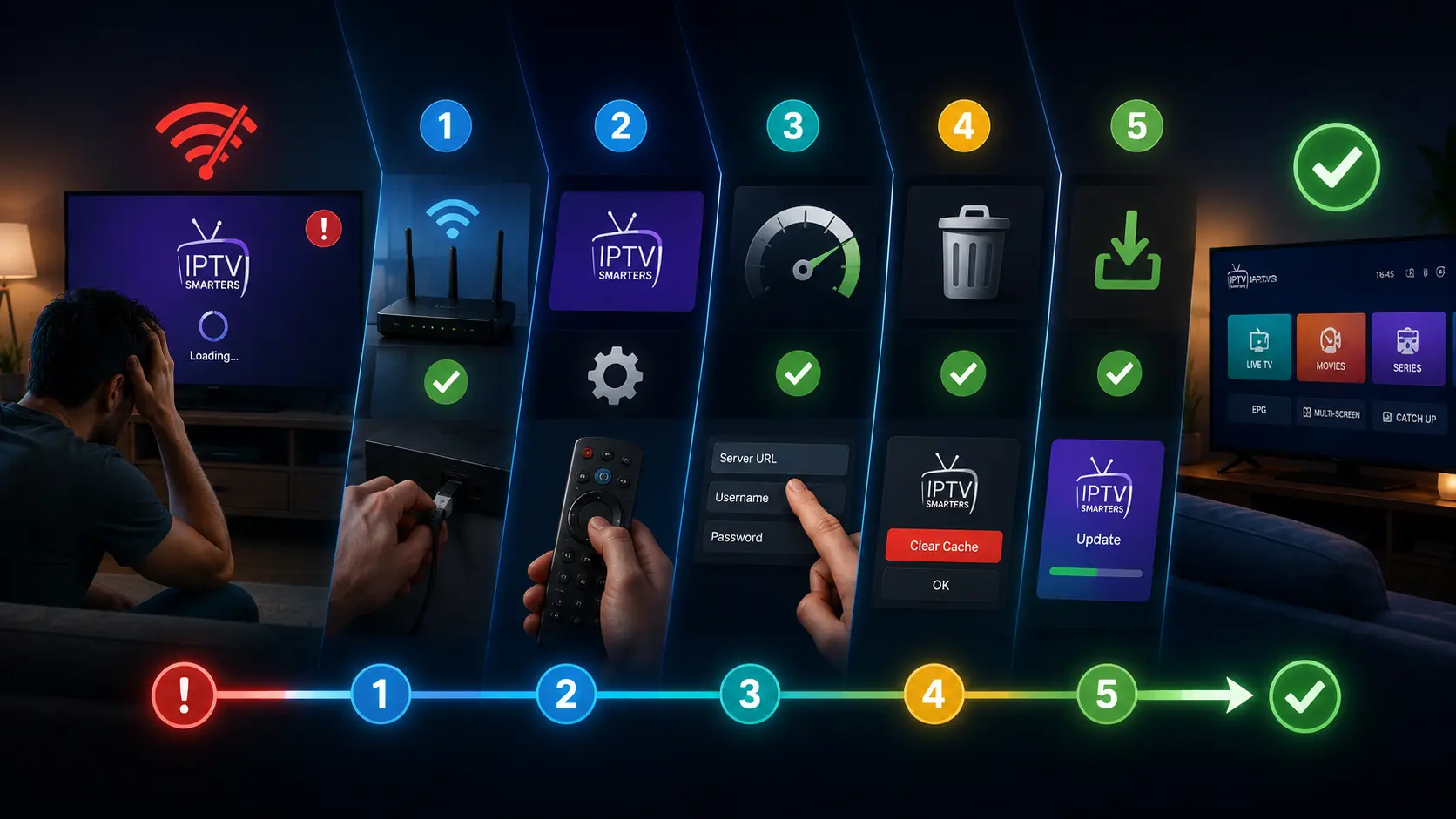 Clear cache to fix IPTV update issues
Check the EPG Settings
If live channels work but the electronic program guide does not, the IPTV service may still be functioning correctly.
The update may have changed the EPG configuration.
Check:
- EPG URL
- EPG refresh settings
- Device time zone
- Playlist-to-EPG mapping
- Automatic update settings
If your player provides a manual EPG refresh option, run it after checking the configuration.
EPG availability also depends on the playlist and service. Not every playlist contains complete program information.
Check for Another App Update
Sometimes the first release of an application update contains a bug.
Developers may release another update shortly afterward.
Open the official app store available on your device and check whether a newer version is available.
If another update is available:
- Install the latest version.
- Restart your device.
- Open the IPTV application.
- Test several channels.
Do not assume that the first update is always the final version.
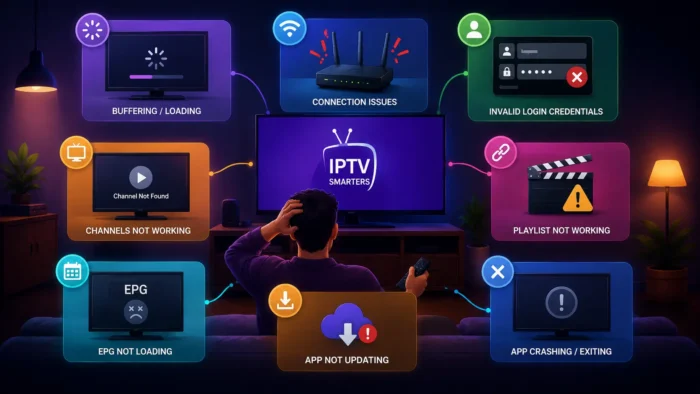 Check for further IPTV app updates
Reinstall the IPTV App
If restarting the device, clearing the cache and checking the settings do not solve the problem, a clean installation may help.
Before uninstalling the application, make sure you have your setup information available.
You may need:
- M3U playlist URL
- Xtream Codes credentials
- EPG URL
- Account information
Then:
- Uninstall the IPTV application.
- Restart the device.
- Install the current version from a legitimate source.
- Open the application.
- Add your playlist again.
- Test playback.
A clean installation removes old application files that may have survived the update process.
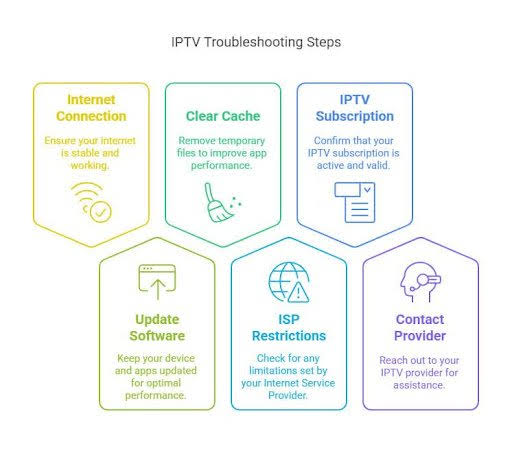
Check Device Compatibility
Older Android TV devices may not work perfectly with newer application versions.
An update can increase application requirements or introduce compatibility issues with:
- Older Android versions
- Limited RAM
- Older video decoders
- Outdated system components
- Unsupported hardware
Check whether your Android TV device has a system update available.
Also check the application's compatibility information.
If the updated application requires a newer operating system than your device supports, repeatedly reinstalling the same version may not solve the problem.
Test Different Channels
Do not test only one channel.
Try several channels from different categories.
For example:
- News
- Sports
- Entertainment
- HD
- 4K
If only one channel fails while others work, the problem may be specific to that stream.
If every channel fails immediately after the application update, the application or account configuration becomes more likely to be responsible.
IPTV Not Working After Update: Troubleshooting Table
| Problem | What to Check First |
|---|---|
| App will not open | Restart device and check for another update |
| Playlist disappeared | Add the playlist again |
| Login failed | Username, password and server URL |
| Channels will not load | Internet, playlist and account |
| One channel does not work | Test other channels |
| Black screen | Decoder settings |
| Audio but no video | Video decoder compatibility |
| EPG disappeared | EPG URL and refresh settings |
| Buffering | Internet, Wi-Fi and stream quality |
| App keeps crashing | Cache, storage and compatibility |
| Everything stopped after update | Test another compatible player |
What If IPTV Works on Another Device?
This is an important troubleshooting clue.
If your IPTV playlist works correctly on your phone or tablet but not on your Android TV after the application update, the problem is likely local to the TV setup. Check How to Set Up IPTV on Smart TV: Complete 2026 Guide to verify your Smart TV's general capabilities.
Possible causes include:
- Updated application settings
- Decoder compatibility
- Corrupted cache
- Device compatibility
- Network configuration
On the other hand, if the same playlist fails on multiple devices, investigate the account, network or streaming service instead of repeatedly reinstalling the application.
Should You Downgrade the IPTV App?
Downgrading to an older version may appear to solve an update-related problem, but it is not always the best solution.
Older versions can contain:
- Security issues
- Compatibility problems
- Bugs already fixed by the developer
- Unsupported features
If the developer has acknowledged an issue, it is generally better to wait for an official fix or install a newer stable release.
Avoid downloading unknown application files from untrusted websites.
What If Nothing Works?
If you have already:
- Restarted the device
- Checked your internet connection
- Cleared the cache
- Re-entered your credentials
- Checked the EPG
- Tested multiple channels
- Reinstalled the application
- Tested another compatible player
and IPTV still does not work, the problem may not be the application.
Contact the relevant service support and ask whether there is an account or server-side issue.
When contacting support, provide useful information such as:
- Device model
- Application name
- Application version
- Approximate time the problem started
- Whether all channels are affected
- Whether another device works
Never post your password or private account credentials publicly.
.jfif)
Frequently Asked Questions
Conclusion
An IPTV application stopping after an update can be frustrating, but it does not automatically mean that the IPTV service itself has stopped working.
Start with the simplest checks: restart the device, test the internet connection, verify that the playlist is still configured and clear the application's cache.
If the problem continues, check decoder settings, EPG configuration, device compatibility and the application version. Testing the same playlist in another compatible player is also one of the fastest ways to determine whether the updated application is responsible.
The key is to troubleshoot one variable at a time. This makes it much easier to determine whether the problem comes from the application, device, network, account or streaming service.