IPTV Not Working: 15 Common Problems and How to Fix Them
Introduction
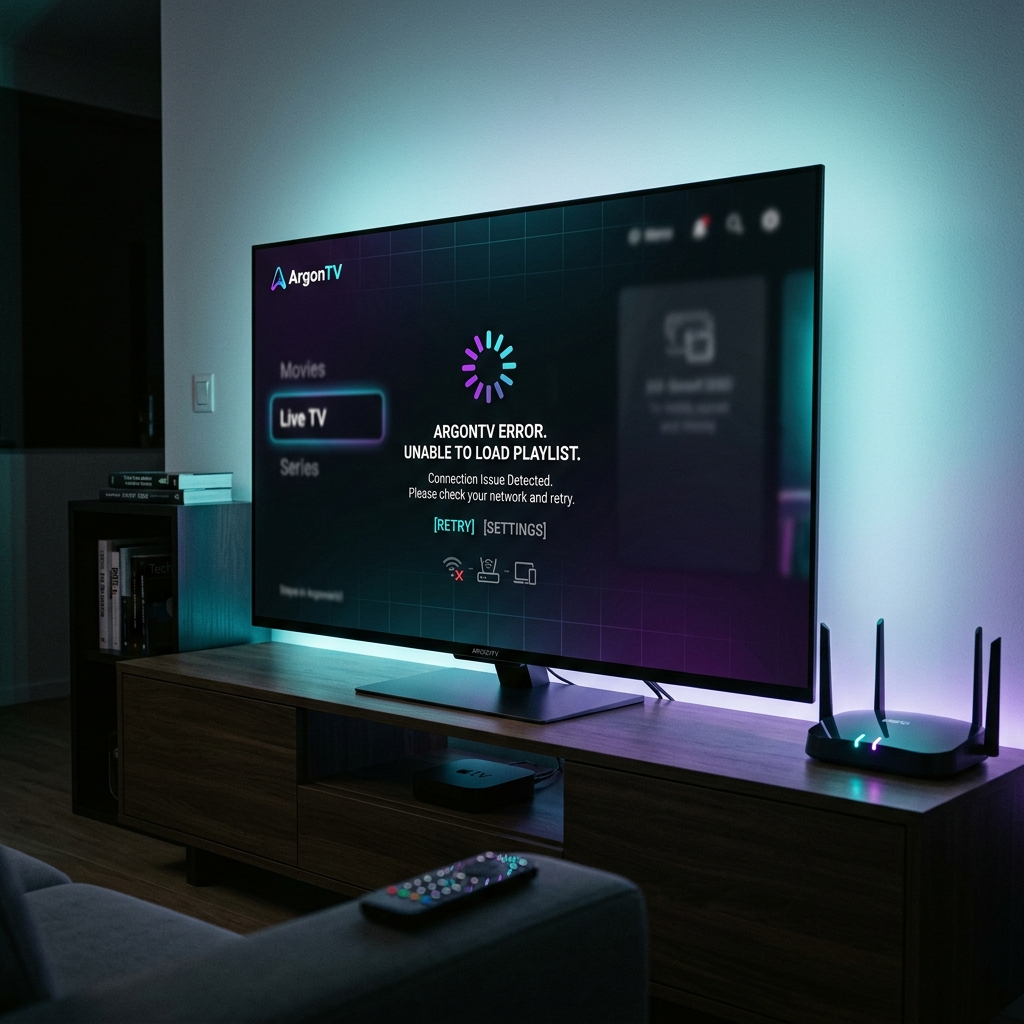
IPTV problems can have many different causes, ranging from a weak Wi-Fi signal to a configuration issue on your device. When your IPTV is not working, the problem may come from your internet connection, Wi-Fi, IPTV player, device, playlist, EPG, account configuration, or temporary service-side issues.
The fastest way to solve IPTV problems is to identify exactly what is failing. Instead of instantly resetting your device or abandoning your subscription, a simple step-by-step diagnostic process can save you time.
At ArgonTV, we pride ourselves on delivering a highly stable streaming experience with robust anti-freeze technology. But even the best services can experience hiccups if your home network or device isn't optimized. In this guide, we'll walk you through the 15 most common IPTV problems and how to fix them.
IPTV Not Working? Try These Quick Fixes First
Before diving into deeper diagnostics, run through this quick checklist:
- Check your internet connection: Make sure other devices can access the web.
- Restart your IPTV player: Close the application completely and reopen it.
- Restart your device: Reboot your Smart TV, Firestick, or Android box.
- Test another channel: Determine if the problem is channel-specific.
- Refresh the playlist: Reload your M3U or Xtream Codes.
- Check your login details: Ensure your subscription is active and credentials are correct.
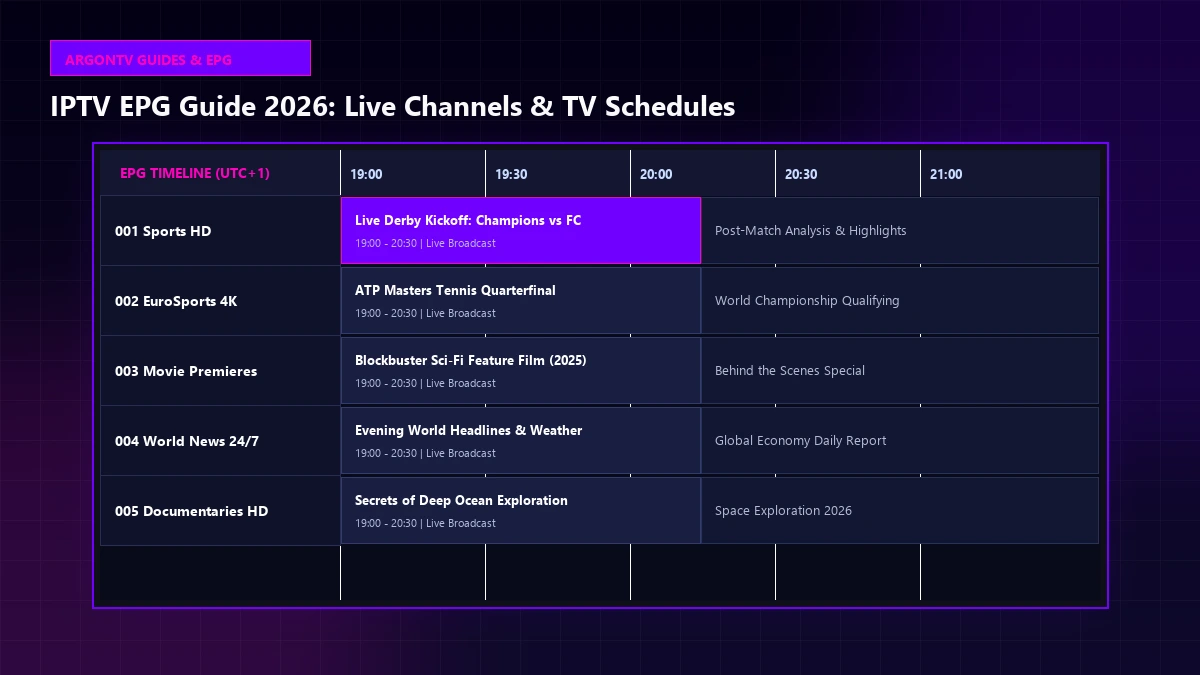
- Check EPG settings: Manually update your TV guide.
- Test another compatible player: See if a different app works better.
- Test another compatible device: Determine if the problem is specific to one piece of hardware.
- Check whether the problem affects all channels: If everything is down, the issue might be network or service-related.
Experience Ultimate 4K IPTV Streaming
Upgrade your entertainment with ArgonTV. Enjoy top-tier live sports, movies, and VOD in crystal-clear 4K. Experience zero buffering, anti-freeze technology, and instant delivery directly to all your favorite devices.
View Pricing Plans1. IPTV Is Not Loading
When your IPTV app opens but the service refuses to load, it usually means your player cannot communicate with the streaming server. This could be due to a disconnected internet connection, a typo in your server URL, or an expired account.
Start by verifying your credentials and checking if your subscription is still active. If everything is correct, try testing the service on a smartphone or computer connected to the same network.
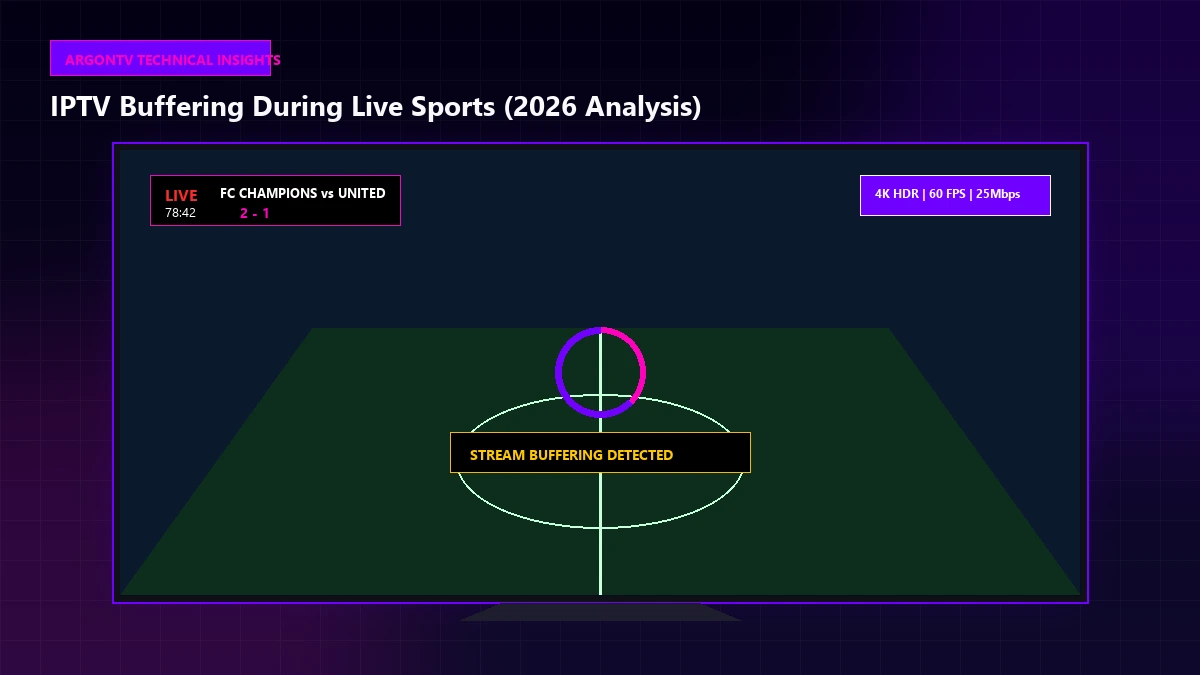
2. IPTV Channels Keep Buffering
IPTV buffering is the most common frustration for users. It happens when your device cannot download the video stream fast enough to maintain smooth playback.
Buffering can be caused by internet instability, weak Wi-Fi, network congestion, device hardware limitations, or player configuration issues. In some cases, it can also be a service-side problem, especially during high-demand live sports events.
3. IPTV Keeps Freezing
While buffering usually shows a loading circle, freezing is when the picture stops entirely but the app remains responsive (and sometimes the audio continues). Freezing often points to packet loss on your network or a decoding issue on your device.
To fix freezing, try switching your IPTV player's video decoder from Hardware to Software (or vice-versa). Moving closer to your router or switching to an Ethernet cable can also significantly reduce freezing.
4. IPTV Shows a Black Screen
A black screen can happen when the stream connects successfully but your device doesn't know how to display the video format. This is often caused by a player issue or a device compatibility problem with specific video codecs.
Try playing a different channel. If only one channel shows a black screen, it might be a temporary issue with that specific broadcast. If multiple channels are affected, experiment with different IPTV player apps.
5. IPTV Has Sound but No Picture
If you can hear the broadcast but the screen remains black or frozen on a single frame, the issue is almost certainly related to video playback codecs. Your device is successfully receiving the stream, but its hardware or software cannot decode the video layer.
To fix this, go into your IPTV player's settings and look for options related to "Video Decoder" or "Playback Engine." Changing the engine often resolves codec compatibility problems instantly.
6. IPTV Playlist Is Not Loading
If you use an M3U link and the IPTV playlist is not loading, your player cannot fetch the channel list from the server. This often stems from incorrect playlist information, a typo in the URL, expired account details, or a network problem blocking the connection.
Never invent a playlist URL or attempt to guess it. Always copy and paste the exact M3U link provided by your service.
7. IPTV Stream Failed
A "Stream Failed" or "Playback Error" message usually means the player attempted to load the channel but the server rejected the request or the connection timed out.
This can be a channel-specific issue, a temporary source issue, or a network problem. It could also mean your account has exceeded its allowed number of simultaneous connections. Wait a few minutes and try again, or test a completely different category of channels to see if the issue is widespread.
8. IPTV Login Is Not Working
When using Xtream Codes, a login failure means your username, password, or server URL is incorrect. It can also mean your account has expired.
Double-check your credentials for typing errors, ensuring you aren't confusing capital letters with lowercase, or adding accidental spaces at the end of your username. If your subscription recently expired, you'll need to renew it before you can log in again.
9. IPTV App Keeps Crashing
If your IPTV player app frequently closes itself or returns you to your device's home screen, the app is crashing. This is typically caused by an outdated app, device hardware limitations (like running out of RAM on an older Firestick), or corrupted app data.
Try clearing the app's cache in your device settings. If that doesn't work, uninstall the app completely, restart your device, and reinstall the latest version.
Experience Ultimate 4K IPTV Streaming
Upgrade your entertainment with ArgonTV. Enjoy top-tier live sports, movies, and VOD in crystal-clear 4K. Experience zero buffering, anti-freeze technology, and instant delivery directly to all your favorite devices.
View Pricing Plans10. IPTV Works on One Device but Not Another
If ArgonTV works perfectly on your smartphone but fails on your Smart TV, you have successfully isolated the issue to the TV.
This means the issue is device-specific, player-specific, or related to how that specific device connects to your network. Verify that the app on the failing device is configured correctly and that the device has a strong Wi-Fi connection. You can review our ArgonTV supported devices for details on compatible hardware.
11. IPTV EPG Is Not Working Correctly
The EPG (Electronic Program Guide) is responsible for showing you what is currently airing. If the EPG is blank or showing incorrect times, this is a guide data issue, not a streaming issue.
Fix this by manually refreshing the EPG in your player's settings. If the times are wrong, check your device's time-zone settings or adjust the "EPG Time Shift" option in your IPTV app.
12. IPTV Channels Suddenly Stopped Working
If everything was working perfectly and suddenly all channels stopped, determine whether the issue is local or service-wide.
First, check if your internet is still working on other devices. Next, check if your subscription is active. Finally, try connecting via a mobile hotspot (cellular data) to see if your Home ISP is suddenly blocking the connection.
13. IPTV Is Slow or Takes Too Long to Start
If channels eventually play but take 10-20 seconds to load, you might be dealing with internet instability, weak Wi-Fi, or severe network congestion. It could also be that your device's processor is slow, or your player app is poorly optimized.
Rebooting your router and your streaming device is the best first step. If the problem persists, try a lighter, faster IPTV player.
14. IPTV Works on Wi-Fi but Not Another Network
If your IPTV works at home but not when you travel and connect to a hotel Wi-Fi, the network you are currently on might have strict firewall settings blocking IPTV traffic.
Different routers and ISPs manage traffic differently. Sometimes, changing your device's DNS settings to a public DNS (like Google 8.8.8.8) can resolve network-specific routing issues.
15. IPTV Still Does Not Work After Troubleshooting
If you have verified your internet, restarted your devices, tested multiple apps, and checked your credentials, but the service still refuses to work, it's time to stop changing settings.
At this point, the issue might be an expired account or a temporary maintenance window on the provider's end. This is when you should contact your IPTV provider for assistance.
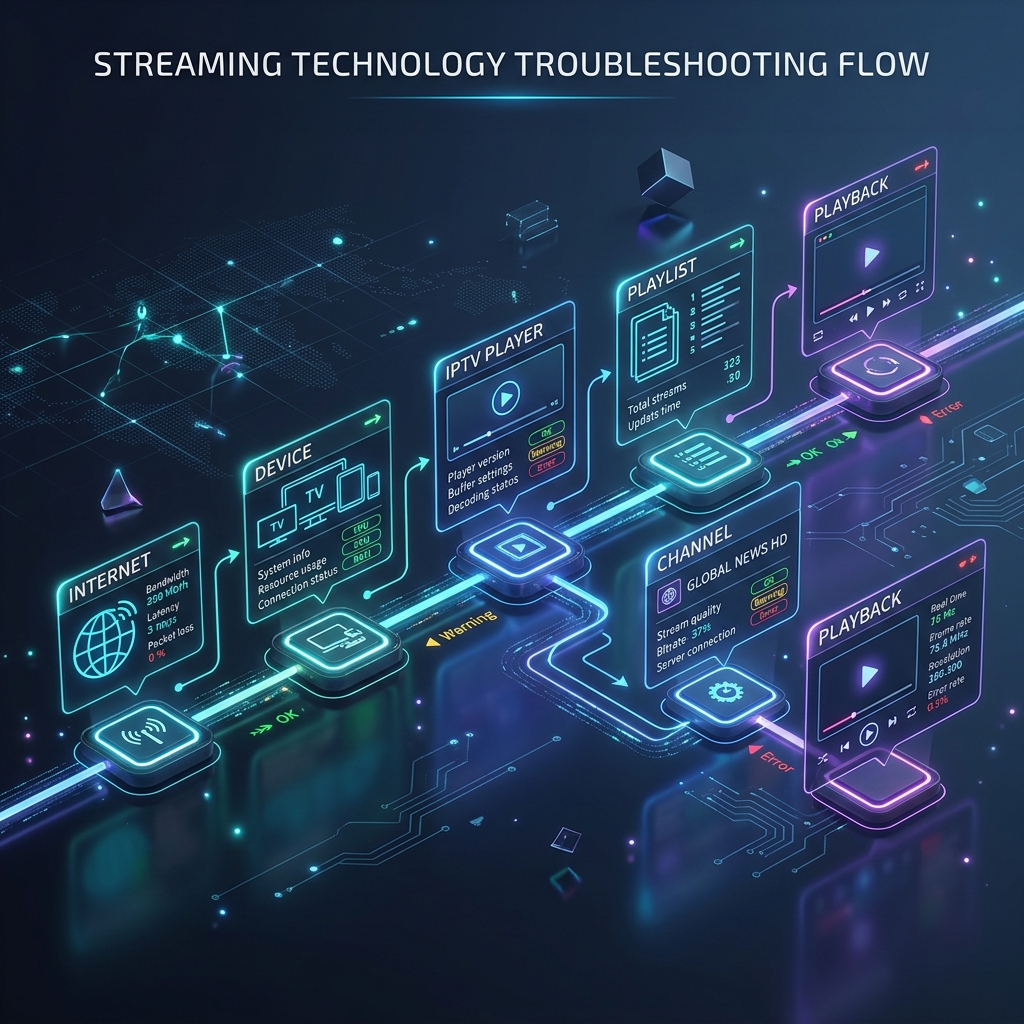 Visual troubleshooting guide for common IPTV problems
A Simple IPTV Troubleshooting Process
When faced with issues, use this logical diagnostic sequence instead of changing random settings all at once:
- Internet: Verify your web connection is active and fast enough.
- Device: Restart your TV or streaming stick.
- IPTV Player: Clear the cache or test a different app.
- Playlist/Login: Double-check your credentials and server URL.
- Channel: Test multiple channels across different categories.
- EPG: Refresh the guide if data is missing.
- Service: If all else fails, consult your provider.
Troubleshooting systematically helps you isolate the actual root cause quickly.
Can Your Internet Connection Cause IPTV Problems?
Absolutely. Having general internet access does not automatically mean the connection is stable enough for smooth live streaming.
Weak Wi-Fi, unstable connections, network congestion (too many people downloading in your house), and router issues can all destroy your IPTV experience. Whenever possible, using a hardwired Ethernet connection will dramatically improve your streaming stability.
Troubleshooting IPTV Problems With ArgonTV
If you are an ArgonTV customer experiencing issues, our platform is designed to be as stable as possible, but we are here to help when you need us.
When troubleshooting ArgonTV, verify that you are using supported devices, check that your account information is active, and ensure your home network is optimized. Our premium service features robust anti-freeze servers, but maximizing that performance requires a healthy internet connection on your end.
If you have done all of this and the service is still not functioning, our team is ready to assist. Visit the ArgonTV Contact page and provide us with details about your device, the app you are using, and the specific error you are seeing.
Conclusion
Diagnosing an IPTV issue doesn't have to be frustrating. By following a systematic approach—checking your internet, restarting your device, verifying your IPTV player settings, checking your playlist/login, testing multiple channels, refreshing your EPG, and testing another device—you can quickly identify the root cause of the problem.
For a premium, stable viewing experience backed by expert support, explore the ArgonTV Features and discover why so many users trust us for their streaming entertainment.