IPTV Buffering During Live Sports: Why It Happens and How to Fix It in 2026
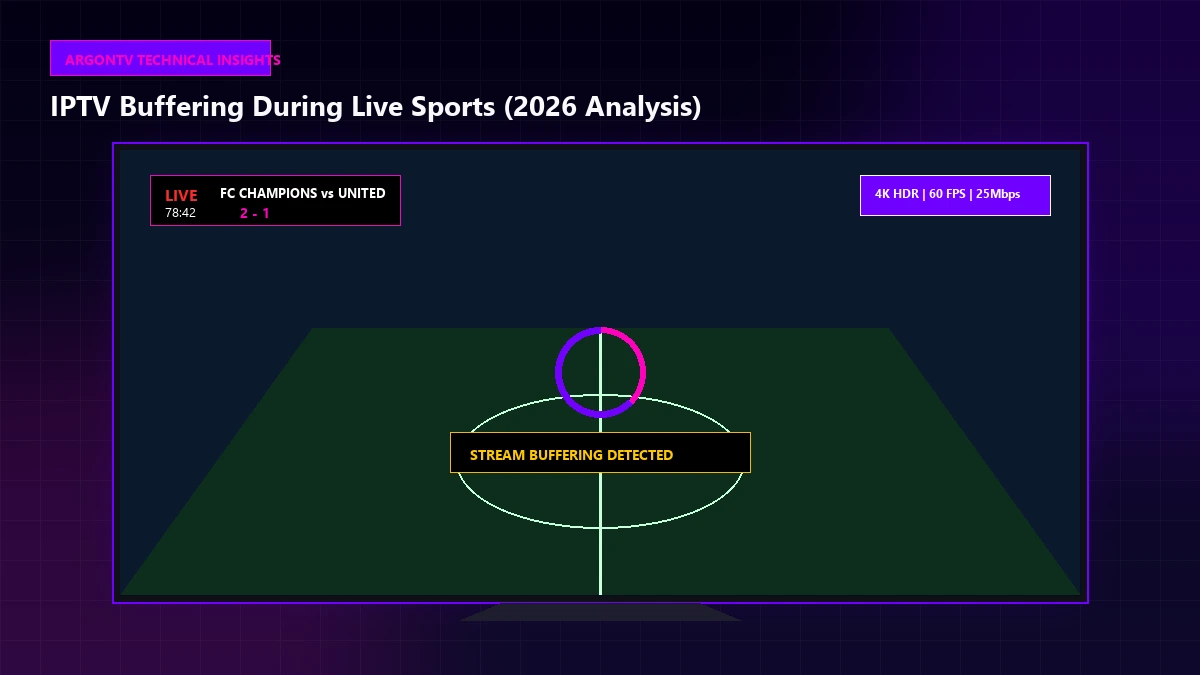
Few technical issues are as frustrating as sitting down to watch a major football match, basketball game, or live championship event only to have the IPTV stream freeze, stutter, or display a spinning buffer icon right when the action intensifies.
While recorded video-on-demand (VOD) or standard TV shows often play smoothly even on weak connections, live sports streams have zero buffer margin. When a live broadcast stutters, viewers often immediately suspect their service provider. However, live streaming playback depends on a complex pipeline involving local home networks, wireless signal stability, device hardware decoding, media player buffer configurations, regional ISP routing, and upstream delivery networks.
Understanding why live sports expose connection vulnerabilities more severely than standard content—and systematically isolating which layer of your setup is causing the delay—is the key to restoring stable HD and 4K sports playback in 2026.
IPTV Buffering During Live Sports 2026 Guide Hero Visual
Why Does IPTV Buffer More During Live Sports?
Live sports broadcasts push video streaming technology to its limits. Unlike pre-recorded movies where your media player can download minutes of video ahead in a local cache buffer, live sports must be delivered, decoded, and rendered in near real-time.
High-Resolution Sports Streams
Modern live sports broadcasts are increasingly delivered in High Definition (1080p @ 60fps) and 4K Ultra HD (2160p HDR). Higher-resolution streams require significantly larger volumes of data per second.
While a standard SD stream might only require 3–5 Mbps of continuous throughput, a high-frame-rate 1080p sports feed may require 10–15 Mbps, and a 4K sports broadcast can demand 25–50+ Mbps of sustained bandwidth depending on the provider and stream encoding. If your connection drops even momentarily below the required threshold, playback immediately stalls.
Fast-Motion Video
Live sports feature rapid camera panning, quick player movements, flying footballs, and high-speed motion across complex stadium crowds.
From a compression standpoint, fast-motion video requires much higher bitrates than static interview scenes or slow-moving dramas. Video codecs like H.264, HEVC (H.265), or AV1 compress video by transmitting only the pixels that change between frames. In fast-paced sports, nearly every pixel changes in every frame. This sudden spike in motion data creates bitrate bursts that can overload weak Wi-Fi signals or underpowered streaming hardware.
Major Event Traffic
During high-profile events—such as global derby matches, cup finals, or major tournament games—millions of sports fans stream the exact same event simultaneously across regional networks.
This sudden surge in viewer concurrency places increased load on local internet service provider (ISP) interconnect points, regional domain name servers (DNS), and global content delivery networks (CDNs). While high-quality infrastructure handles large crowds smoothly, regional network bottlenecks during peak kickoff times can cause momentary packet loss or increased latency for viewers.
Network Congestion at Home
In many households, the live match competes directly with other high-bandwidth activities across the home network.
Common bandwidth consumers include:
- 4K Netflix, Disney+, or YouTube streaming on other televisions
- Large video game downloads or background updates (PlayStation, Xbox, Steam)
- Cloud storage synchronization (Google Drive, iCloud, OneDrive)
- Simultaneous smart home security camera uploads
- Work-from-home video calls or large file transfers
When multiple devices share a single Wi-Fi router without prioritized bandwidth, small data delays cause live sports streams to buffer.
How to Find the Real Cause of IPTV Sports Buffering
Rather than making random settings changes or repeatedly restarting your device, use this step-by-step diagnostic framework to pinpoint the exact bottleneck.
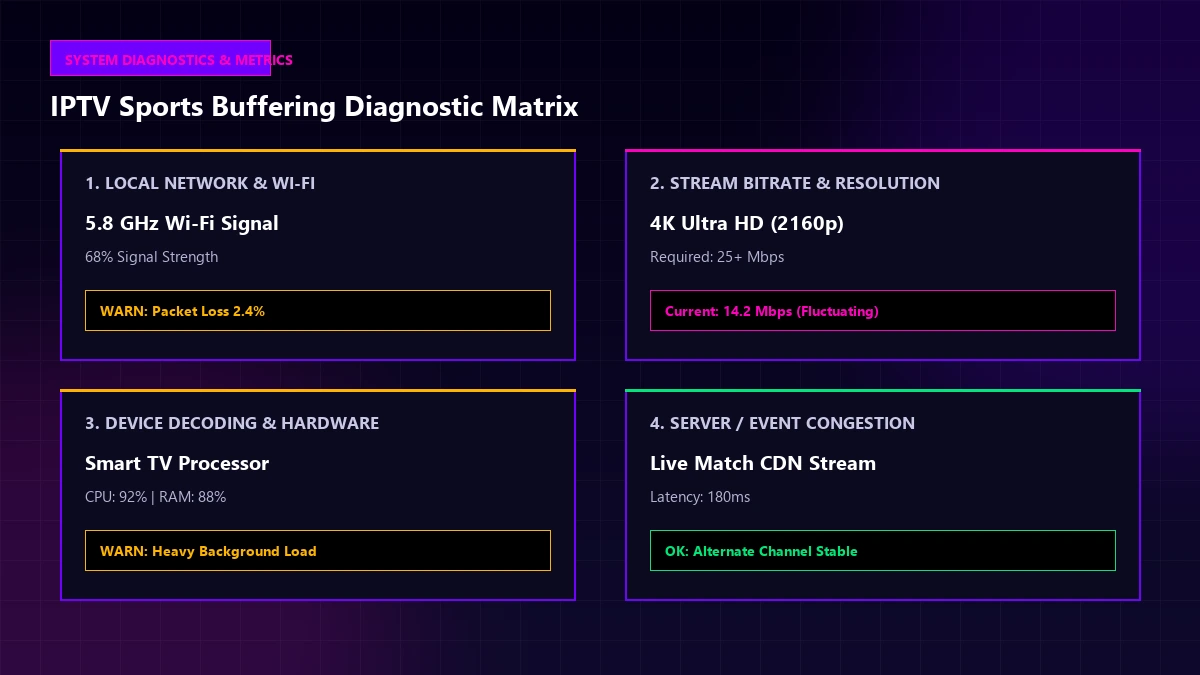 IPTV Sports Buffering Diagnostic Indicators and Network Analysis
Step 1: Test Another IPTV Sports Channel
Switch to a different live sports channel immediately. If Channel A (e.g., Main Football Channel) buffers but Channel B (e.g., Tennis or Racing Channel) plays smoothly in full HD, your local internet, device, and IPTV player are operating normally. The issue is localized to that specific channel's source stream.
Step 2: Test a Non-Sports Channel
Switch from live sports to a news channel or standard entertainment stream. If news and movie channels load instantly without buffering, your overall network connection is active, but high-bitrate or high-motion sports streams are hitting a bandwidth or hardware limit.
Step 3: Test a Different Resolution if Available
If your IPTV playlist includes both 4K and 1080p (or 720p) versions of the match, test the 1080p channel. If 1080p plays flawlessly while 4K freezes every few seconds, your setup is experiencing a local Wi-Fi bottleneck, device hardware decoding limit, or bandwidth ceiling.
Step 4: Test Another Device
Open your IPTV account or playlist on a second device—such as a smartphone or laptop connected to the same Wi-Fi network. If the sports stream buffers on your Smart TV but plays perfectly on your phone, the issue lies in your Smart TV's processing power, Wi-Fi antenna, or media player app.
Step 5: Test Another Network if Practical
Connect your mobile device or streaming box temporarily to a 5G mobile hotspot instead of your home Wi-Fi. If buffering stops completely on cellular data, your home internet connection, router settings, or ISP routing are the cause of the instability.
Step 6: Test the Same Stream at Another Time
Observe whether buffering occurs exclusively during live weekend match times or also during weekday replays. If streams run flawlessly during non-peak hours, regional ISP congestion or peak viewer traffic is likely affecting playback.
Ready to Test Your IPTV Setup?
Once your device and network are ready, explore the available ArgonTV plans and supported viewing options.
View ArgonTV PlansIPTV Sports Buffering: Network vs Device vs Stream
Use this comparison matrix to quickly identify your symptoms and determine the most effective solution:
| Possible Cause | Typical Symptoms | What to Test | Likely Solution |
|---|---|---|---|
| Weak Wi-Fi Signal | Buffering on 4K/HD streams; lower resolutions work better; random stream dropouts. | Compare signal on 2.4 GHz vs 5 GHz; test near router. | Connect via Ethernet cable or move router closer. |
| Home Network Congestion | Buffering starts when other family members stream or download content. | Pause downloads; disconnect secondary devices temporarily. | Enable Quality of Service (QoS) on router; pause background apps. |
| ISP Connectivity / Throttling | Buffering occurs only during evening peak hours (7 PM - 11 PM). | Run a speed test during match time; test cellular hotspot. | Restart router; change router DNS to Cloudflare (1.1.1.1) or Google. |
| Device Hardware Limits | Stuttering video, audio out of sync, application lag, UI frozen. | Check device RAM/CPU load; test on a faster device. | Clear application cache; reboot device; upgrade streaming box. |
| IPTV Player Config | Blank screen, endless spinning wheel, playback error on specific formats. | Test stream in alternative media player (e.g. VLC or TiviMate). | Change video decoder (Hardware to Software / HW+); adjust buffer. |
| Single Channel Issue | Only one specific sports channel buffers while all other channels load instantly. | Switch to secondary sports channel or different resolution feed. | Use alternative match channel; report stream to provider support. |
| High-Bitrate Peak | Stream freezes during fast counter-attacks or crowd celebrations. | Switch from 4K HDR to 1080p 60fps stream. | Use Ethernet connection; ensure device supports HEVC/H.265 hardware decoding. |
| Server / CDN Peak Load | Global major finals buffer across multiple sports channels for all viewers. | Check if non-sports channels work; test stream later. | Switch to backup stream URL if provided by provider. |
How to Fix IPTV Buffering During Live Sports
Once you have identified the source of the bottleneck, apply these practical, targeted optimizations to achieve smooth playback.
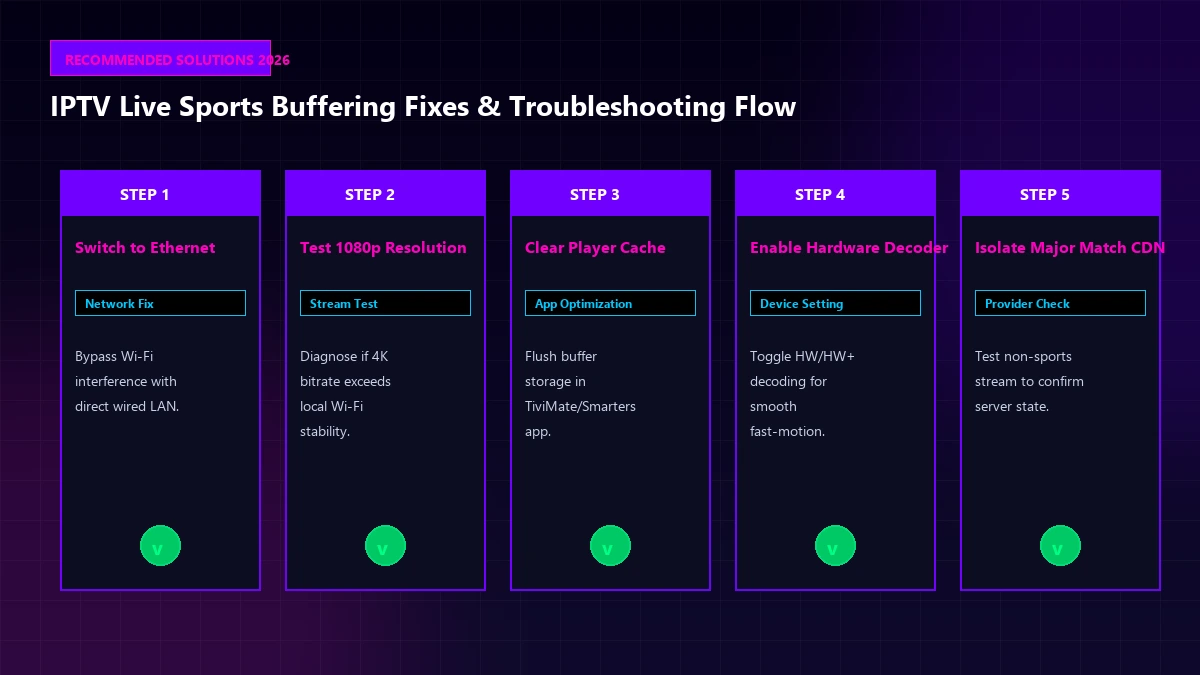 Step-by-Step IPTV Sports Buffering Troubleshooting and Fixes Visual
1. Use Ethernet When Possible
Connecting your Smart TV, Android TV box, or Fire TV device directly to your router via a Cat6 Ethernet cable is the single most effective upgrade for live sports streaming.
Wi-Fi signals are subject to radio frequency interference from microwave ovens, Bluetooth devices, neighboring wireless networks, and physical obstructions like concrete walls. A wired Ethernet connection eliminates packet loss and provides a stable, low-latency connection essential for high-bitrate live sports feeds.
2. Improve Your Wi-Fi Connection
If running an Ethernet cable is not feasible, optimize your wireless network setup:
- Switch to the 5 GHz Band: The 5 GHz wireless band provides higher data throughput than 2.4 GHz and is much less congested, making it ideal for HD and 4K sports streaming.
- Reduce Distance and Obstructions: Position your router within line-of-sight of your streaming device whenever possible. Avoid placing routers inside enclosed wooden cabinets or behind metal TV mounts.
- Change Wi-Fi Channels: Use a Wi-Fi analyzer app to identify and select an unused wireless channel in your home environment.
3. Reduce Other Network Traffic
Before kickoff, ensure your home network has maximum available bandwidth:
- Pause large game updates, torrent downloads, or cloud backups across all household PCs and consoles.
- Disconnect unused smartphones, tablets, or smart devices from Wi-Fi.
- Access your router's administrative dashboard and enable Quality of Service (QoS) to prioritize video streaming traffic to your Smart TV.
4. Test a Lower Resolution
While watching live sports in 4K Ultra HD is ideal, a fluid 1080p stream at 60 frames per second is far more enjoyable than a stuttering 4K stream that freezes every 30 seconds.
If you experience buffering during a major event, temporarily select the 1080p or 720p channel feed. This reduces required bandwidth by 50% or more, instantly stabilizing playback while you troubleshoot your network.
5. Restart the IPTV Player
Over hours of continuous channel switching, media players accumulate temporary cache files and video buffer segments.
Force-close your IPTV player application and relaunch it. If you continue to encounter player-specific playback errors, consult our guide on IPTV app troubleshooting for step-by-step instructions on cache management.
6. Restart the Streaming Device
Smart TVs and streaming sticks benefit significantly from a full power cycle.
Unplug your streaming device from the wall outlet, wait 30 seconds, and plug it back in. This clears system RAM, closes dormant background processes, and establishes a fresh network connection with your router.
7. Check for Device Storage and Performance Issues
Low internal storage space can severely hamper a device's ability to maintain a video playback buffer.
Check your device settings:
- Ensure your device has at least 1 GB of free internal storage space.
- Uninstall unused streaming apps, games, or utility tools.
- Close background applications running in memory.
8. Update the IPTV Player and Device Software
Outdated media players or television firmware can contain obsolete network drivers or video decoding bugs. Always keep your streaming device firmware updated to the latest official release through official app stores. Avoid installing unverified third-party APK files from unknown sources.
Why IPTV Buffers Even When Your Internet Speed Is Fast
One of the most common points of confusion for streaming users is experiencing buffering despite having a 100 Mbps or 500 Mbps fiber speed test result.
Standard speed tests (such as Speedtest.net or Fast.com) measure short bursts of speed to local test servers. However, live sports streaming requires continuous, uninterrupted data delivery over long distances.
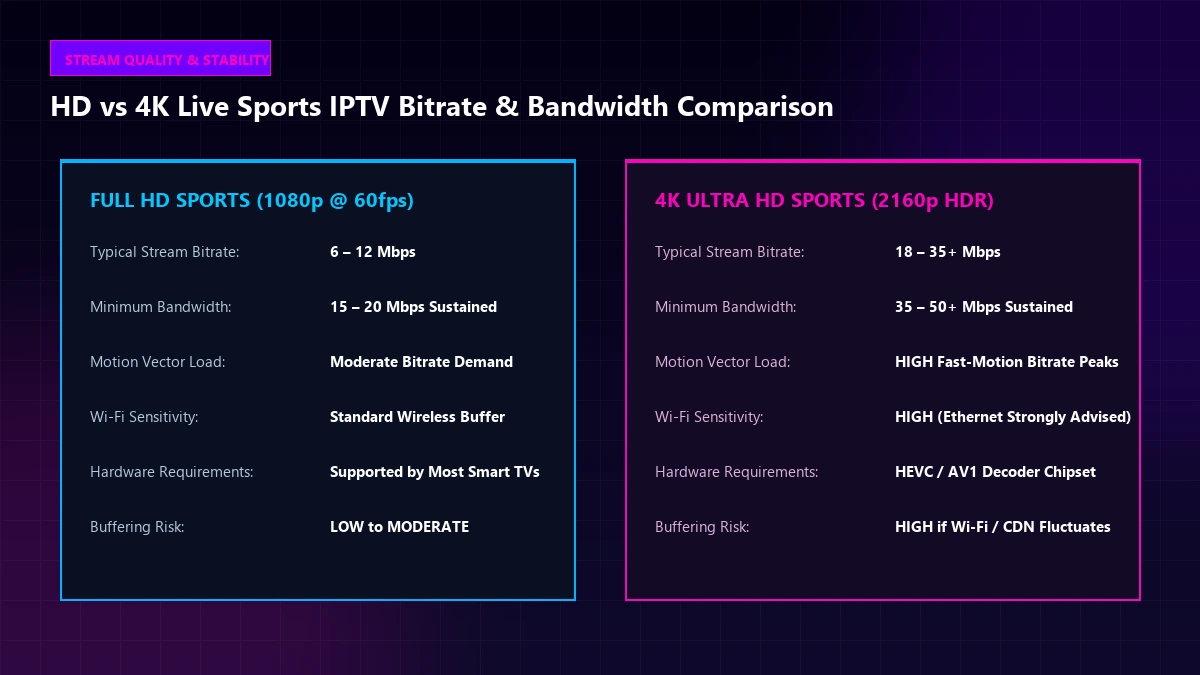 HD vs 4K Live Sports IPTV Streaming Bitrate and Resolution Comparison
Key factors beyond raw speed include:
- Latency (Ping): High network response time causes delay in receiving video packets.
- Jitter & Packet Loss: Even a 1% packet loss over Wi-Fi causes the video player to pause while requesting missing frames.
- Sustained Bandwidth vs Burst Bandwidth: A connection that fluctuates rapidly between 100 Mbps and 2 Mbps will cause live sports to buffer, even if the average speed looks fast.
- ISP Peering & Routing: Your ISP may have high speeds locally, but constrained interconnect bandwidth to international video delivery nodes.
Reviewing our general IPTV troubleshooting guide can help you further differentiate network signal issues from service availability.
Why IPTV Sports Works on One Device but Buffers on Another
If a live sports stream buffers on your Samsung or LG Smart TV but streams smoothly on your iPhone, iPad, or Android phone, the cause is hardware and software architecture.
Modern smartphones feature powerful multi-core processors, specialized hardware video decoders, and high-performance Wi-Fi antennas. Conversely, entry-level Smart TVs often use budget processors with limited RAM and basic Wi-Fi chips.
If your Smart TV struggles with high-bitrate sports streams, consider pairing it with a dedicated external streaming device. For comprehensive setup instructions across platforms, read our guides on Smart TV IPTV setup and Android TV setup.
Why IPTV May Buffer Only During Major Matches
When buffering happens exclusively during high-profile events (such as the Champions League Final, World Cup games, or Super Bowl broadcasts), the issue is tied to peak concurrent viewer demand across the broader internet ecosystem.
During major events:
- ISP regional hubs experience heavy data traffic across all streaming services simultaneously.
- Individual stream servers handle thousands of concurrent requests.
- Upstream transit networks experience temporary routing delays.
To bypass match-day congestion, try switching to an alternative language commentary feed or secondary channel broadcast of the match offered in your playlist, as these secondary feeds often experience significantly lower viewer traffic.
IPTV Sports Buffering at Night: Is It Your Internet?
Many users report that IPTV buffering occurs primarily between 7:00 PM and 11:00 PM. This period is known as household peak hours across telecommunications networks.
During evening hours:
- Local neighborhood ISP nodes experience maximum consumer traffic.
- Residential Wi-Fi environments suffer from heavy overlap as nearby neighbors switch on their routers.
- Multiple family members use home internet simultaneously.
To verify if nighttime buffering is caused by your local ISP connection:
- Conduct a speed test at 2:00 PM and compare it with a test at 9:00 PM.
- Compare playback on 5 GHz Wi-Fi versus an Ethernet connection.
- Check whether non-sports streams or alternative playlist channels perform normally.
For further insights into stream quality fluctuations, explore our IPTV buffering guide.
How to Watch Live Sports in HD or 4K Without Unnecessary Buffering
Prepare your setup 15 minutes before kickoff using this pre-game optimization checklist:
- Restart your router and streaming device to clear memory.
- Connect your device via Ethernet or switch to a 5 GHz Wi-Fi network.
- Close all background applications on your Smart TV or streaming box.
- Pause ongoing downloads or cloud backups across all household computers.
- Open your IPTV player and tune into the sports channel 10 minutes early to establish a stable stream connection.
- Verify that your IPTV player video decoder is set to Hardware (HW) decoding.
- Have a 1080p alternative channel identified in case peak event traffic affects 4K feeds.
For broader viewing tips and sports optimization, review our guide on IPTV live sports guide.
IPTV Buffering Troubleshooting Checklist
Keep this compact reference checklist handy whenever sports streams experience playback issues:
| Problem Encountered | Immediate First Test | What the Result Indicates |
|---|---|---|
| Single sports channel buffers | Switch to secondary sports channel | Source stream issue; use alternative feed |
| All channels buffer constantly | Test YouTube or Netflix app on same TV | Local network or home Wi-Fi signal failure |
| 4K sports buffer, 1080p works | Compare 4K vs 1080p bandwidth usage | Wi-Fi throughput or TV hardware limit |
| TV buffers, phone works | Test IPTV app on mobile phone via Wi-Fi | Smart TV app or TV hardware processor limit |
| Buffering only during big matches | Test non-sports channel during match | Event-demand CDN congestion or ISP peak load |
| Audio plays but video freezes | Change decoder from HW to Software (SW) | Video codec / hardware decoding incompatibility |
When Should You Contact IPTV Support?
Before reaching out to customer support, ensure you have completed basic home network and device diagnostics. Contact support when:
- The account fails to authenticate across all devices and players.
- Multiple channels across live sports, news, and VOD display persistent stream errors.
- An official service outage or server migration is suspected.
- You require updated server portal URLs or IPTV M3U troubleshooting assistance.
When contacting the ArgonTV support team, provide helpful diagnostic details such as your device model, IPTV application name, specific channel name, and whether the issue persists across Ethernet and Wi-Fi.
Security Note: Never publicly share your account password, private MAC address, or full subscription M3U playlist URL when seeking support.
Is IPTV Buffering Always Caused by the IPTV Provider?
In summary, live sports buffering is rarely caused by a single isolated factor.
While server capacity during major events plays a role, local Wi-Fi interference, home network traffic, hardware decoding limits, and ISP peak-hour routing account for the majority of buffering incidents. By systematically testing your channels, devices, and network connections, you can isolate the bottleneck and enjoy smooth, uninterrupted live sports streaming.
For more details on device selection, explore our overview of ArgonTV supported devices or check our ArgonTV plans to review optimal viewing options.
Need Help With Your IPTV Setup?
Review ArgonTV's setup and support resources to make sure your device, player and connection are configured correctly.
Get Started