IPTV EPG Guide in 2026: How to Find Live Channels, Sports and TV Schedules
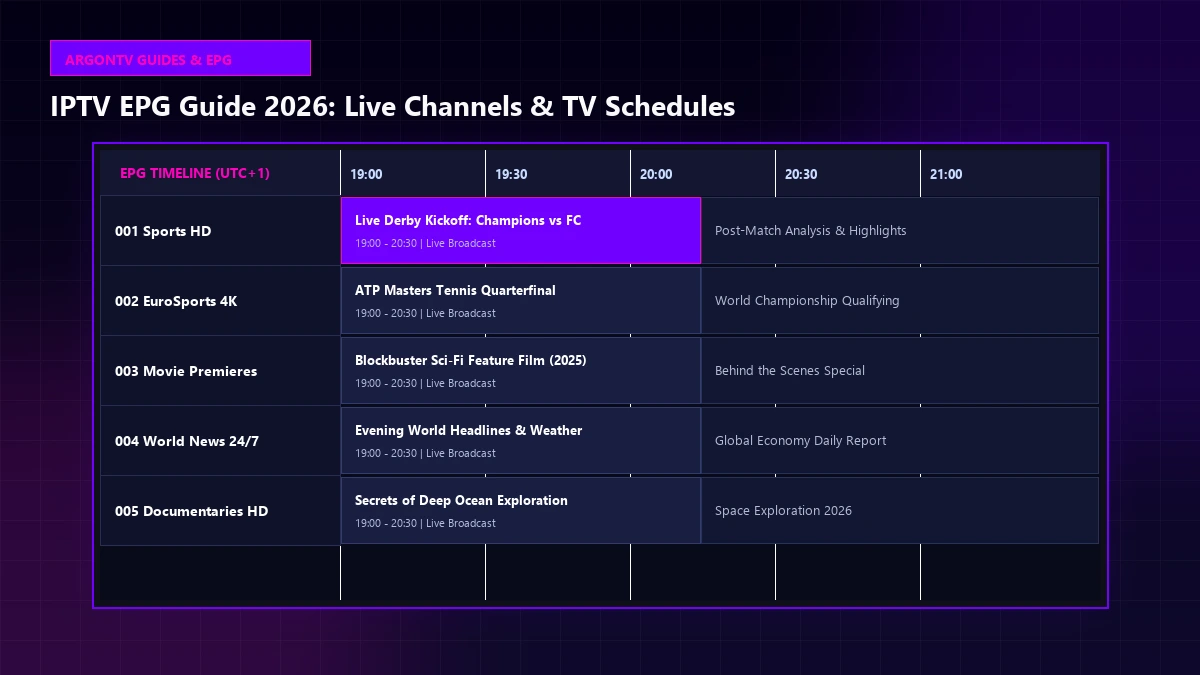
You launch your IPTV player app on your Smart TV or streaming box, only to be greeted by an overwhelming list of hundreds or thousands of channel names. Without program information, you have no way of knowing what show is currently playing, when the next live football match kicks off, or which channel carries tonight's championship game.
This is precisely where an Electronic Program Guide (EPG) becomes indispensable.
An EPG acts as the digital TV guide layer for your IPTV setup. It transforms a raw list of stream links into an organized, interactive television guide complete with channel names, current program titles, start and end times, detailed show descriptions, and upcoming match schedules.
Understanding how IPTV EPG data works—and knowing how to configure, refresh, and troubleshoot it in 2026—is essential for getting the most out of your live television experience.
IPTV EPG Guide 2026 Electronic Program Guide Interface Hero Visual
What Is IPTV EPG?
EPG stands for Electronic Program Guide. It is an interactive onscreen menu system that displays broadcast schedules for live television channels.
When properly integrated into your IPTV media player, an EPG normally displays:
- Channel Name & Logo: Clear visual identification of each station.
- Current Program: Title of the show or live broadcast airing right now.
- Upcoming Programs: Schedule of upcoming shows and events for hours or days ahead.
- Start and End Times: Exact broadcast timetables for every listed program.
- Program Description: Brief plot synopses, episode numbers, or match details.
- Category Badges: Tags identifying genres such as Sports, News, Movies, or Entertainment.
The level of detail and timeframe covered by an EPG depends on the quality of the guide source, the IPTV service provider, and the capabilities of your IPTV player app.
IPTV EPG vs Traditional TV Guide
While traditional cable and satellite guides are delivered directly over broadcast signals, IPTV operating environments work differently:
| Feature | Traditional TV Guide | IPTV Electronic Program Guide |
|---|---|---|
| Data Delivery | Built directly into broadcast signal / set-top box firmware | Delivered over the internet via XMLTV URL or service portal |
| Customization | Locked to cable company layout | Customizable layouts, timelines, font sizes, and channel ordering |
| Updating Method | Automatic background updates from broadcaster | Scheduled HTTP downloads or manual refresh in media player |
| Timezone Adjustments | Tied to physical set-top box location | Adjustable time offsets in media player settings |
Understanding these differences helps clarify why IPTV EPG configuration occasionally requires basic manual adjustment.
How Does IPTV EPG Work?
To understand how an Electronic Program Guide operates, it helps to distinguish between the core components of an IPTV streaming setup:
- The IPTV Stream: The actual video data feed transmitted from a media server to your playback device.
- The IPTV Playlist (M3U): A text file containing stream links and channel names.
- The EPG Data Source (XMLTV): A structured file containing program schedules, titles, and broadcast times.
- The IPTV Player: Software (such as TiviMate, IPTV Smarters, or IBO Player) that merges the playlist and EPG into a user-friendly interface.
- The IPTV Service Provider: The entity supplying access to stream servers, playlists, and guide data.
When you launch your IPTV app:
- The player loads the playlist to identify available channels.
- The player downloads the EPG data from an XMLTV URL or API endpoint.
- The player matches each channel in your playlist with its corresponding channel ID in the EPG file.
- The player renders the combined schedule in a grid or timeline format on your screen.
If the channel identifier in the playlist does not match the channel identifier in the EPG file, the program guide will appear blank for that channel, even if the video stream works perfectly.
What Is XMLTV and How Does It Relate to IPTV EPG?
If you have ever adjusted EPG settings in an IPTV player, you have likely encountered the term XMLTV.
XMLTV is an open, XML-based standard file format used worldwide for distributing television program guide data across digital platforms. An XMLTV file contains structured text specifying channel IDs, program titles, language tags, start timestamps, stop timestamps, and detailed descriptions.
Here is how key IPTV guide terms compare:
| Term | Meaning | Purpose |
|---|---|---|
| IPTV Playlist | List of stream links (M3U/M3U8 format) | Tells the player WHERE to find video streams |
| XMLTV | Standardized data file format for TV schedules | Delivers raw program schedule information to the player |
| EPG | Electronic Program Guide (the visual interface) | Displays program timelines and descriptions to the user |
| IPTV Player | Application running on Smart TV or media box | Merges playlist streams with XMLTV guide data |
Most modern IPTV services provide an EPG URL ending in .xml or .xml.gz that your player app reads automatically during startup.
How to Find Live Channels With an IPTV EPG
Navigating thousands of channels without a guide can feel overwhelming. Using an EPG simplifies channel discovery into a few quick steps:
- Launch Your IPTV Player: Open your preferred media application on your Smart TV, Firestick, or Android box.
- Select Live TV: Choose the Live TV category from the main menu.
- Open the Guide View: Access the TV Guide grid (often accessed by pressing "Left" or "Guide" on your remote).
- Browse Categories: Filter channels by group—such as General, News, Movies, or Regional Entertainment.
- Check Current Airings: Look at the highlighted timeline column to see what is currently airing on each channel.
- Read Program Details: Highlight any show title to view additional details or episode information.
- Tune In: Press "OK" or "Select" on your remote to jump straight to the live video stream.
Using an organized guide interface makes finding your favorite channels fast and effortless.
How to Find Live Sports With IPTV EPG
Finding live sports broadcasts—especially during busy weekend match days—is one of the primary reasons viewers rely on an EPG.
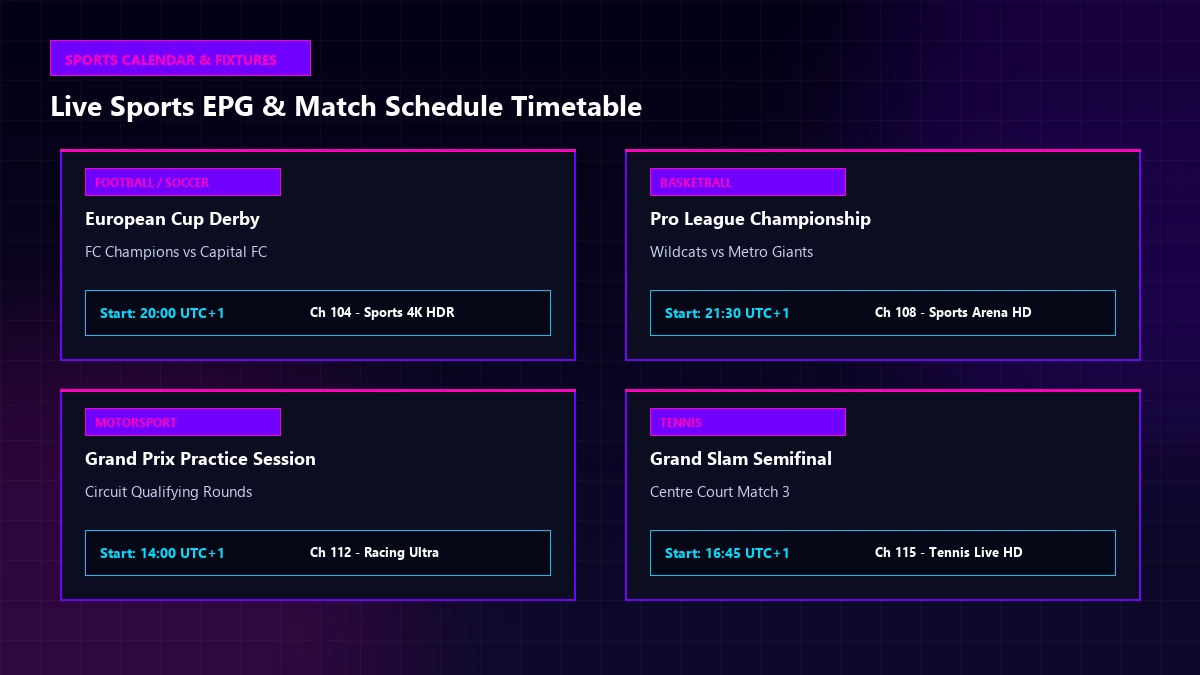 IPTV Live Sports EPG Schedule and Competition Timetable Visual
Here is how to effectively use your program guide to locate live sports:
- Filter by Sports Categories: Navigate to specialized sports channel groups (e.g., Football, Basketball, Motorsport, Tennis) to view dedicated match schedules.
- Use the Player Search Function: Type team names (e.g., "Arsenal", "Lakers", "Ferrari") or competition titles into your IPTV player search bar. A fully indexed EPG will search through upcoming program descriptions and display matching channels.
- Check Kickoff & Start Times: Review the exact start times listed in the EPG timeline so you can tune in before pre-game coverage begins.
- Add Match Channels to Favorites: Save channels carrying key matches to a dedicated Favorites list for quick access during game day.
Important Note: An EPG can only display schedule information that exists in the supplied guide data. Broadcasting rights vary by region and provider, so availability depends on the channels included in your playlist.
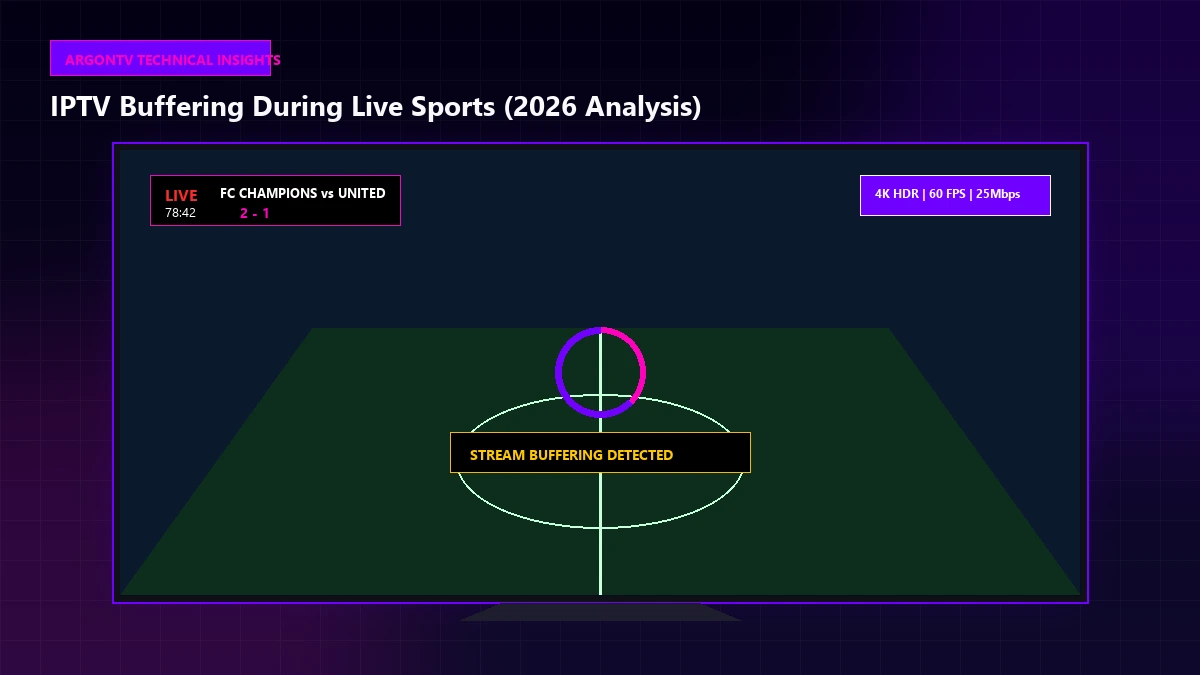
For more tips on optimizing sports streams and avoiding match-day freezes, read our detailed guide on IPTV buffering during live sports.
Ready for a Better IPTV Experience?
Explore ArgonTV's subscription plans to access organized channels, detailed program guide support, and high-definition sports streaming across all your devices.
View ArgonTV PlansHow to Read an IPTV Sports Schedule
Understanding how sports events are formatted in an EPG timeline ensures you never miss a kickoff or main event.
Consider this illustrative example of an IPTV sports schedule:
Channel: 004 Sports HD
18:30 – 19:00: Match Build-up & Team News
19:00 – 21:00: Live Derby Football Match: FC Champions vs Capital FC
21:00 – 21:30: Post-Match Analysis & Manager Interviews
21:30 – 23:30: Pro Basketball League Championship
Key details to verify when reading a schedule:
- Time Window: Confirm the full broadcast block, including pre-game coverage.
- Time Zone: Ensure the program start time matches your local clock.
- Channel Number: Take note of secondary event channels if the main broadcast changes.
If you encounter playback issues when tuning into major matches, consult our IPTV live sports guide for optimal viewing configurations.
Why Is My IPTV EPG Missing?
One of the most frequent support questions from IPTV users is why their program guide suddenly appears empty or displays "No Information Available."
Here are the nine most common reasons an EPG fails to populate:
- Unsupplied EPG Data: The IPTV playlist source does not include a linked EPG URL.
- Incorrect EPG URL: The XMLTV web address entered into the player settings contains a typo or broken link.
- EPG Server Down: The remote server hosting the XMLTV guide file is temporarily offline.
- Channel ID Mismatch: The channel name in your playlist does not match the channel identifier in the EPG file.
- Outdated Guide Cache: The player application is holding onto expired schedule data and has not refreshed.
- Incompatible EPG Format: The IPTV player app does not support the specific XML compression format supplied.
- Unmapped Channels: Specialized or temporary event channels frequently lack guide data.
- Incomplete Guide Coverage: The provider's EPG source covers major channels but omits obscure regional stations.
- Incorrect Device Date/Time: If your device clock is set to the wrong date, the player will search for non-existent guide data.
Crucial Distinction: A missing EPG does not mean your video channels are broken. Video streams and program guides are delivered separately. If the guide is empty, test selecting the channel manually—in most cases, the live video stream will still play without issue.
For additional system checks, review our general IPTV troubleshooting guide.
How to Fix IPTV EPG Not Working
If your program guide is missing or blank, follow this step-by-step troubleshooting sequence to restore your EPG data:
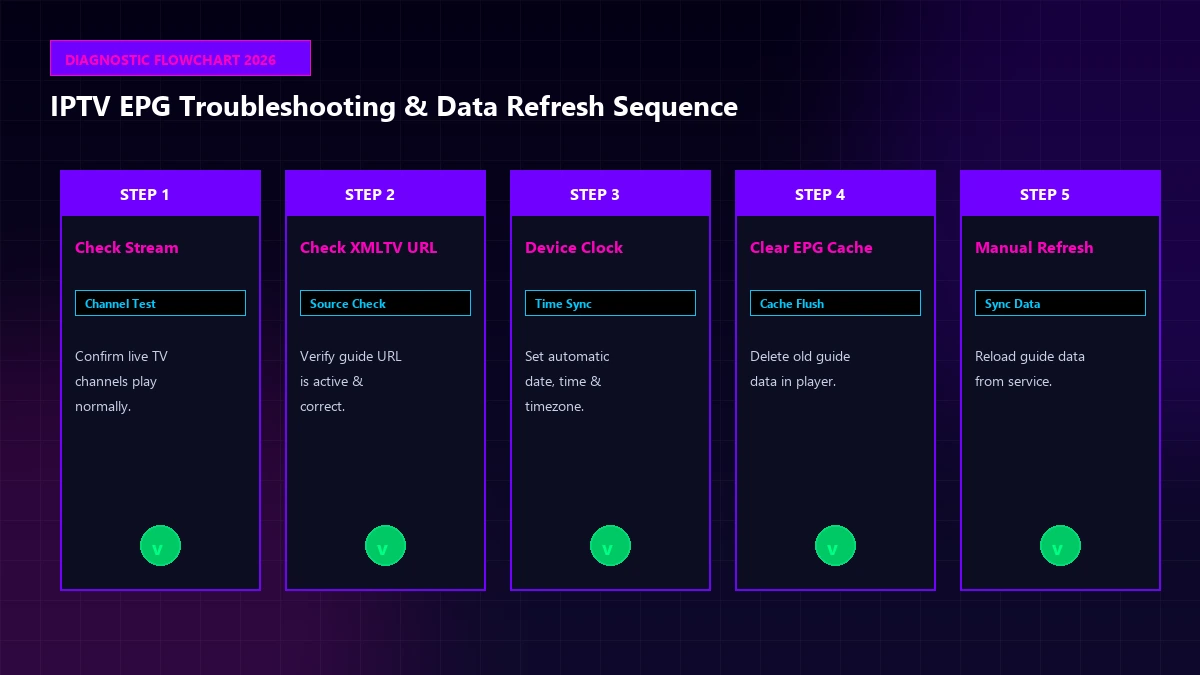 IPTV EPG Troubleshooting and Refresh Sequence Visual
- Verify Live Stream Functionality: Select a channel to confirm that your internet connection and playlist links are working normally.
- Check EPG Source URL: Go to Settings > EPG Sources and verify that the XMLTV URL is entered correctly without spelling errors.
- Trigger a Manual EPG Refresh: Select "Update EPG" or "Clear EPG & Reload" in your player settings to force a fresh download.
- Verify Device Date & Time: Open system settings and ensure Date, Time, and Time Zone are set to "Automatic."
- Restart the IPTV Player: Force-close the application and re-open it to reload the newly downloaded guide database.
- Clear Application Cache: Go to device Settings > Apps > [Your IPTV Player] > Clear Cache.
- Check Channel Assignment: In advanced apps like TiviMate, check if unmapped channels can be assigned manually to an existing EPG channel ID.
- Test an Alternative IPTV Player: Install a secondary media player to determine if the guide issue is isolated to a single application.
- Re-add Playlist: Delete the playlist from your app and re-add it using your login credentials or M3U link.
- Contact Customer Support: If the guide remains unpopulated across multiple players, contact your provider to verify EPG server maintenance.
If your EPG stopped working immediately after an application update, read our specialized guide on IPTV app update troubleshooting.
Why Is My IPTV EPG Showing the Wrong Time?
If your program guide displays shows that are airing one or two hours ahead of or behind your local time, you are experiencing an EPG timezone offset issue.
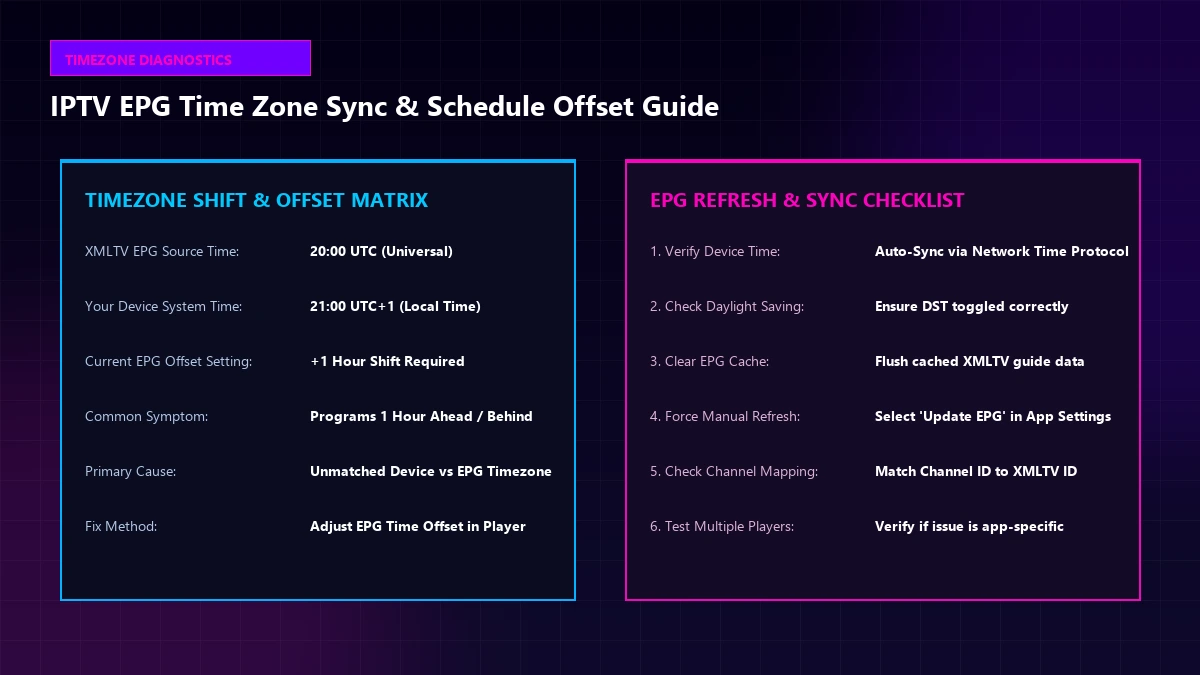 IPTV EPG Time Zone Adjustment and Program Schedule Sync Visual
Common causes of incorrect EPG timestamps include:
- Unmatched Device Timezone: Your Smart TV or streaming box is set to a different timezone than your physical location.
- Daylight Saving Time (DST) Differences: Your region recently transitioned into or out of DST, but your device or player clock failed to update automatically.
- XMLTV Source UTC Offset: The guide data file is timestamped in Universal Coordinated Time (UTC+0), but your media player is interpreting it as local time.
- App-Level Time Shift Configuration: An accidental time shift setting (+1 hour, -2 hours) was saved inside your IPTV app settings.
Diagnostic Rules for EPG Time Errors:
- If EVERY channel is off by the EXACT SAME duration: The issue is a global timezone or DST offset in your player settings.
- If ONLY CERTAIN international channels have wrong times: The issue stems from the source channel's regional origin in the XMLTV file.
- If times change when switching from TV to mobile phone: Compare system time and location permissions on both devices.
How to Change the IPTV EPG Time Zone
Correcting time offset errors takes less than two minutes in most IPTV player applications:
- Open your IPTV application's Settings menu.
- Navigate to EPG, Guide, or TV Guide settings.
- Locate the setting labeled Time Shift, EPG Time Offset, or Timezone Correction.
- Adjust the offset value (e.g., set to '+1.0' if programs appear 1 hour early, or '-1.0' if programs appear 1 hour late).
- Save the setting and navigate back to the main menu.
- Select Refresh EPG to re-index program timestamps across your schedule grid.
For comprehensive configuration steps across different television operating systems, consult our Smart TV setup guide.
How Often Should IPTV EPG Data Update?
IPTV program guide schedules are dynamic documents that require periodic updating to reflect late broadcast changes, postponed sporting events, or updated news coverage.
Guide update frequencies typically follow these patterns:
- Automatic Daily Sync: Most IPTV players automatically download updated XMLTV guide files every 24 hours upon application launch.
- Scheduled Interval Sync: Advanced media players allow users to set guide refresh intervals (e.g., every 4 hours, 12 hours, or 24 hours).
- Manual Sync on Demand: Users can manually trigger a guide update at any time within player settings.
Tip: If a live sports event is rescheduled or postponed due to weather, perform a manual EPG refresh 15 minutes before match time to get the latest updated fixture schedule.
If you also experience playlist errors during updates, check our guide on IPTV M3U playlist troubleshooting.
Why Do Some IPTV Channels Have No EPG?
It is common to find an IPTV playlist where 90% of channels have full program descriptions, but 10% show "No Information."
Reasons for unmapped channels include:
- Provider Data Gaps: The provider has not linked an XMLTV guide source for that specific channel.
- Newly Added Channels: Recently added stations may take several days to receive channel ID mapping in the central database.
- Temporary Event Feeds: Pop-up sports channels created for single tournament days rarely feature full EPG listings.
- Regional Variant Differences: Standard guide sources may cover primary national network feeds but lack regional affiliate schedules.
Remember that an unmapped EPG display does not impact video stream quality or reliability.
IPTV EPG for Sports: What Should You Look For?
If live sports are your main reason for subscribing to IPTV, evaluate guide features using this quality checklist:
- Accurate Kickoff Times: Exact broadcast start times matching local timezones.
- Detailed Event Titles: Clear listings featuring specific team names (e.g., "Arsenal vs Chelsea") rather than generic "Live Football."
- League & Competition Names: Clear indicators specifying whether the match is a domestic league game or international tournament.
- Multi-Channel Options: Guide listings indicating backup HD or 4K channel feeds for high-demand matches.
- Extended Schedule Range: At least 3 to 7 days of forward program schedule data for weekend planning.
For full channel listings and supported sports coverage options, explore our overview of ArgonTV plans and channels list.
EPG vs Channel List: What's the Difference?
For new users, understanding the distinction between a simple Channel List and a full Electronic Program Guide is crucial:
| Feature / Capability | Simple Channel List | Electronic Program Guide (EPG) |
|---|---|---|
| Displays Channel Name & Logo | Yes | Yes |
| Displays Current Airing Show | No | Yes |
| Displays Upcoming Show Timetable | No | Yes |
| Displays Program Description | No | Yes |
| Searchable by Show or Team Name | Limited | Yes |
| Shows Program Start & End Times | No | Yes |
| Requires Separate Guide File (XMLTV) | No | Yes |
A channel list allows you to change stations, while an EPG lets you plan your viewing around live TV schedules.
How to Organize Your IPTV EPG for Faster Navigation
With extensive channel packages, scrolling through a massive guide grid can be time-consuming. Optimize your EPG navigation using these practical techniques:
- Create a Favorites Group: Add your most-watched sports and entertainment channels to a dedicated Favorites category.
- Hide Unused Category Groups: Disable non-relevant foreign language or shopping groups in your player settings to shrink your guide grid.
- Sort Channels Numerically or Alphabetically: Keep channel listings consistent across all household streaming devices.
- Enable Search Indexing: Ensure your IPTV player indexes EPG text so you can quickly search for team names or movie titles.
- Set Automatic EPG Refresh at Boot: Configure your media app to check for guide updates every time your streaming device powers on.
For device-specific setup tips, review our detailed guide for Android TV setup.
Does Every IPTV Service Include EPG?
Not all IPTV services handle EPG data in the same way.
- Full Service EPG: Premium IPTV services bundle complete, fully-mapped EPG sources directly into their subscription login credentials (via XC API or M3U URL).
- Basic EPG: Some services supply guide data for major national stations while omitting niche or foreign channels.
- No EPG: Budget or raw stream playlists may supply channel URLs only, requiring users to add a custom third-party XMLTV URL manually if their player supports it.
When evaluating subscription options, look for services that provide integrated, multi-day EPG support to ensure a seamless television experience.
IPTV EPG on Smart TV, Android TV and Fire TV
The quality of your program guide experience depends heavily on the IPTV player application you choose for your hardware platform:
- Samsung Smart TV (Tizen OS): Applications like IBO Player, SmartOne, or Nanomid offer clean, responsive grid guides with customizable channel logos.
- LG Smart TV (webOS): Apps such as IPTV Smarters or Smart IPTV render structured EPG layouts with category filtering.
- Android TV / Google TV (Nvidia Shield, Chromecast): Applications like TiviMate or Sparkle TV set the gold standard for EPG experiences, offering multi-screen guides, time shifting, and instant search.
- Amazon Fire TV (Firestick / Fire TV Cube): Android-based players run smoothly on Firestick devices, providing full EPG timeline customization.
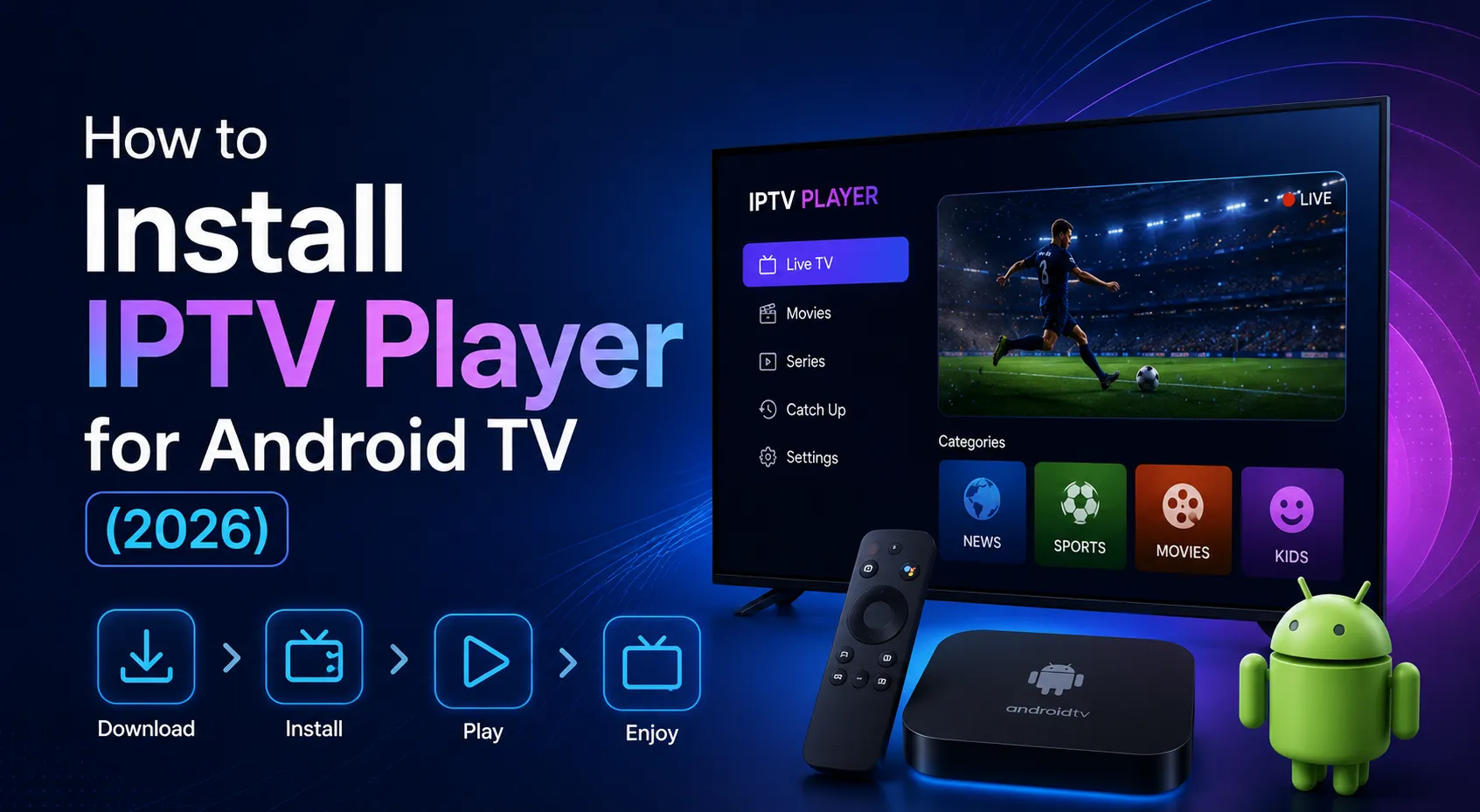
Learn more about hardware choices and software configuration in our comprehensive ArgonTV installation guide.
Common IPTV EPG Problems and Quick Fixes
Use this quick troubleshooting reference table to fix common EPG issues:
| Problem Encountered | Likely Cause | First Thing to Check |
|---|---|---|
| EPG grid is completely blank | Missing or incorrect XMLTV URL | Verify EPG source URL in player settings & force manual refresh |
| Only some channels have EPG | Unmapped channel IDs or incomplete data | Normal for niche feeds; assign manual channel ID if supported |
| EPG times are 1-2 hours off | Timezone offset mismatch | Adjust EPG Time Shift / Offset in player settings (+/- hours) |
| EPG information is outdated | Player guide cache has not refreshed | Select "Clear EPG Cache & Reload" in app settings |
| Video plays but guide says 'No Info' | Separate guide data delivery issue | Channel is functional; update EPG URL or wait for provider mapping |
| Guide disappeared after app update | Application settings reset | Re-enter EPG URL or clear app cache and re-sync |
Is IPTV EPG Legal?
Yes. An Electronic Program Guide (EPG) is simply text-based schedule information containing metadata such as channel titles, show names, and broadcast start times.
EPG data itself is not copyrighted video content. Using an EPG to view television schedules is entirely legal.
The legality of an IPTV setup depends on whether the IPTV service provider holds authorized distribution rights for the underlying live television streams. Always ensure you use reputable services that comply with broadcast regulations.
Set Up Your IPTV Guide
Visit ArgonTV's setup guides to learn how to configure electronic program guides and playlists across Smart TVs, Firestick, and Android TV.
View Installation Guide