IPTV M3U Playlist Not Working: Complete Troubleshooting Guide
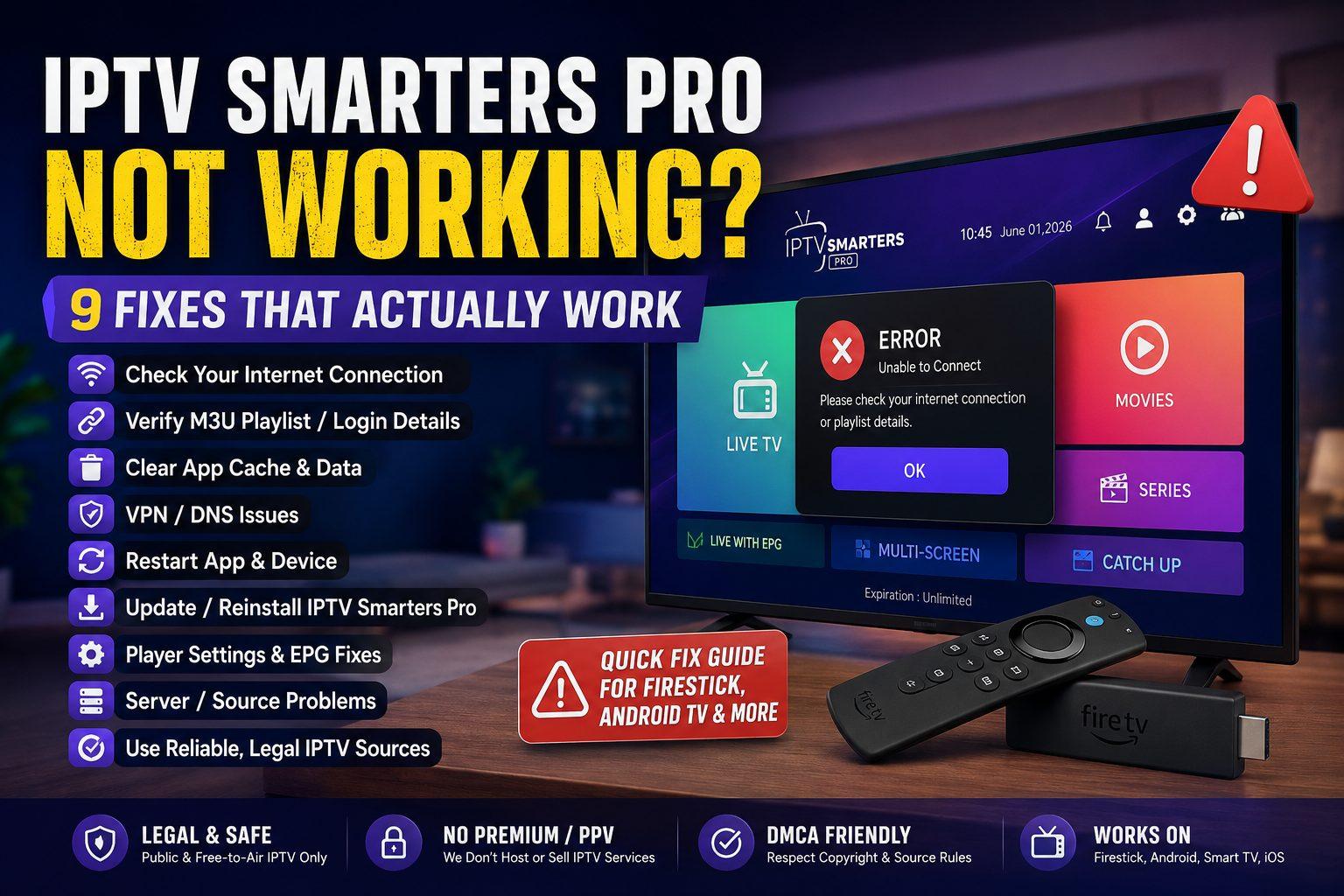
An M3U playlist is one of the most common ways to load IPTV channels into a compatible media player. When the playlist works correctly, the application can retrieve the channel list and organize the available streams.
But sometimes an M3U playlist suddenly stops working.
You may see an empty channel list, an "invalid playlist" message, channels that load but do not play, missing categories, or constant buffering.
The problem can come from several different places, including the M3U URL, the IPTV player, your internet connection, the device, or the streaming service itself.
This guide explains how to troubleshoot an IPTV M3U playlist step by step.
IPTV M3U Playlist Not Working
What Is an M3U Playlist?
M3U is a text-based playlist format used to organize media and streaming references.
In an IPTV setup, an M3U playlist can contain information such as:
- Channel names
- Stream URLs
- Channel groups
- Logos
- Program information references
- Additional playlist metadata
An IPTV player reads the playlist and uses the included stream information to build the channel list.
The M3U playlist itself does not automatically guarantee that every channel will work. Individual streams can become unavailable even when the playlist can still be opened.
What Does "M3U Playlist Not Working" Mean?
The problem can appear in several different ways.
For example:
- The playlist does not load at all.
- The app says the playlist is invalid.
- The playlist loads but shows zero channels.
- Some channels are missing.
- Channels appear but do not play.
- The playlist loads very slowly.
- The EPG is missing.
- Channels constantly buffer.
- The playlist worked previously but suddenly stopped.
Identifying the exact symptom is important because each problem can have a different cause.
1. Check Your M3U URL
The first thing to check is the M3U URL itself.
A single missing character can prevent a playlist from loading.
Carefully verify that:
- The entire URL was copied.
- No characters were removed.
- There are no spaces at the beginning or end.
- The URL was not accidentally split across multiple lines.
- You are using the current URL supplied by your service.
If the URL was copied from an email or account portal, copy it again and paste it carefully into the IPTV player.
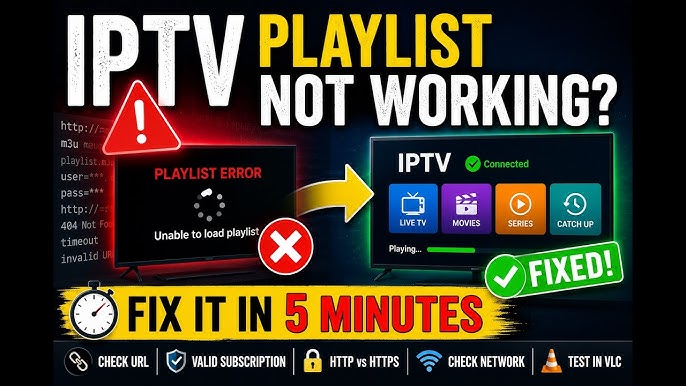 Check the M3U URL
Check the URL in a Browser
If the M3U URL is a remote URL, you can test whether it is reachable by opening it in a browser on a device where appropriate.
If the URL is accessible and returns playlist data, the problem may be inside the IPTV player.
If the URL returns an error or cannot be reached, the issue may be related to the URL, account, network, or server.
Do not publish your private M3U URL publicly because it may contain account-specific information.
2. Make Sure Your Account or Playlist Is Still Active
An M3U URL may stop working if the associated account or subscription is no longer active.
Check the service's official account area if one is available.
Look for:
- Account status
- Expiration date
- Playlist status
- Connection limits
- Updated playlist information
If your account has expired, adding the same old URL repeatedly will not fix the problem.
Contact the relevant service support if you believe the account should still be active.
3. Refresh or Re-Add the M3U Playlist
Sometimes the IPTV player has cached an older version of the playlist.
Try refreshing the playlist from the application's playlist settings.
If there is no refresh option:
- Open the playlist settings.
- Remove the existing playlist.
- Save the changes.
- Add the current M3U URL again.
- Wait for the playlist to download.
- Test several channels.
Be sure you have the correct M3U URL before removing the existing playlist.
 Refresh or Re-Add the M3U Playlist
4. Check Your Internet Connection
A playlist can fail to download if the device has an unstable internet connection.
Test another website or streaming application on the same device.
Also check:
- Wi-Fi signal strength
- Router connection
- Network congestion
- Ethernet connection if available
- Connection stability
If the playlist loads on one network but not another, the network configuration may be involved.
For general network troubleshooting, read our guide on IPTV Not Working Today? 10 Things to Check First.
5. Test the Playlist in Another Compatible Player
Testing the same M3U playlist in another compatible player can help determine whether the problem is with the playlist or the application.
For example:
Works in Player A but not Player B
The problem may be related to:
- Player compatibility
- Parser behavior
- Decoder settings
- Application cache
- Player configuration
Fails in every compatible player
The problem is more likely related to:
- M3U URL
- Account status
- Network
- Server
- Individual streams
Do not immediately assume the playlist is broken simply because one application cannot load it.
 Test the Playlist in Another Compatible Player
6. Check Whether All Channels Are Affected
This is one of the most useful troubleshooting tests.
Try several channels from different groups.
For example:
- News
- Sports
- Entertainment
- Movies
- HD channels
- Lower-resolution channels
Only one or a few channels fail
The problem may be specific to those streams.
All channels fail
The issue may be related to the playlist, account, network, player or server.
This distinction helps you avoid changing settings unnecessarily.
7. Check for an Expired or Changed Playlist URL
Sometimes a playlist URL can change.
If your service provides a new playlist URL, make sure you are using the latest version.
Do not assume that an old URL will remain valid forever.
If your service provides an account portal, check whether it provides updated playlist information.
If you are unsure, contact the service's official support.
8. Clear the IPTV Player Cache
A cached playlist can sometimes cause unexpected behavior.
On Android TV devices, the process may look similar to:
Settings → Apps → Your IPTV Player → Storage & cache → Clear cache
The exact menu names depend on the device and operating system.
Start with Clear Cache rather than Clear Data.
Clear Data can remove:
- Saved playlists
- Login information
- Player preferences
- EPG settings
Only use it if you are prepared to configure the application again. If the issue started immediately after updating your player, you may also want to read IPTV Not Working After an App Update: What to Do.
9. Check the IPTV Player Settings
Some IPTV players provide settings that can affect playlist loading and playback.
Depending on the application, check:
- Playlist refresh settings
- Network settings
- Decoder settings
- Buffer settings
- EPG settings
- Hardware acceleration
- Stream format compatibility
Avoid changing multiple settings at the same time.
Change one setting, test the playlist, and then continue if the problem remains.
10. Check the M3U Playlist Format
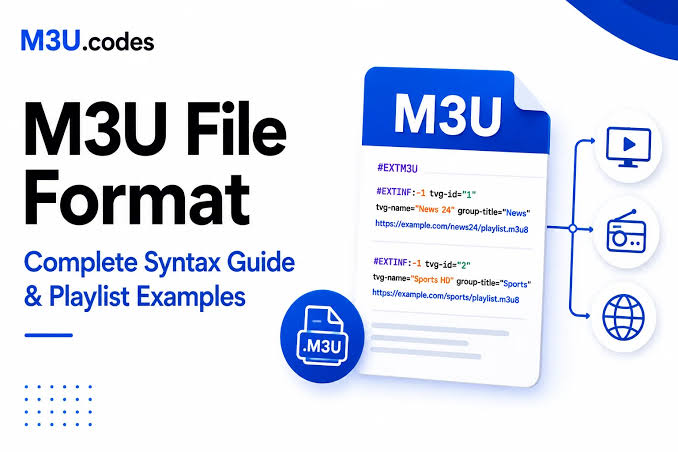
If you are working with an M3U file rather than a remote URL, formatting can be important.
A basic M3U playlist normally begins with:
#EXTM3U
Channel entries commonly contain an information line followed by a stream URL.
For example:
#EXTM3U
#EXTINF:-1,Example Channel
https://example.com/stream
Do not insert private or real account URLs into examples.
If you created or edited the playlist yourself, check for:
- Missing playlist header
- Broken lines
- Invalid URLs
- Unexpected characters
- Incorrect formatting
- Encoding problems
A malformed playlist may not be parsed correctly by some players.
11. Large Playlists Can Take Longer to Load
Some M3U playlists contain a very large number of channels.
Older streaming devices may take longer to process large playlists.
If the playlist contains thousands of entries, the initial loading process may take longer than expected.
Possible improvements include:
- Removing unnecessary entries if you control the playlist
- Using channel groups
- Using favorites
- Keeping the playlist organized
- Updating the device if supported
Do not assume that a slow initial import means the playlist is broken.
12. Check the EPG Separately
Sometimes the channels work but the EPG does not.
This means the M3U playlist may actually be functioning correctly.
Check:
- EPG URL
- EPG refresh settings
- Time zone
- Channel-to-EPG mapping
- EPG availability
If live channels play normally but program information is missing, focus on the EPG configuration rather than replacing the entire playlist.
13. Check for Device Compatibility
An M3U playlist can work correctly on one device but have problems on another.
Possible differences include:
- Operating system
- IPTV player version
- Available memory
- Decoder support
- Network hardware
- Application compatibility
If the playlist works on your phone but not on your Smart TV or Android TV device, test another compatible player on the affected device. (For device setup tips, see How to Set Up IPTV on Android TV in 2026.)
This can help determine whether the problem is device-specific.
14. Try a Different Network
If the playlist does not load on your normal Wi-Fi connection, testing another network can provide useful information.
For example, if practical, you can test the device using a different connection.
If the playlist works on another network but fails on your normal connection, investigate:
- Router configuration
- DNS configuration
- Network filtering
- ISP-related connectivity issues
Do not assume that changing networks will fix every problem. It is primarily a diagnostic test.
15. Restart Your Router and Streaming Device
A simple restart can resolve temporary network problems.
Try:
- Close the IPTV player.
- Restart the streaming device.
- Restart your router if necessary.
- Wait for the internet connection to return.
- Open the IPTV player.
- Refresh the playlist.
- Test several channels.
If the problem disappears after restarting the network, it may have been a temporary connectivity issue.
Common M3U Playlist Problems and Solutions
| Problem | Possible Cause | What to Try |
|---|---|---|
| Playlist will not load | Incorrect URL | Copy the full URL again |
| Invalid playlist | Formatting problem | Check the playlist structure |
| Zero channels | Expired or empty playlist | Verify the playlist/account |
| Some channels missing | Provider playlist changes | Refresh the playlist |
| Channels load but do not play | Stream problem | Test several channels |
| Constant buffering | Network or stream issue | Test connection and another channel |
| EPG missing | EPG configuration | Refresh/check EPG settings |
| Works on one device | Device/player compatibility | Test another player |
| Works on another network | Network issue | Check router/network configuration |
| Playlist loads slowly | Large playlist/device limitations | Wait, organize or reduce entries |
When Should You Contact Support?
If you have already:
- Checked the M3U URL
- Confirmed the account is active
- Refreshed the playlist
- Tested your internet connection
- Tested another compatible player
- Tested multiple channels
- Restarted your device
and the playlist still does not work, contact the relevant service support.
Give them useful information such as:
- Device model
- IPTV player name
- Player version
- Exact error message
- Whether all channels are affected
- Whether the playlist works on another device
Never share your private username, password or complete M3U URL publicly.
Frequently Asked Questions
Conclusion
When an IPTV M3U playlist stops working, do not immediately assume that the entire service is down.
Start with the basics: verify the complete M3U URL, check the account status, refresh the playlist and test your internet connection.
Then test the playlist in another compatible player and compare several channels. This helps determine whether the problem comes from the playlist, player, device, network or individual streams.
If the playlist works elsewhere, focus on the affected application or device. If it fails everywhere, check the playlist and account information or contact the relevant service support.
Systematic troubleshooting is much more effective than changing several settings at once.