IPTV Quality Drops During Streaming: How to Fix It
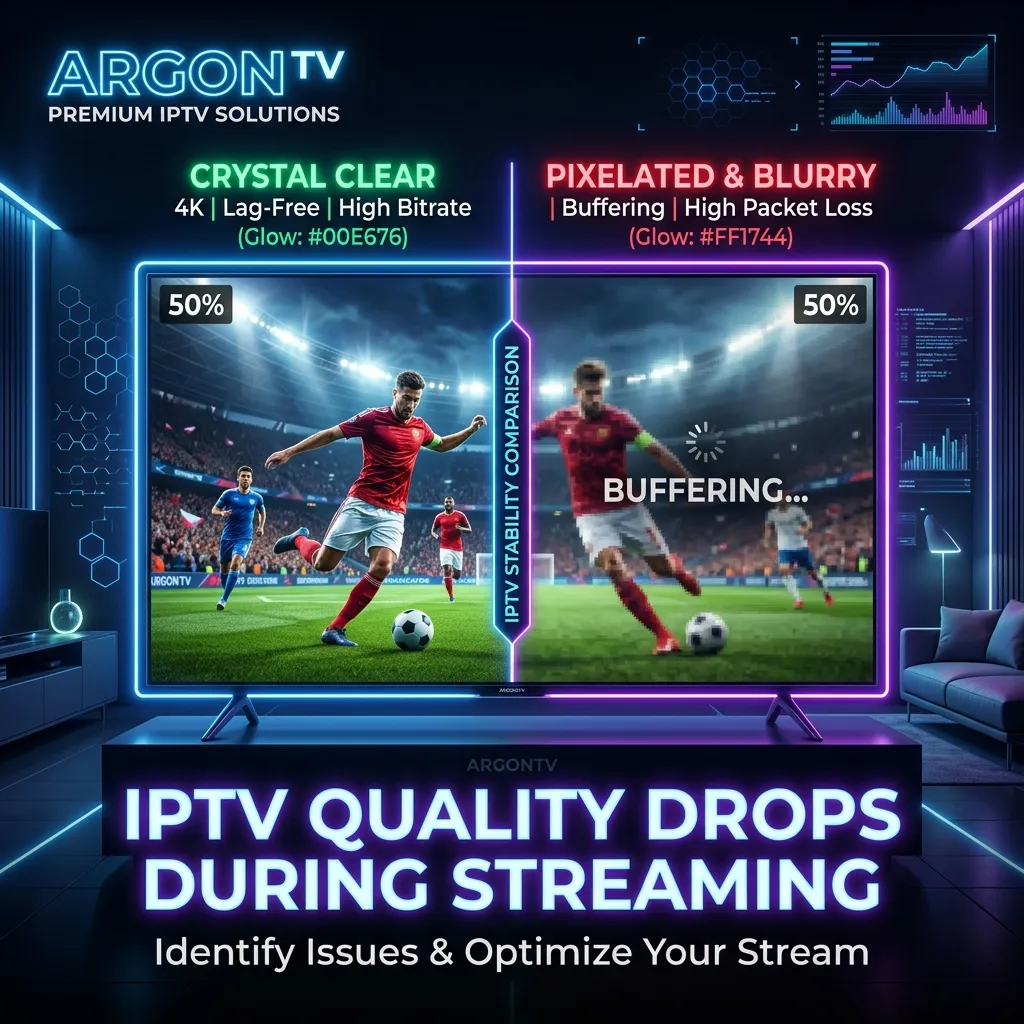
When you're watching your favorite live event or movie on ArgonTV, there is nothing more frustrating than sudden IPTV quality drops during streaming.
One moment you are enjoying a crystal-clear 4K broadcast, and the next, the video becomes blurry, heavily pixelated, or drops to a low resolution.
This guide explains why IPTV video quality suddenly drops, how resolution scaling works, and how to fix each possible cause to ensure you always get the best ArgonTV streaming experience.
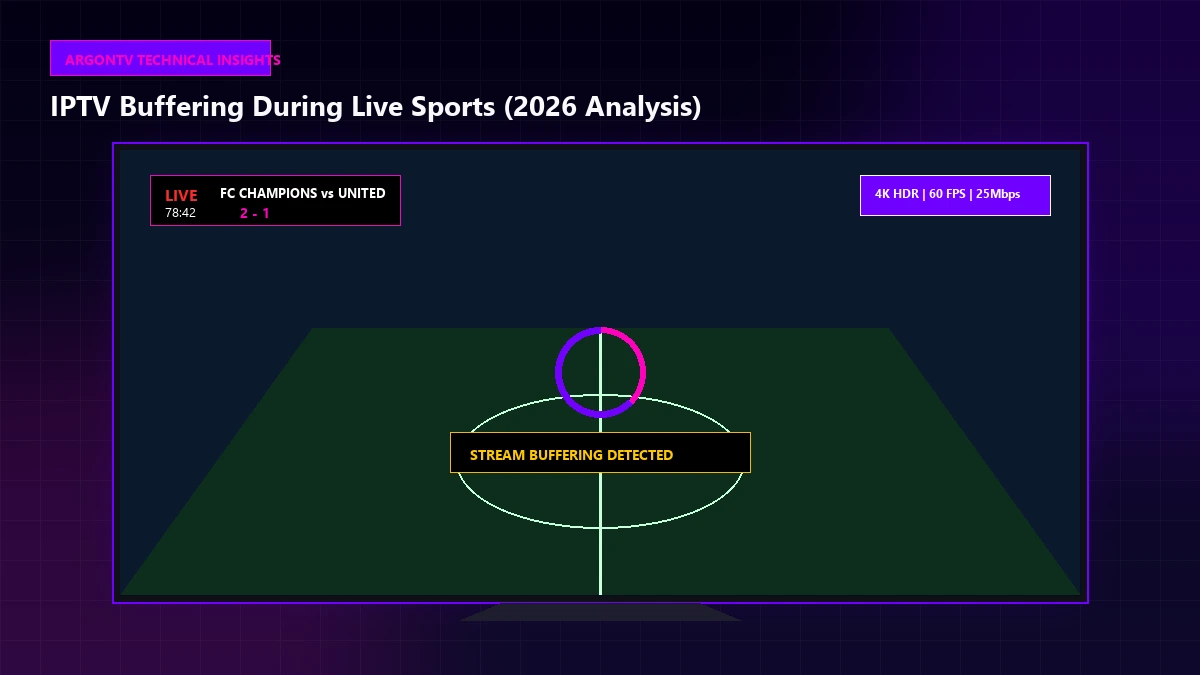
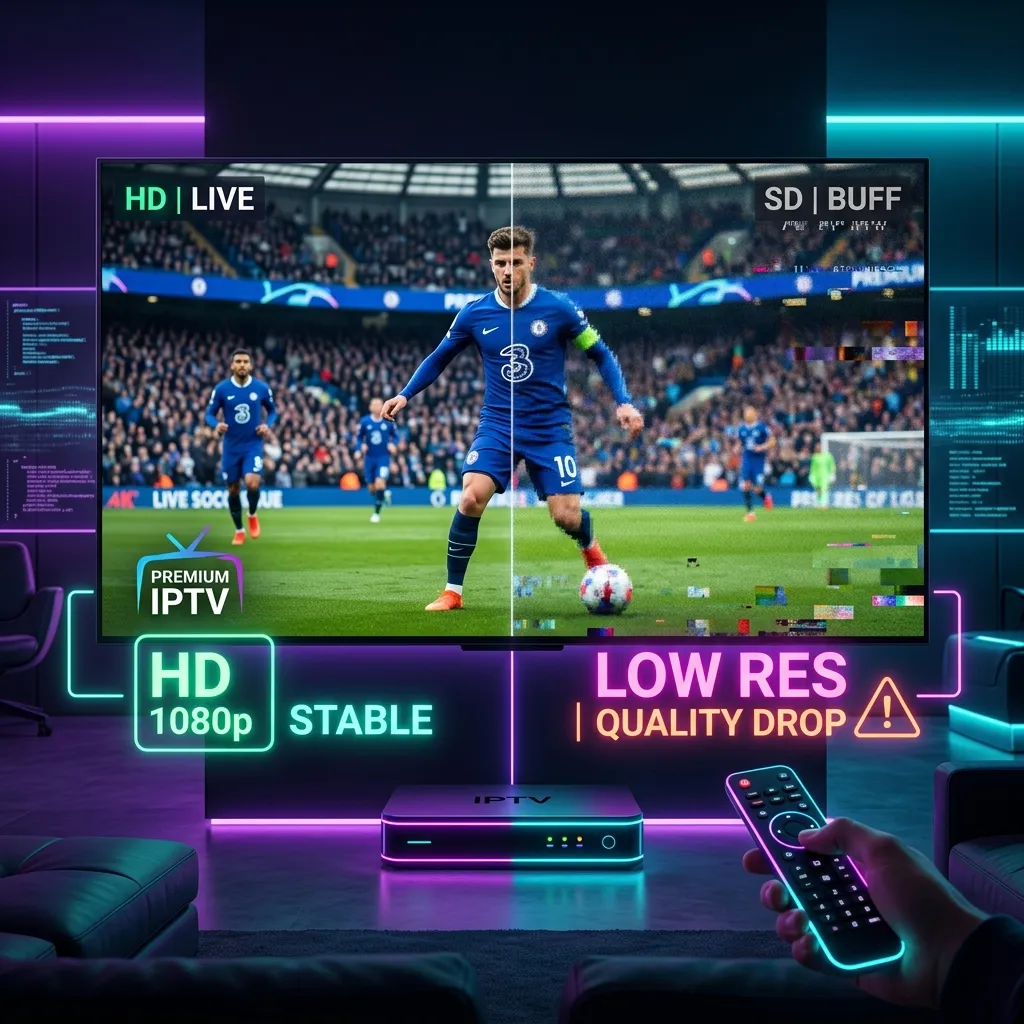 IPTV streaming quality dropping from high resolution to blurry/low resolution
What Does It Mean When IPTV Quality Drops?
Modern IPTV players often use adaptive bitrate streaming (ABS). This technology automatically adjusts the video quality based on your current network conditions.
If your connection slows down, the player will lower the resolution (e.g., from 4K or 1080p to 720p or 480p) to keep the stream playing without buffering. When this happens, you experience what we call IPTV quality drops during streaming. You might notice the picture becoming blurry, blocky, or losing its sharp details.
While this prevents the stream from completely freezing (which you can read more about in our guide on IPTV keeps buffering), the sudden quality degradation can still ruin the viewing experience.
Experience Ultimate 4K IPTV Streaming
Upgrade your entertainment with ArgonTV. Enjoy top-tier live sports, movies, and VOD in crystal-clear 4K. Experience zero buffering, anti-freeze technology, and instant delivery directly to all your favorite devices.
View Pricing PlansWhy Does IPTV Quality Drop During Streaming?
Several factors can cause your IPTV streaming quality to fluctuate. Understanding the root cause is the first step toward a permanent fix.
1. Slow or Unstable Internet Connection
The most common reason for IPTV resolution drops is an unstable internet connection. Even if your internet speed test shows a high download speed, fluctuations in bandwidth can trigger the player to lower the video quality. A stable, consistent connection is more important for ArgonTV service than a high maximum speed that drops frequently.
2. Weak Wi-Fi Signal
If your streaming device is far from your router, the Wi-Fi signal can fluctuate. Physical obstacles like thick walls, large metal objects, or even distance can cause packet loss and interference. A weak Wi-Fi signal will almost always result in an unstable connection, leading to an immediate drop in IPTV picture quality.
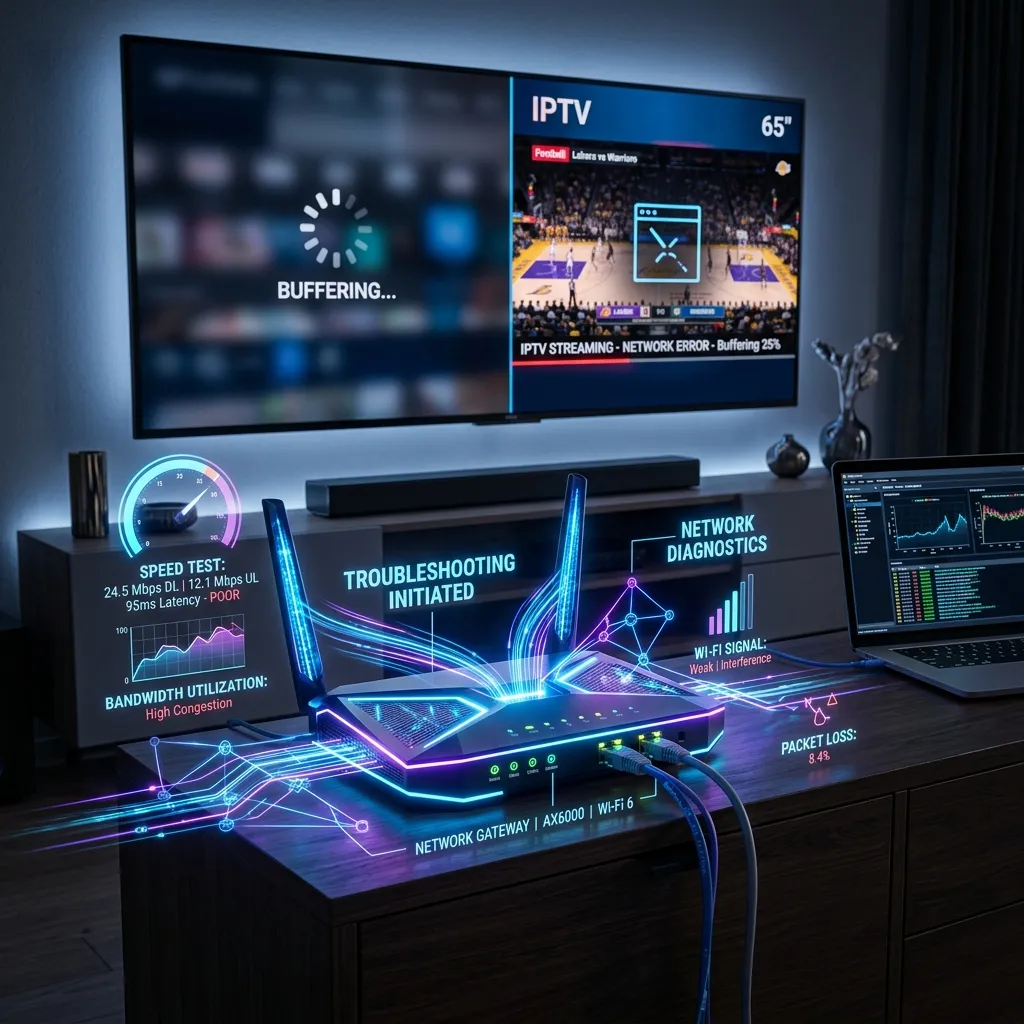 Internet and Wi-Fi network troubleshooting affecting IPTV streaming
3. Too Many Devices Using the Network
Bandwidth competition is a major factor. If someone else in your home is downloading large files, playing online games, or streaming 4K video on another device, they are consuming the same bandwidth your IPTV player needs. This network congestion forces the stream to reduce its quality to compensate for the lower available bandwidth.
4. Router or Network Problems
Sometimes your router may be overworked, running out of memory, or simply experiencing temporary hardware glitches. A router that hasn't been restarted in months can start dropping packets, directly affecting your IPTV streaming quality.
5. IPTV Server or Provider Issues
While the ArgonTV platform is built on highly robust server infrastructure, occasional network routing issues between your internet service provider (ISP) and the streaming server can occur. If the server cannot deliver the data fast enough due to external routing congestion, the player will lower the video quality.
6. Device Performance Limitations
Older Smart TVs, early-generation Firesticks, or budget Android TV boxes may struggle to process high-bitrate streams continuously. If the device's processor overheats or runs out of memory, it may force the IPTV player to request a lower resolution. You can learn more about supported hardware on our IPTV devices page.
7. VPN Performance Issues
Using a Virtual Private Network (VPN) can sometimes cause network latency. While a VPN is great for privacy and bypassing ISP throttling, a slow VPN server or poor routing can reduce your effective streaming speed, causing the IPTV quality to drop abruptly.
8. 4K Streaming Requirements
Streaming in 4K UHD requires significantly more bandwidth than Full HD. A 4K stream needs a consistent 25-50 Mbps connection. If your network speed drops to 15 Mbps for even a few seconds, the stream will either buffer or automatically downgrade to 1080p or 720p.
How to Fix IPTV Quality Drops
If you are experiencing IPTV quality drops during streaming, follow this practical step-by-step troubleshooting process.
Step 1: Test Your Internet Connection
Run a speed test directly on your streaming device. Do not use your phone to test the speed if you are watching on a Smart TV. Verify that you have a stable connection. If the speed fluctuates wildly, the problem is likely your home network or ISP.
Step 2: Restart Your Router
Unplug your Wi-Fi router from the power outlet, wait 30 seconds, and plug it back in. This clears the router's temporary memory and establishes a fresh connection with your ISP, which can often instantly fix IPTV streaming problems.
Step 3: Switch from Wi-Fi to Ethernet
Whenever possible, connect your streaming device directly to the router using an Ethernet cable. A wired connection eliminates Wi-Fi interference, packet loss, and signal drops, providing the stable bandwidth necessary for high-quality IPTV video.
Step 4: Disconnect Other Devices
Temporarily disconnect other bandwidth-heavy devices from your network. If your IPTV picture quality improves, network congestion was the cause.
Step 5: Check Device Storage and Cache
If you are using an Android TV or Firestick, clear the cache of your IPTV application. A full cache can cause the app to slow down and drop frames or quality. See our app update troubleshooting guide for more details.
Step 6: Test a Different Channel
Change the channel to see if the problem persists. If only one channel is blurry while others are crystal clear in HD or 4K, the issue is specific to that stream and not your network.
 A modern TV displaying perfectly stable, high-quality 4K IPTV playback
Experience Ultimate 4K IPTV Streaming
Upgrade your entertainment with ArgonTV. Enjoy top-tier live sports, movies, and VOD in crystal-clear 4K. Experience zero buffering, anti-freeze technology, and instant delivery directly to all your favorite devices.
View Pricing PlansHow to Improve IPTV Streaming Quality
To prevent IPTV quality drops from happening in the first place, follow these preventive recommendations:
- Use a 5GHz Wi-Fi Network: If Ethernet is not an option, connect your device to the 5GHz Wi-Fi band instead of 2.4GHz for faster, less congested wireless speeds.
- Update Your IPTV Player: Always ensure you are using the latest version of your IPTV application.
- Invest in a Better Device: If you are using a five-year-old Smart TV, consider upgrading to a dedicated modern streaming box like an Nvidia Shield or the latest Apple TV. See our how to set up IPTV on Android TV for device suggestions.
- Choose a Premium Provider: Low-quality providers often overcrowd their servers. Choosing a premium service with high server capacity, like ArgonTV IPTV, significantly reduces provider-side buffering and quality drops.
What Internet Speed Is Recommended for IPTV?
To maintain a consistent resolution without buffering, we recommend the following stable internet speeds:
- Standard Definition (SD): 5 Mbps minimum
- High Definition (HD): 10 Mbps minimum
- Full HD (1080p): 15-20 Mbps minimum
- 4K Ultra HD: 25-50 Mbps+ minimum
Remember, these numbers represent stable speeds. An unstable 100 Mbps connection will experience more IPTV resolution drops than a perfectly stable 30 Mbps connection.
When Should You Contact Your IPTV Provider?
You should contact your IPTV provider if you have already verified that your internet connection is stable, you are connected via Ethernet, and the quality drops affect every channel simultaneously across different devices.
If the same blurry picture occurs on both your Smart TV and your smartphone while connected to different networks (e.g., home Wi-Fi vs. 5G cellular), the issue is likely provider-side or server congestion.
Frequently Asked Questions
Conclusion
Experiencing IPTV quality drops during streaming is almost always a symptom of network instability, Wi-Fi interference, or bandwidth congestion. By testing your speed, switching to an Ethernet connection, and restarting your networking equipment, you can quickly restore your video to its original high resolution.
For the most stable and premium viewing experience, ensuring you have capable hardware and a top-tier provider is essential. Explore the ArgonTV features to see how our robust infrastructure delivers reliable, high-quality streaming every time.