What Internet Speed Do You Need for IPTV in 2026? Complete Guide
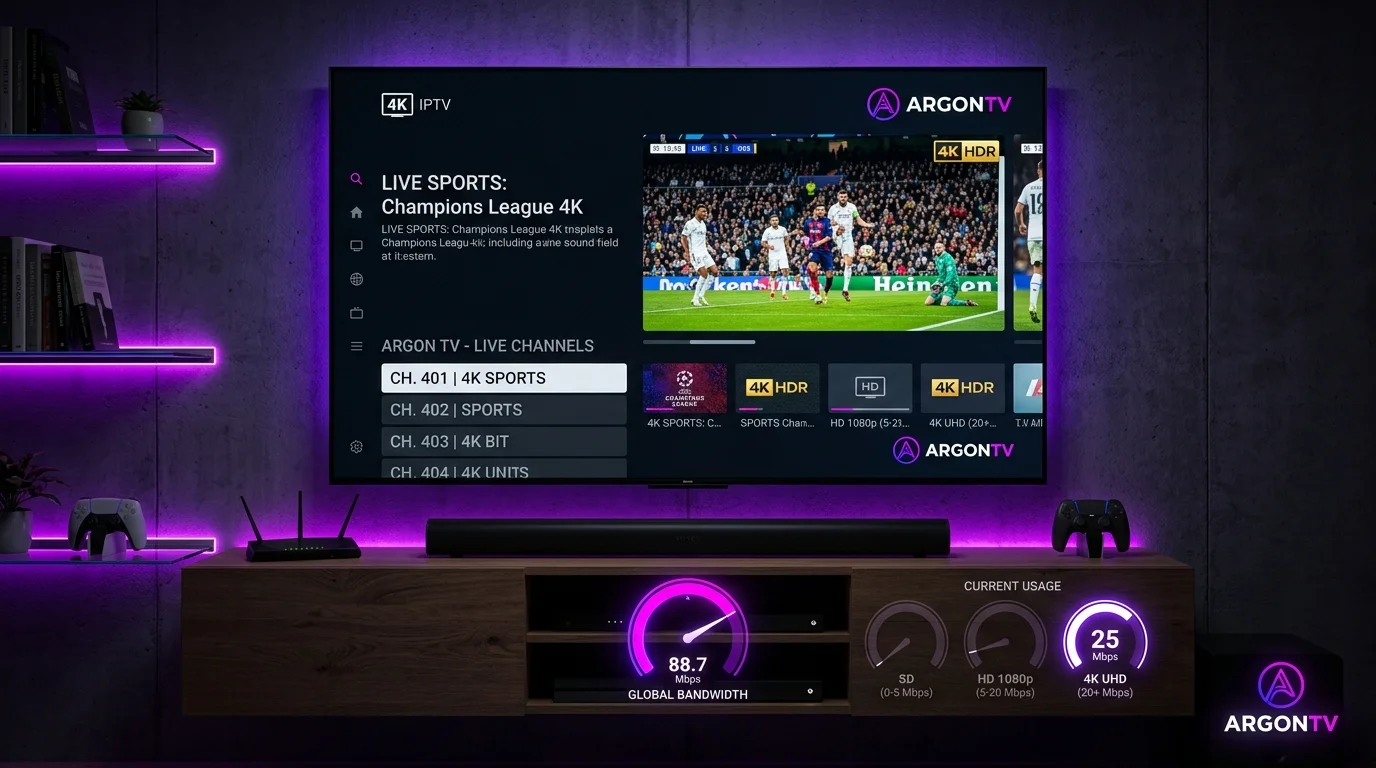
Launching your favorite live television channel or sports broadcast only to encounter endless buffering, choppy playback, or sudden resolution drops is one of the most frustrating experiences in modern digital streaming. When live streams stutter, the immediate assumption is almost always that your internet speed is too slow. But is that actually the true cause?
To stream live television smoothly without freezing in 2026, you typically need 3 to 5 Mbps for Standard Definition (SD), 5 to 10 Mbps for High Definition (HD), 10 to 15 Mbps for Full HD (1080p), and at least 25 Mbps for 4K Ultra HD (UHD) IPTV streaming. However, simply subscribing to a high-speed internet package from your Internet Service Provider (ISP) does not automatically guarantee a flawless, buffer-free viewing experience.
Real-world IPTV streaming performance depends on a combination of critical factors: video resolution, stream compression codecs, actual available bandwidth at your streaming device, Wi-Fi signal strength, local network congestion, household data usage, and overall connection stability. Understanding how these elements interact allows you to determine whether your current internet setup is truly ready for high-resolution television streaming.
At ArgonTV, high-bitrate live channels and 4K sports streams are optimized for low latency and consistent throughput across modern home networks. In this complete guide, we will break down the exact internet speeds required for every video resolution, analyze why high-speed connections can still experience buffering, and provide actionable steps to test and optimize your home network for IPTV in 2026.
Internet speed requirements for IPTV in 2026 from HD to 4K
How Much Internet Speed Does IPTV Need?
The minimum internet download speed required for IPTV streaming depends primarily on the resolution of the video stream and the bit rate used by the broadcast server. Unlike pre-recorded streaming platforms like Netflix or YouTube—which can pre-buffer several minutes of video ahead of time—live IPTV streams are delivered in real time. This means your internet connection must maintain a continuous, uninterrupted stream of data packets every single second.
The table below provides a practical overview of recommended internet download speeds for single-device IPTV streaming across different video quality levels in 2026:
| IPTV Quality | Minimum Required Speed | Recommended Speed | Comfortable Headroom |
|---|---|---|---|
| Standard Definition (SD - 480p) | 3 Mbps | 5 Mbps | 10+ Mbps |
| High Definition (HD - 720p) | 5 Mbps | 10 Mbps | 15+ Mbps |
| Full HD (FHD - 1080p @ 60fps) | 10 Mbps | 15 Mbps | 25+ Mbps |
| 4K Ultra HD (UHD - 2160p) | 25 Mbps | 35 Mbps | 50+ Mbps |
These figures represent the dedicated download speed available specifically to your IPTV streaming device, rather than the total bandwidth of your entire household package.
Several underlying variables dictate where your setup falls within these speed ranges:
- Stream Bitrate: A heavily compressed 1080p stream may only require 6 Mbps, whereas an uncompressed high-frame-rate 1080p 60fps live sports broadcast can demand 12 to 15 Mbps.
- Video Compression Codec: Modern H.265 (HEVC) and AV1 codecs deliver superior picture quality at lower bitrates compared to older H.264 encoding.
- Server Delivery Method: How your IPTV provider structures live stream segments affects how efficiently your device receives video chunks. To learn more about underlying streaming mechanics, explore how ArgonTV streaming works.
- Network Overhead: Wi-Fi protocol overhead, packet headers, and background network traffic reduce your effective payload speed by 10% to 20%.
- Simultaneous Household Users: Other household members downloading files, streaming video, or playing online games simultaneously draw from your total internet pool.
What Internet Speed Is Best for HD IPTV?
High Definition (HD) remains the standard resolution for the vast majority of live cable, satellite, and digital television broadcasts globally. HD IPTV streaming generally encompasses two primary video tiers: 720p (Standard HD) and 1080p (Full HD).
For standard 720p HD streaming, an available internet speed of 5 to 10 Mbps is usually sufficient. At this resolution, data throughput requirements are modest, making 720p streams highly resilient even on budget internet plans or mobile hotspot connections.
For 1080p Full HD streaming—especially high-fps broadcasts featuring 60 frames per second for smooth motion—a dedicated speed of 10 to 15 Mbps is recommended. Live sports broadcasts, action movies, and fast-moving broadcasts transmit significantly more frame data per second than standard studio talk shows.
Having extra bandwidth headroom above the absolute minimum requirement is vital for maintaining picture stability. If your connection delivers exactly 10 Mbps and your 1080p stream consumes 9.5 Mbps, any minor dip in your Wi-Fi signal or background smartphone update will cause immediate playback stuttering. Maintaining a buffer of 15 to 25 Mbps ensures that brief bandwidth fluctuations do not interrupt your viewing.
Additionally, consider how other connected devices in your home impact your available speed. If your total household internet plan is 30 Mbps, and two family members are streaming HD video on mobile phones while another streams on a Smart TV, your total available bandwidth is fully saturated. For detailed setup guidance on Smart TVs, consult our Smart TV setup guide.
Test Your Connection with ArgonTV
Experience ultra-fast stream delivery, anti-freeze technology, and zero buffering on all live sports and 4K channels with ArgonTV optimized IPTV infrastructure.
Explore ArgonTV PlansWhat Internet Speed Do You Need for 4K IPTV?
Streaming in 4K Ultra HD (2160p) offers four times the resolution and clarity of standard 1080p Full HD. However, this massive increase in visual detail requires substantially higher data transfer rates and robust network infrastructure.
As a general baseline, a dedicated download speed of 25 Mbps is the absolute minimum requirement for 4K IPTV streaming. At this speed, a modern HEVC (H.265) encoded 4K live stream can play smoothly under ideal, isolated network conditions.
However, treating 25 Mbps as a universal guarantee for 4K streaming is a common mistake. In practical real-world scenarios, a speed of 30 to 50+ Mbps provides a much safer and more reliable foundation for 4K IPTV.
There are several technical reasons why 4K IPTV demands higher bandwidth and greater network headroom:
- Massive Bitrate Requirements: Premium 4K live sports feeds and high-dynamic-range (HDR) movie channels transmit visual data at bitrates ranging from 18 Mbps to upwards of 35 Mbps.
- Codec Variations: While H.265 compression significantly reduces data sizes, older or unoptimized 4K stream feeds encoded in H.264 require raw speeds exceeding 40 Mbps to prevent buffering.
- Burst Traffic Patterns: Live video streams do not download at a perfectly flat rate. They transfer data in rapid bursts. If your connection cannot handle short spikes of 30–40 Mbps, playback will stall.
- Hardware Decoding Overhead: 4K streams place higher demands on device processors. If the streaming box is underpowered, it can bottleneck throughput. Learn more about choosing top-tier streaming hardware in our guide to the best IPTV streaming devices in 2026.
Is 10 Mbps Enough for IPTV?
Yes, 10 Mbps is enough for IPTV if you are streaming a single Standard Definition (SD) or High Definition (720p/1080p) feed on one device, provided your network connection is stable and no other heavy online activity is occurring simultaneously.
Here is a practical breakdown of when a 10 Mbps connection will succeed and when it will fall short:
-
When 10 Mbps is sufficient:
- Streaming one 720p HD live television channel on a Smart TV or Firestick.
- Streaming a standard 1080p channel encoded with efficient H.265 compression.
- A single-person household with no background cloud backups, console updates, or file downloads.
- Connecting via a direct Ethernet cable or sitting right next to a 5 GHz Wi-Fi router.
-
When 10 Mbps is NOT sufficient:
- Attempting to stream live content in 4K Ultra HD resolution.
- Watching high-bitrate 1080p 60fps live sports channels.
- Running multiple IPTV streams on separate televisions in the same house.
- Households where other users are browsing social media, downloading updates, or video calling.
If you are operating on a 10 Mbps internet connection and experience sudden playback failure, review our quick IPTV not working quick checklist to rule out common network issues.
Is 25 Mbps Enough for 4K IPTV?
A connection speed of 25 Mbps can be enough for 4K IPTV, but it should be viewed as a starting baseline rather than a guaranteed threshold for every situation.
Under ideal testing conditions—such as a single 4K device connected via Ethernet cable directly to a high-speed router with no other active internet usage—25 Mbps will handle standard compressed 4K feeds without issue.
However, real-world home environments rarely operate under ideal laboratory conditions. Several common household factors can quickly eat into a 25 Mbps budget:
- Wi-Fi Signal Degradation: Moving two rooms away from your router can drop a 25 Mbps Wi-Fi link down to 12 Mbps at the TV console.
- Background Devices: A single smartphone downloading an application update in the background can temporarily pull 10 to 15 Mbps away from your total connection.
- Provider Stream Spikes: During high-action moments in live sports broadcasts, dynamic bitrates can burst above 25 Mbps, causing immediate frame drops if your line lacks extra capacity.
If 4K streaming is your primary priority, upgrading to an internet tier offering 50 Mbps or higher ensures your stream remains rock-solid regardless of minor household network activity. When choosing a subscription service, read our detailed guide to choosing the best IPTV service.
Why Fast Internet Can Still Have IPTV Buffering
One of the most persistent misconceptions among television viewers is that having a fast internet plan (such as 100 Mbps, 300 Mbps, or Gigabit fiber) completely eliminates streaming buffering. It can be deeply frustrating to pay for a 500 Mbps connection only to watch an IPTV channel freeze every few seconds.
The reason for this phenomenon is simple: advertised internet speed measures maximum total capacity under perfect conditions, not the real-time stability or route quality of data packets reaching your streaming application.
Buffering occurs whenever the video buffer inside your IPTV player runs out of frames before new data arrives. Even if your internet pipeline is huge, any interruption along the delivery chain stops the stream.
Wi-Fi Interference
Wireless signals operate over radio frequencies (2.4 GHz and 5 GHz) that are subject to environmental interference. Household electronics like microwave ovens, cordless phones, Bluetooth speakers, and neighboring Wi-Fi networks can disrupt stream packets, leading to instant buffering despite high bandwidth.
Weak Wi-Fi Signal
If your Smart TV or streaming stick is situated far from the router or behind thick concrete walls, signal attenuation severely drops packet delivery rates. A device reporting "Full Wi-Fi Bars" may still suffer from heavy packet retries.
Network Congestion
During peak evening viewing hours (typically between 7:00 PM and 11:00 PM), local neighborhood internet nodes experience massive traffic spikes. If your ISP suffers from local backhaul congestion, incoming stream data slows down dramatically.
Multiple Connected Devices
Modern households often have 15 to 30 connected devices—including smart phones, tablets, laptops, security cameras, and smart home appliances. Even idle devices routinely exchange background data, creating micro-spikes in network latency.
Router Limitations
Budget routers supplied by internet providers frequently struggle with heavy parallel connections. Older router hardware can suffer from overheating, memory leaks, or bufferbloat under continuous live streaming loads.
ISP Throttling & Routing
Some ISPs implement automated traffic management algorithms that detect continuous media streams and intentionally throttle throughput to conserve bandwidth. In other cases, poor peering routes between your ISP and remote media servers create bottleneck points far outside your home.
Device Performance Limitations
Low-cost streaming dongles or older Smart TVs often lack sufficient RAM or processing power to decode high-bitrate live video smoothly. If the device hardware stalls while processing video frames, the stream freezes regardless of internet speed.
IPTV Player Settings & Buffer Size
The media player app you select plays a vital role. Incorrect buffer size configurations or disabled hardware acceleration settings inside apps like TiviMate or IPTV Smarters can trigger stuttering. If you experience unexpected stream drops, consult our dedicated guide on IPTV quality drops during streaming.
Provider Server Bottlenecks
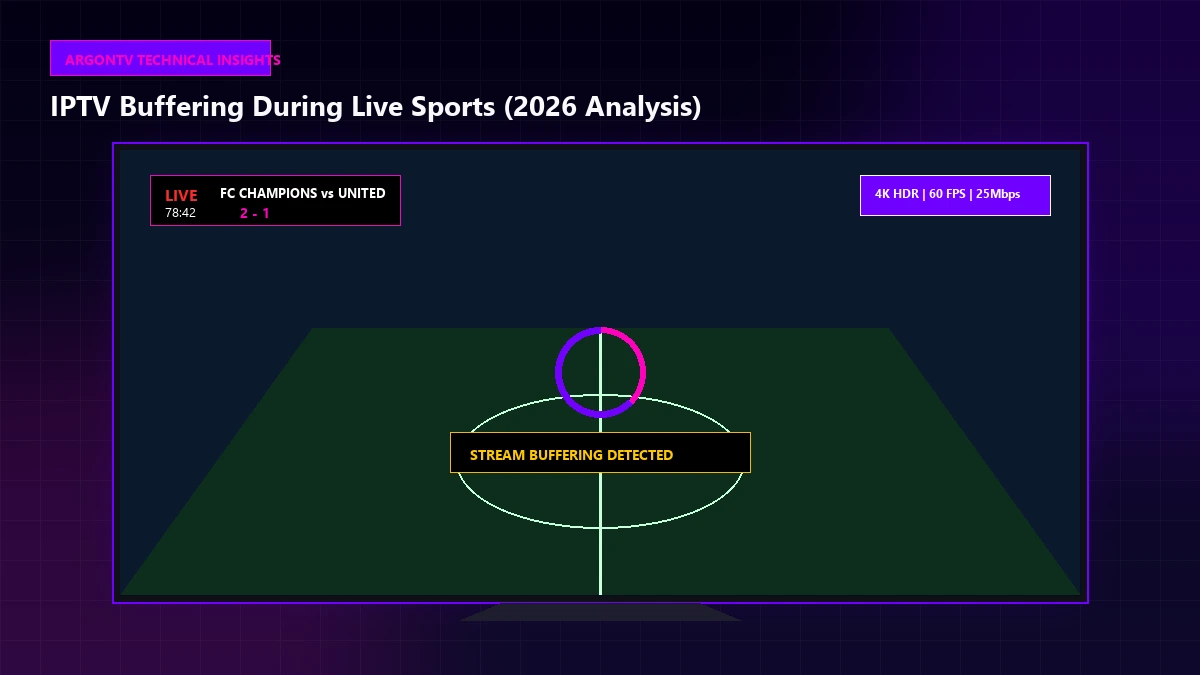
During major global sporting events, millions of viewers tune into the same live feeds simultaneously. If an unoptimized provider's edge servers become overwhelmed, streams will buffer for all users regardless of how fast their personal internet connections are. To understand how live server load impacts viewing during high-stakes matches, read our analysis on IPTV buffering during live sports.
How to Test Your Internet Speed for IPTV
To accurately evaluate whether your internet connection meets the requirements for stable IPTV streaming, you must perform target testing directly at your streaming device rather than relying on a speed test run on your desktop computer or mobile phone.
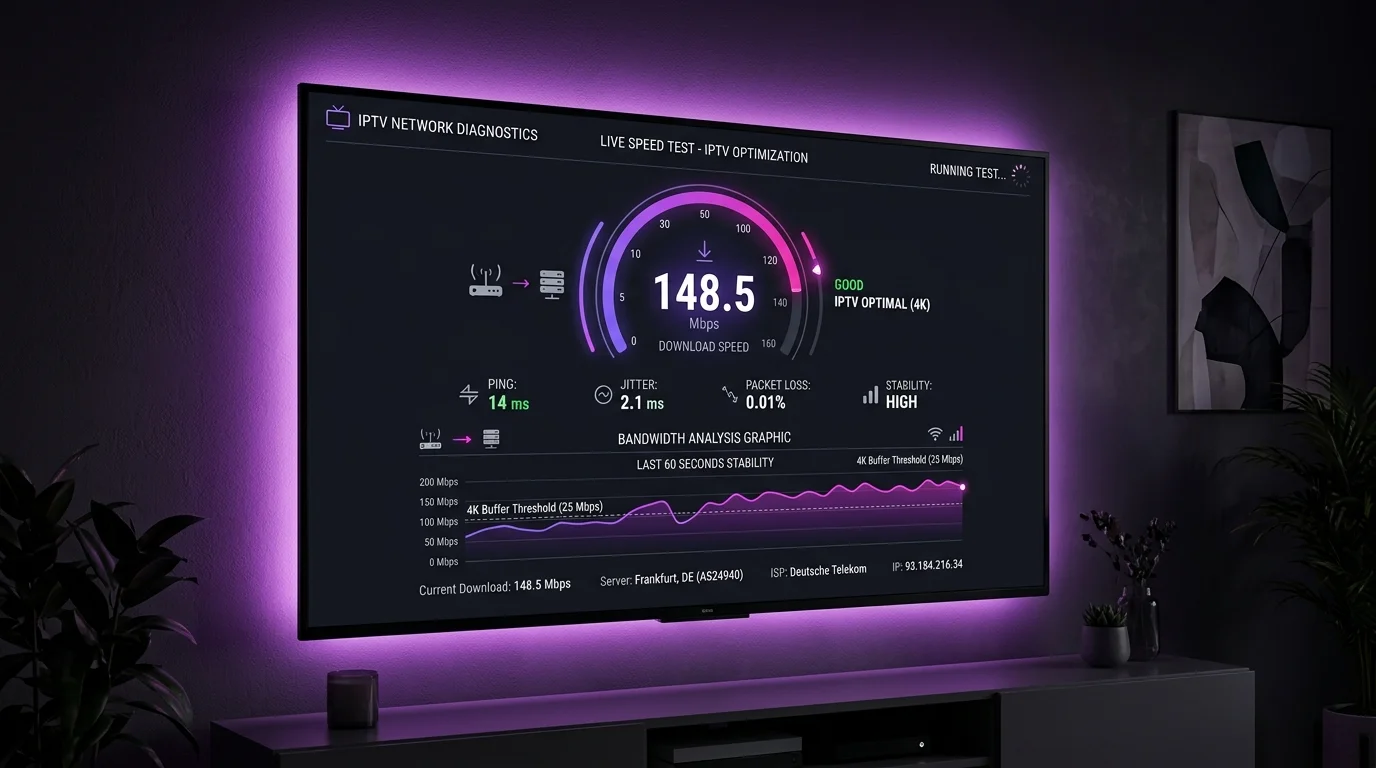 How to test internet speed for IPTV streaming
Follow this step-by-step testing routine to get a realistic assessment of your network capability:
- Run the Test on the Actual Streaming Device: Open a web browser or install a speed test application directly on your Smart TV, Android box, or Firestick. Testing speed on a smartphone held next to the TV does not accurately reflect the TV's internal Wi-Fi antenna performance.
- Test During Peak Hours: Run speed tests at different times of the day—especially during peak evening hours (8:00 PM – 10:00 PM) when local ISP congestion is highest. A connection that delivers 100 Mbps at noon may drop to 15 Mbps on Sunday evening.
- Measure Latency (Ping) and Jitter: Pay close attention to latency (ping) and jitter numbers. For IPTV, a ping under 50 ms and jitter under 5 ms are ideal. High ping indicates delivery delays that cause buffering during live channel switches.
- Compare Wi-Fi vs. Ethernet Speed: If possible, test your speed using a Wi-Fi connection first, then plug in an Ethernet cable and test again. This comparison immediately reveals how much speed you are losing over wireless signals.
- Check Household Bandwidth Usage: Before running your diagnostic test, verify whether other household devices are actively downloading large updates or streaming 4K video.
- Evaluate Speed Consistency: Look for speed fluctuations during the test. A connection that spikes to 50 Mbps but repeatedly drops to 2 Mbps during a 30-second test will cause IPTV buffering.
- Test Stream Buffer Stability: Inside your IPTV player settings, observe the buffer status indicator (if available) to see if video frame caches fill smoothly.
- Consult Support Resources: If speed tests indicate strong performance but playback remains erratic, visit the ArgonTV official FAQ page for advanced player configuration tips.
It is essential to understand the difference between synthetic internet speed tests and real-world streaming performance. Speed test servers connect your device to the closest geographical server node available. In contrast, IPTV video data travels across international backbones and edge delivery networks. Therefore, a local speed test result of 100 Mbps confirms your local line capacity, but does not guarantee identical throughput to remote video servers.
Internet Speed vs Stability: Which Matters More for IPTV?
When optimizing a network for live television, connection stability is significantly more important than raw advertised speed.
A customer with a modest but rock-solid 25 Mbps Ethernet connection will experience far better IPTV streaming than a customer with a 300 Mbps Wi-Fi connection that suffers from frequent packet loss and latency spikes.
To understand why stability dominates raw speed, examine how streaming protocols process data:
- Consistent Throughput: Live IPTV requires a continuous stream of data packets delivered in precise sequence. If throughput drops to zero for even two seconds, the player's buffer empties and playback stops.
- Packet Loss: When data packets are lost in transit over congested Wi-Fi or degraded copper lines, your media player must request packet retransmission. This results in visual artifacting, audio desync, or complete stream freezing.
- Latency (Ping): High latency delays the initial handshake when requesting a live channel stream, leading to slow channel zapping times.
- Jitter: Jitter measures the variability in packet arrival times. High jitter causes unpredictable packet arrivals, forcing the player buffer to constantly recalibrate.
- Wi-Fi Signal Drops: Brief micro-disconnects lasting less than half a second are imperceptible when browsing web pages, but completely disrupt live video feeds.
If your connection suffers from stability issues related to playlist links, read our comprehensive M3U playlist troubleshooting guide.
How Many IPTV Devices Can One Internet Connection Handle?
If your household streams television on multiple devices simultaneously, your total internet bandwidth requirement increases proportionally based on the number and resolution of active streams.
To calculate your total bandwidth requirement, multiply the number of active devices by the recommended speed for each resolution tier, then add a 25% safety margin for background device activity.
Here are four common household streaming scenarios:
Scenario A: Single HD Device
- Devices: 1 Smart TV streaming 1080p Full HD.
- Required Stream Speed: 10–15 Mbps.
- Total Recommended Package: 25 Mbps minimum.
Scenario B: Two HD Devices
- Devices: 1 Living Room TV (1080p) + 1 Bedroom TV (720p).
- Required Stream Speed: 15 Mbps + 8 Mbps = 23 Mbps total stream draw.
- Total Recommended Package: 40 to 50 Mbps minimum.
Scenario C: One 4K Device + One HD Device
- Devices: 1 Main TV streaming 4K sports + 1 Second TV streaming HD news.
- Required Stream Speed: 30 Mbps (4K) + 12 Mbps (HD) = 42 Mbps total stream draw.
- Total Recommended Package: 60 to 75 Mbps minimum.
Scenario D: Multi-Room 4K Household (Three 4K Streams)
- Devices: 3 separate 4K televisions streaming live broadcasts concurrently.
- Required Stream Speed: 3 x 30 Mbps = 90 Mbps total stream draw.
- Total Recommended Package: 150 to 200+ Mbps minimum.
Reviewing your household viewing habits ensures you select an internet service tier capable of supporting all family members simultaneously without bandwidth starvation. Explore available channels and stream options on the ArgonTV live channel lineup.
Wi-Fi vs Ethernet for IPTV
Choosing between a wireless Wi-Fi connection and a wired Ethernet cable is one of the single most influential decisions you can make regarding IPTV stream stability.
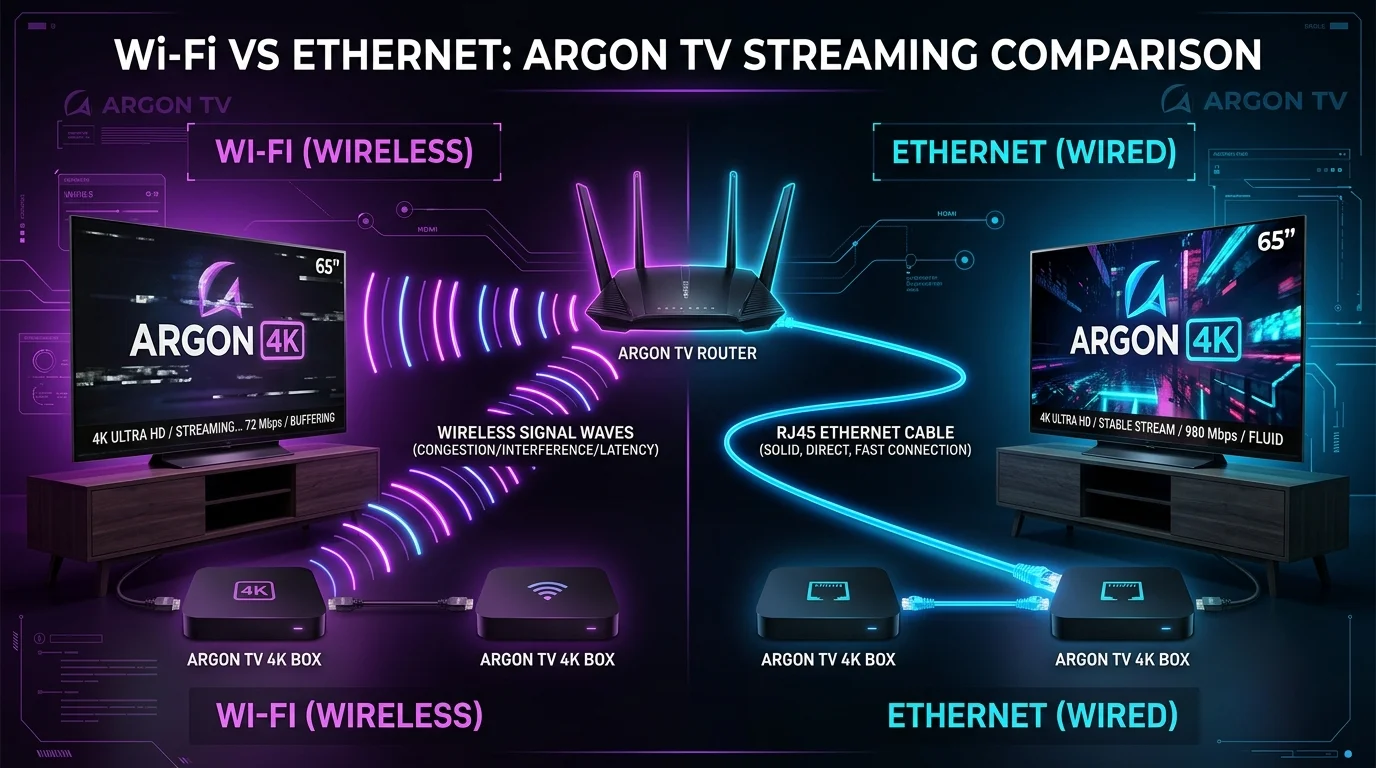 Wi-Fi vs Ethernet for stable IPTV streaming
The comparison table below details the performance differences between Wi-Fi and Ethernet for live television streaming:
| Feature | Wi-Fi (Wireless Connection) | Ethernet (Wired Connection) |
|---|---|---|
| Ease of Installation | Extremely simple; no physical cables required. | Requires routing network cables to streaming devices. |
| Connection Stability | Variable; susceptible to interference and signal drop-offs. | Extremely stable; zero environmental radio interference. |
| Latency & Jitter | Higher ping times with frequent jitter spikes. | Ultra-low ping times with near-zero jitter. |
| Packet Loss | Common over longer distances or through walls. | Extremely rare; physical copper shielding protects data. |
| 4K Streaming Performance | Satisfactory near router; unreliable across rooms. | Highly recommended for smooth 4K Ultra HD playback. |
| Max Throughput Realized | Typically 30% to 70% of advertised ISP package. | Delivers 95%+ of maximum hardware port capacity. |
When Should You Use Ethernet?
- Whenever your streaming device (Smart TV, Android TV box, or Apple TV) features a built-in RJ45 Ethernet port.
- When streaming high-bitrate 4K Ultra HD channels or live sports events.
- If your streaming device is located in the same room as your router.
- When living in dense apartment buildings where dozens of neighboring Wi-Fi networks create heavy frequency congestion.
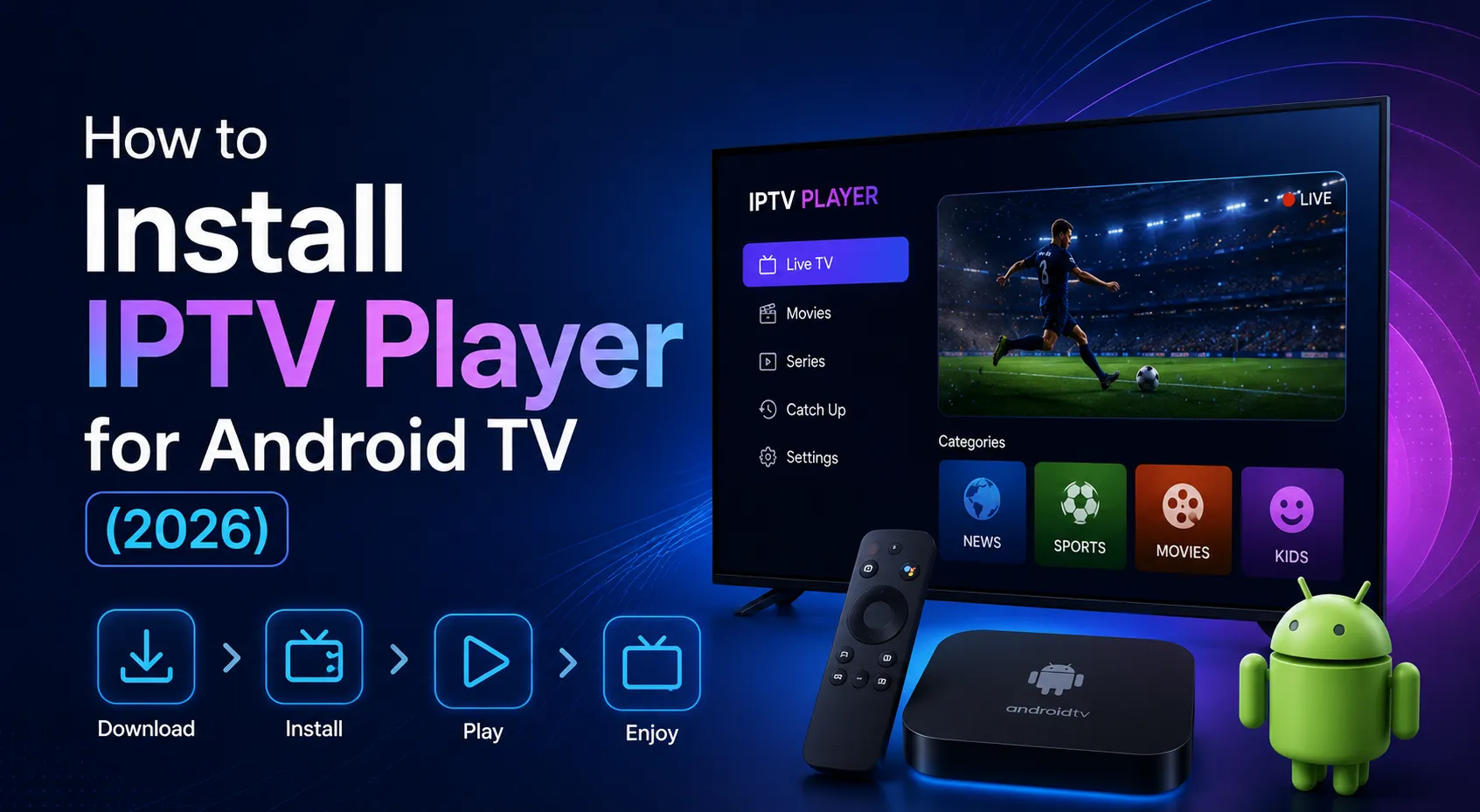
If running a physical Ethernet cable across rooms is impractical, consider using Powerline Adapters (which transmit network data over your home's existing electrical wiring) or a modern Mesh Wi-Fi System. For step-by-step device wiring setups, view our Android TV installation tutorial.
It is important to clarify that connecting an Ethernet cable does not increase your overall ISP plan speed; rather, it allows your streaming device to utilize the full speed and stability of the package you already pay for.
How to Improve IPTV Streaming With Your Existing Internet Connection
Before upgrading to a more expensive internet package, you can optimize your current home network setup using these ten practical, cost-free adjustments:
- Connect via Ethernet Cable: Replace wireless connections with a direct Cat6 Ethernet cable wherever possible.
- Switch to the 5 GHz Wi-Fi Frequency: If using Wi-Fi, connect your streaming device to the 5 GHz band rather than the 2.4 GHz band. 5 GHz offers significantly higher data speeds and less interference, though it has shorter range.
- Optimize Router Placement: Position your wireless router in a central, elevated location free from physical obstructions, concrete walls, or metal cabinets.
- Disconnect Unused Background Devices: Turn off Wi-Fi on idle tablets, old smartphones, or laptops that are not in use to reduce network polling traffic.
- Pause Heavy Background Downloads: Ensure game consoles (like PlayStation or Xbox) or PCs are not downloading massive game patches while you watch live TV.
- Reboot Router and Streaming Device Weekly: Restarting your network hardware clears temporary memory caches, resets routing tables, and clears accumulated buffer errors.
- Adjust IPTV Player Buffer Size: Open your IPTV player settings (such as TiviMate or IBO Player) and increase the buffer duration from "Normal" to "Large" or "5 Seconds." This gives your player more leeway during brief speed drops.
- Enable Hardware Acceleration: Ensure your media player app has Hardware Decoding (HW/HW+) enabled to offload video processing to your device GPU.
- Separate Smart Home Devices: Move smart light bulbs, security cameras, and home automation hubs to a separate guest Wi-Fi network to keep your primary streaming band clean.
- Follow Complete Setup Instructions: Verify that your playback application is properly configured by visiting the ArgonTV setup and installation guide.
What Internet Package Should You Choose for IPTV in 2026?
Selecting the right internet service tier from your ISP depends on your household size, device count, and primary viewing resolution.
Here are practical internet package recommendations for 2026:
Basic IPTV User (Single HD TV)
- Recommended ISP Package: 25 to 50 Mbps
- Ideal for single individuals or couples streaming one HD channel on a Smart TV while using mobile phones for light web browsing.
Standard Household (Multiple HD / Single 4K TV)
- Recommended ISP Package: 100 to 200 Mbps
- Perfect for families with two or three televisions streaming HD content, combined with daily social media usage, video calls, and casual internet browsing.
Advanced 4K IPTV Household (Multiple 4K Devices & Gaming)
- Recommended ISP Package: 300 to 500+ Mbps
- Essential for multi-room households streaming multiple 4K channels simultaneously while family members engage in online gaming, 4K security recording, and heavy cloud synchronization.
Remember that these recommendations represent practical guidelines for real-world peace of mind. Having extra speed ensures your streams remain smooth even when local ISP traffic peaks. To compare subscription options tailored for every setup, review ArgonTV pricing plans.
Common Internet Speed Mistakes IPTV Users Make
Avoid these eight frequent pitfalls when evaluating your internet speed for live television streaming:
- Relying Solely on Advertised ISP Speeds: Assuming that paying for "200 Mbps" guarantees 200 Mbps at your television console.
- Ignoring Wi-Fi Distance & Obstructions: Expecting flawless 4K streaming on a TV located three rooms away from a basic router.
- Testing Connection Speed Only Once: Running a single speed test at 2:00 PM and assuming network conditions remain identical at 9:00 PM.
- Overlooking Background Device Drain: Forgetting that cloud backups, automated software downloads, and active torrent clients consume available bandwidth.
- Assuming Buffering Always Means Slow Internet: Failing to investigate server load, app configuration errors, or hardware overheating before blaming connection speed.
- Using Outdated Wi-Fi Routers: Pairing a fast fiber internet connection with an eight-year-old Wi-Fi 4 router that cannot process modern traffic streams.
- Neglecting Media Player Settings: Leaving IPTV player buffer limits at default low settings that offer no protection against micro-stuttering.
- Overloading a Single Wireless Band: Connecting every device in the house to the crowded 2.4 GHz spectrum instead of distributing devices across 5 GHz or wired connections.
ArgonTV and Your IPTV Streaming Setup
At ArgonTV, we recognize that exceptional live television delivery relies on an optimized end-to-end streaming ecosystem. A fast internet connection requires a stable server infrastructure, high-bitrate stream feeds, and compatible user hardware to deliver a truly cinematic viewing experience.
Our infrastructure utilizes global edge streaming nodes, advanced load balancing, and anti-freeze server technology to ensure live sports, international channels, and VOD titles stream with minimum latency and maximum reliability.
Whether you stream on Smart TVs, Android TV boxes, Firestick, or mobile devices, evaluating your complete setup—from router placement and Ethernet connections to app configuration—guarantees optimal performance. If you have questions about device compatibility or network configuration, reach out to our dedicated ArgonTV customer support team or explore our ArgonTV subscription plans.
Upgrade Your IPTV Experience Today
Get instant setup support across Smart TVs, Android devices, and Firestick. Enjoy stable, high-bitrate HD and 4K channels with guaranteed bandwidth optimization.
Get ArgonTV NowFrequently Asked Questions
Conclusion
Determining the ideal internet speed for IPTV in 2026 requires understanding that video resolution, stream bitrate, and connection stability are intrinsically linked. While 10 to 15 Mbps easily powers standard High Definition streams, stepping up to 4K Ultra HD requires a baseline of 25 Mbps with 30 to 50+ Mbps offering real-world reliability.
Crucially, raw download speed is only one piece of the puzzle. Connection stability, low jitter, minimal packet loss, and robust Wi-Fi or Ethernet delivery play equally vital roles in maintaining fluid, uninterrupted live television broadcasts. By testing speed directly on your playback hardware, upgrading to wired Ethernet connections, and optimizing your media player settings, you can unlock the full potential of your home streaming setup.
Ready to elevate your home entertainment with ultra-high-definition live channels, sports, and movies? Explore ArgonTV pricing plans today and experience buffer-free IPTV streaming built for 2026.